

DromeG60
Participant
June 2, 2020
Answered

Creating curves from points with pen tool

  • June 2, 2020
  • 5 replies
  • 1812 views

Hi there,


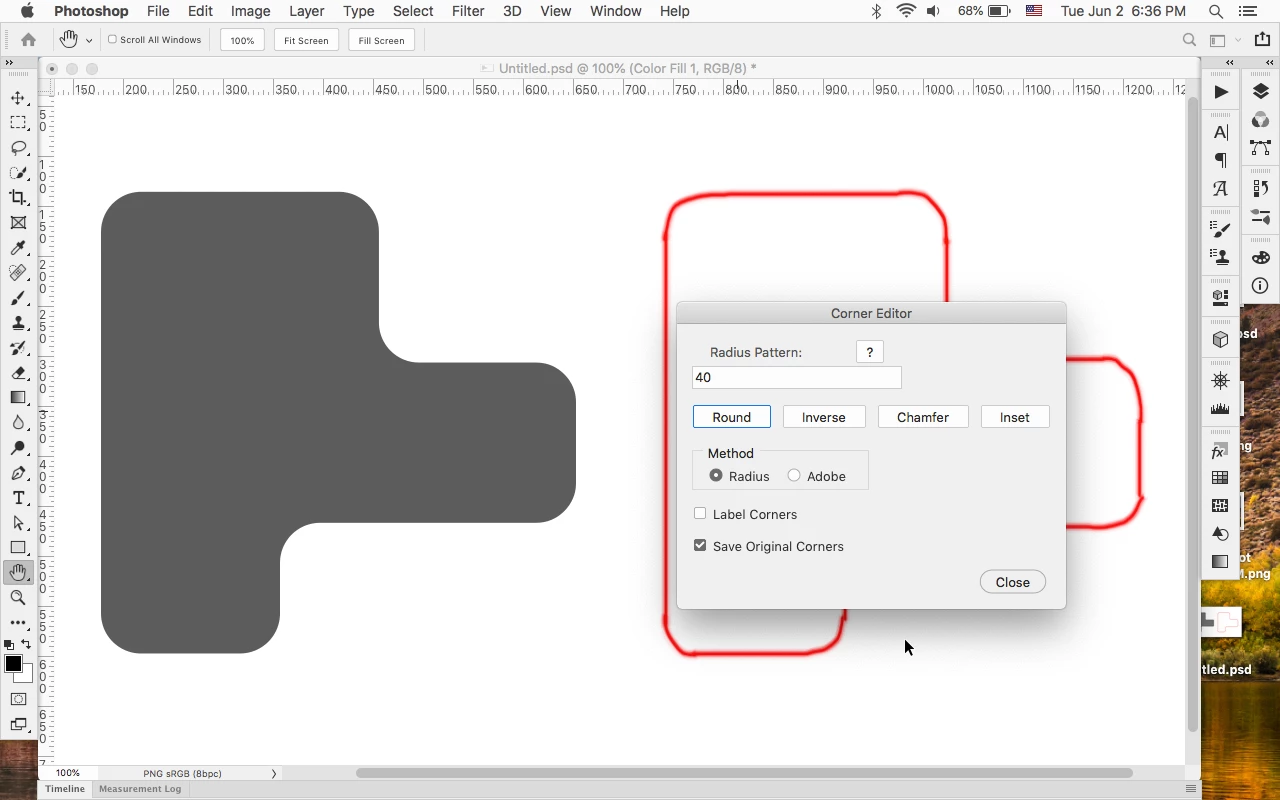
I may have just missed this, but I was just wondering if there was a simple way to create a curve from a right angled point in Photoshop CC? See image below for an example, I am trying to create something like the image on the right, from these points on the left. I'd like them all to be equal sized curves.


Thanks!
This topic has been closed for replies.
Correct answer Jeff Arola

You can try this Corner Editor script


https://photoshopscripts.wordpress.com/2015/07/29/corner-editor-update-for-photoshop-cc-2015/


5 replies

DromeG60
DromeG60Author
Participant
June 3, 2020

Wow! Thank you so much guys, I never expected so many responses! Definitely will be giving all these methods a go 🙂

Jeff Arola
Community Expert
Jeff ArolaCommunity ExpertCorrect answer
Community Expert
June 2, 2020
Semaphoric
Community Expert
Community Expert
June 2, 2020

You can do this with regular Paths. Drag an ellipse out from each of the corners, so that the edges are tangent to the ellipse (all on one Path):

Use the Direct Selection tool to select the corner point and the two points on the ellipse not touching the edges:

and delete them:

Finally, use the pen to connect up all the orphans:

Unfortunately, "Fixed Size" isn't good for dragging out shapes from the corner, and these are not "Live" shapes.


JJMack
Community Expert
Community Expert
June 2, 2020

IMO it would be easier to create curved lines from small straight diagonal lines that are the same length.  I would draw out  guide lined drag our your  shape with the pen tool that contains all straight lines. Then switch to the curvature pen and add anchor point in the middle of the diagonal corners and curve the lines.

JJMack
davescm
Community Expert
Community Expert
June 2, 2020

Hi

To do that you would need to create two points at each corner. There is no straightforward way in Photoshop. A kind of workaround is to convert the path to a selection, smooth the selection then convert back to a path. However it is rarely accurate.


In Illustrator it is straightforward by selecting the shape and clicking A then dragging a live corner point


Dave

jane-e
Community Expert
Community Expert
June 3, 2020

Adding just a bit to what Dave said:

  • In Illustrator, you can drag all of the live corners simultaneously when all anchor points are selected
  • You can copy the path from Illustrator and paste it into Photoshop 

Jane