
Participant
November 6, 2018
Answered

Cropping - Size increase

  • November 6, 2018
  • 3 replies
  • 766 views

Before I state the problem, it's better that I explain what I do.... I open a file in Raw, do adjustments and then open the file in CC. Because the original file is "Nikon" and print tends to be A4, I crop the file 2970mm x 2090mm with a 25 pixel/cm ratio. This tended to give me a File Size of around 100MB. I "Image" the file at 8 bits and a measurement of 2000 mm x 1407mm.

This used to give me a file size of around 7.8 MB.

Latterly this has gone to pot. If I'm lucky, it's around 50 MB and today it starts at 222MB. Of course I can get it down but I have obviously done something which gives me these results.....but I don't know what. It may be a lot further back or I might be completely wrong in my approach. Either way, your help would be appreciated.
This topic has been closed for replies.
Correct answer Per Berntsen

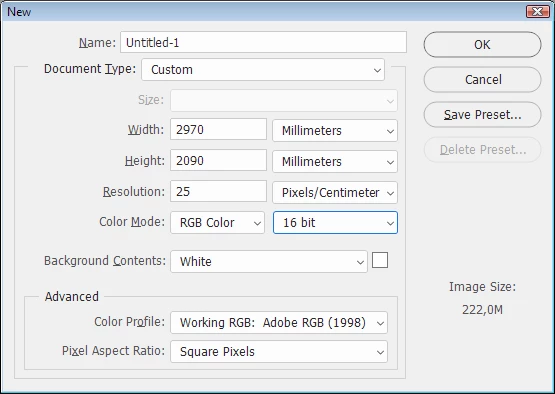
A 16-bit file with the dimensions you mentioned at 25 ppcm will be 222 MB. See screenshot.

You do realize that this will print at approximately 2 x 3 meters with very bad quality?

A4 is 297 x 210 mm, or 29.7 x 21 cm.

Also note that ppcm is not commonly used, it's better to use ppi (pixels per inch), which is the industry standard.

For a high quality print, you will need somewhere between 180 and 300 ppi, depending on the size and the printer used.

3 replies

josephlavine
Community Expert
Community Expert
November 6, 2018

Can you post screen captures of your process?  This would greatly help us respond.

thanks

Participant
November 7, 2018

Sorry about that.......snipping is not my forte.

1,2, and 3 should be 5, 6, and 7

What I have done is

SS4     Import

SS5     Adjust in Raw

SS6     Open in PS

SS7     Adjust in PS

SS1     Crop Screenshot

SS2     Result of Crop

SS3     Adjusted in Image

Per Berntsen
Community Expert
Per BerntsenCommunity ExpertCorrect answer
Community Expert
November 7, 2018

A 16-bit file with the dimensions you mentioned at 25 ppcm will be 222 MB. See screenshot.

You do realize that this will print at approximately 2 x 3 meters with very bad quality?

A4 is 297 x 210 mm, or 29.7 x 21 cm.

Also note that ppcm is not commonly used, it's better to use ppi (pixels per inch), which is the industry standard.

For a high quality print, you will need somewhere between 180 and 300 ppi, depending on the size and the printer used.

JJMack
Community Expert
Community Expert
November 6, 2018

Image file size is normally dominated by pixels data. Image file formats often use data compressing  so  file size is effective by how well the data compresses.  Therefore image content plays a part in file size.  Also a program can add a large amount of meta-data.  There are scripts available to strip ancestor metadata which can be quite large.  You start with a RAW file which is not an RGB Image you convert it to a RGB image and  save some image type file.  The thing is you gave no specifics as the number of pixels in the document canvas.  Now many pixels wide and high.  The save file format  layered or flat.  If a layer file if there are smart object layers or not.   Layer can be huge contain embedded data and be huge compared to canvas size.  If you place in a low print resolution image file into  a document a high print resolution document Photoshop will create a huge smart object layer then scale that layer by default to fit in canvas.    The layer is still huge.  Photoshop has its share of bugs.  What you see could be normal and correct or it could be a bug you know what you do we do not.

JJMack
Chuck Uebele
Community Expert
Community Expert
November 6, 2018

Did you change the bit depth from 8 to 16?

Can you post a screen shot?