SILOAM
Inspiring
July 19, 2017
Answered

cursor not drawing in the right place

  • July 19, 2017
  • 7 replies
  • 50453 views

Hi,

Whenever i try to use the brush tool it draws somewhere different to where the cursor is.

I need help!!!

    Correct answer SILOAM

    Joseph, I have had a good look round on this, and it appears to be fairly common with some tablets, and due to the tablet driver.  I imagine you have made sure that you are using the most up to date driver for your tablet?  Posts I read often associated the issue with using more than screen, and with very high dpi screens.  Would that fit your situation?

    Lazy Nuzumi Pro has a cursor offset fix mode.  LNP is a must have for tablet users anyway, so worth trying.  The trial period will allow you to see if it fixes your problem.
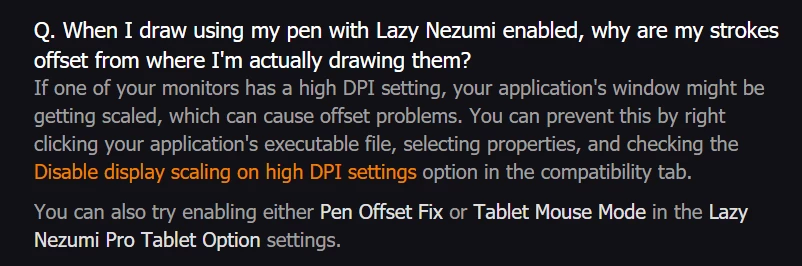
    https://lazynezumi.com/faq

    You could also try installing a pre-CC2014 Photoshop from the Application Manager > Previous Versions.  That was when the API was changed.

    What sort of screen calibration system does your tablet use?  Can you toggle between single, full, and high precision modes for instance?  Can you 'trick' the tablet into correcting the offset by cheating with the calibration? 

    I wish you luck, but the unhappy truth is that we don't always get a good result with non Wacom tablet issues on this forum.


    Hi,

    Thank you for the tips.

    I found that my DPI settings where too high.

    I changed it from 125% to 100% and now both pen pressure and the offset are both  working properly together.

    For anyone having the same problem, i fixed this on Windows 10 by:

    1. Right-clicking on the desktop and selecting display.
    2. Then, under Scale and layout, find where it says "change the size of text, apps and other items"
    3. click on the drop down box below and select 100% (or a lower percentage to what it's default is)
    4. This should fix the problem, if not then look at Trevor.Dennis​ 's reply.

    7 replies

    Participant
    September 30, 2020

    thank you so much it was a nightmare for me i tried evrything to solve such a proplem but you tip was uch a great help .

    Participant
    August 11, 2020

    100% works the problem is, 100% is just too small for me to see or read on my screen.  I mean it's tiny.  150% is (Recommended) by windows is barely viewable and still doesn't work right. I prefer 175% for it to be functional for me.  I mean I don't have the best vision but I'm not blind.

    SILOAM
    SILOAMAuthor
    Inspiring
    August 11, 2020

    You could probably mess with other scaling settings, such as text scale, while keeping it on 100%.


    Another tip:

    On your desktop hold ctrl and then scroll the scroll wheel up, it will make icons on the desktop larger.

    Participant
    August 12, 2020

    That is nowhere near going to cut it.  I mean I need to get within inches of the screen to read the toolbar.

    Participating Frequently
    August 4, 2020

    I have the same problem, but every time I try any of the free versions I end up with an even worse problem...Now every time I place my stylus on the screen, It acts as if I am holding Shift down and creates a straight line from the bottom of the page!

    SILOAM
    SILOAMAuthor
    Inspiring
    August 4, 2020

    This was 3 years ago, but I think the main problem was with me having a second monitor. And unplugging that fixed it, or changing the monitor the tablet is working on to only 1 of them. I hope this helps, sounds like your problem is more severe.

    Norman Sanders
    Legend
    July 19, 2017

    Same result with a mouse?

    SILOAM
    SILOAMAuthor
    Inspiring
    July 19, 2017

    No, with the mouse it's normal.

    Its only the brush and eraser that it does this with.

    JJMack
    Community Expert
    Community Expert
    July 19, 2017

    Does the XP-Pen star 03 come with any customizing or calibrating software.

    JJMack
    SILOAM
    SILOAMAuthor
    Inspiring
    July 19, 2017

    It came with the drivers and the basic set-up stuff but i don't think it came with any calibration software.

    SILOAM
    SILOAMAuthor
    Inspiring
    July 19, 2017

    Here is some more information.

    • i am using photoshop cc 2017
    • i am using a XP-Pen star 03
    • Here is a video of this happening:

    • My PC specs are:

    Operating System

    Windows 10 Home 64-bit

    CPU

    AMD A8-9600

    Bristol Ridge 28nm Technology

    RAM

    11.0GB Single-Channel Unknown @ 931MHz (13-13-13-30)

    Motherboard

    LENOVO Toronto 5B1 (Socket FP4)

    Graphics

    Generic PnP Monitor (1920x1080@60Hz)

    DP2VGA V207 (1024x768@60Hz)

    512MB ATI AMD Radeon R5 Graphics (Lenovo)

    2048MB ATI AMD Radeon R6 M435DX (Lenovo)

    CrossFire Disabled

    Storage

    931GB Western Digital WDC WD10JPCX-24UE4T0 (SATA)

    SILOAM
    SILOAMAuthor
    Inspiring
    July 19, 2017

    This started when i fixed my pen pressure by using the system stylus.

    JJMack
    Community Expert
    Community Expert
    July 19, 2017

    Supply pertinent information for quicker answers

    • The more information you supply about your situation, the better equipped other community members will be to answer. Consider including the following in your question:
    • Adobe product and version number
    • Operating system and version number
    • The full text of any error message(s)
    • What you were doing when the problem occurred
    • Screenshots of the problem
    • Computer hardware, such as CPU; GPU; amount of RAM; etc.
    JJMack