
Participant
July 18, 2018
Question

Curve an design to fit a tapered label template

  • July 18, 2018
  • 7 replies
  • 28323 views

Hi Everyone

I am looking for some help.  I am doing some work on labels and the designs that I get are rectangular, but the final label print needs to be curved as it is going on a bucket that is tapered.  see the below image.
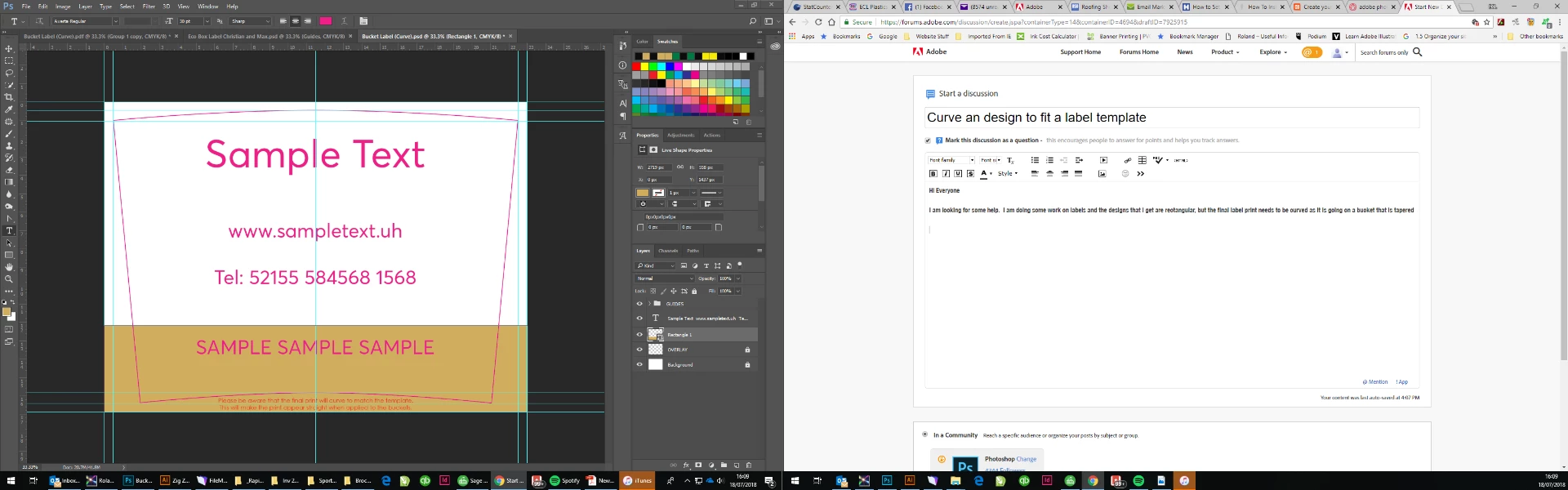
I'm looking for a quick way to get the design to match the curve of the template, once the design is complete and going to print

Thanks for any help you can give

    This topic has been closed for replies.

    7 replies

    Participant
    July 20, 2018

    Hi Everyone

    Thank you so much for all your help and ideas.  I really appreciate your time and effort.  I think I have it sorted and created an action with Hotkey so that I can save it for other design.

    Inspiring
    July 20, 2018

    Which solution did you decide to use?

    barbara_a7746676
    Community Expert
    Community Expert
    July 19, 2018

    Illustrator would work. However, if you want to stick with Photoshop, this is what you could do:

    To keep type editable/vector, convert type layer to a smart object layer. Combine your image and type layers, just as you have been doing. Convert the single layer to a smart object layer (just right click on the layer and choose to convert it). That will help preserve the original image quality. You'll have nested smart layers into a single smart layer.

    Choose Edit > Transform > Warp.

    Move the handles and grid lines until the image conforms to the shape you need. It would help to View > Show Grid to make sure its symmetrical.

    When curving the horizontal lines, make sure to press right in the center of the line.

    Semaphoric
    Community Expert
    Community Expert
    July 19, 2018

    You could do this using Distort > Polar Coordinates, but it's a bit of a challenge to figure out the placement of things.

    July 19, 2018

    Maybe in Illustrator, using Envelope Distort > Make with Top object

    I just got a concern about the distortion of the element and don't have enough experience with curved label.

    But this can help to convert an image from "2D space" to "label curved space".

    Best !

    c.pfaffenbichler
    Community Expert
    Community Expert
    July 19, 2018

    Another option could be Warping a Smart Object of the whole layout with »Arc« but naturally if a bleed is necessary that would have to be included.

    Also this would result in pixel output, so depending on the source material it might be better to do do it in Illustrator.

    Participant
    July 19, 2018

    Hi

    Thanks for your help. 

    Its not just text, that was just a quick sample.  The designs have images in too, so I usually combine all they layers to make them into 1.  I have been using the warp tool, but not sure I'm getting it right and just wondered if there was a quick way and if I can do a Hotkey to save?  Would it be easier to do it in Illustrator, if so how?

    c.pfaffenbichler
    Community Expert
    Community Expert
    July 19, 2018
    Would it be easier to do it in Illustrator, if so how?

    Not easier but one could get vector output.

    Edit: If the original material contains vector data, that is.

    barbara_a7746676
    Community Expert
    Community Expert
    July 18, 2018

    Two ways to try.

    Warp the text:

    Select the text. Click the text warp icon in the Options bar. 

    Adjust the curve amount.

    The down side of this method is that the text will get distorted, but since you have a very gentle curve that may not be an issue.

    Second method is type on a path:

    You will need separate paths for each line of text and each line of text will be on a separate layer.

    Using the Pen tool, draw a path with the same curvature of the shape.

    Select the regular horizontal Type tool. When your cursor is close to the path you should see the icon change so that there is a wavy line through the I-beam. When you see that, click on the path and start typing. I used Center alignment for the text.

    To move the text on the path, select the path selection tool.

    Hover over the path and you should see a double arrow icon. Then drag the text left or right.

    Community Expert
    July 18, 2018