
Participant
March 20, 2017
Answered

Curved/rounded gradient on text

  • March 20, 2017
  • 1 reply
  • 1533 views

Hi, I am trying to expand my Photoshop knowledge and create some new text styles.

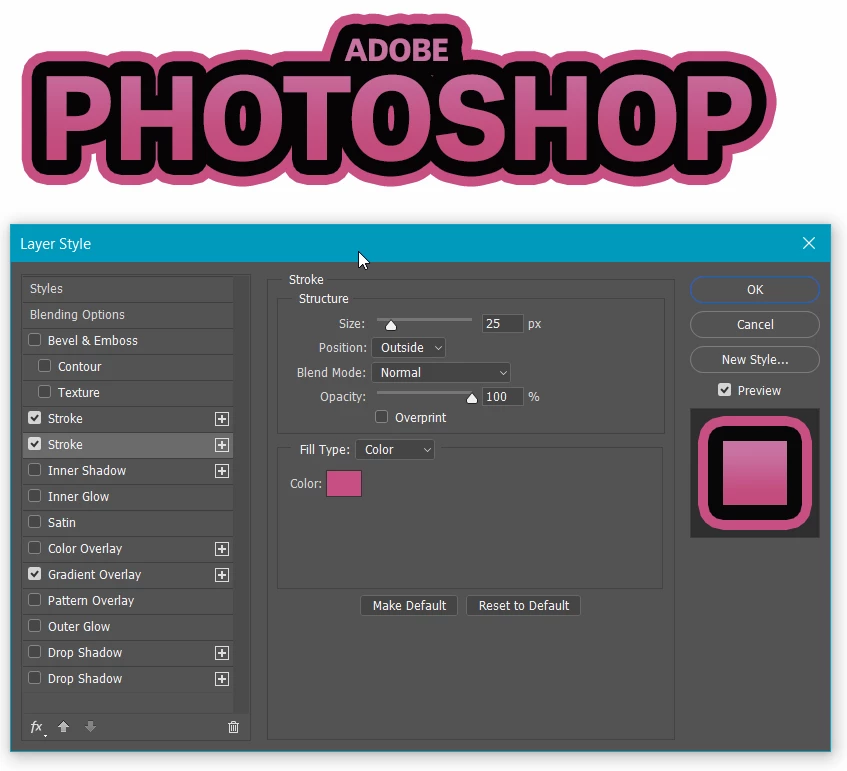
I found an example online, which is the style I am trying to create.

(Here is the example)

As you can see it is text, but I am after the semi-circular gradient effect.

It is a purple/pink gradient that follows through 2 layers (stroke & the circle gradient).

Wondering how this could be achieved?

Thank you!
This topic has been closed for replies.
Correct answer Trevor.Dennis

This just used layer styles, but in this case it is a single text layer, so the gradient overlay covers both the large and small text. To make them different colours, you'd need to use two text layers, and put a gradient overlay on the large text, and plain white on the small.  Then combine the two layers as a Smart Object, and apply the two stroke effects.  Note, when using multiple strokes, the smaller stroke must be above the larger stroke, or it would be covered and hidden.   Does that help?

1 reply

Trevor.Dennis
Community Expert
Trevor.DennisCommunity ExpertCorrect answer
Community Expert
March 20, 2017

This just used layer styles, but in this case it is a single text layer, so the gradient overlay covers both the large and small text. To make them different colours, you'd need to use two text layers, and put a gradient overlay on the large text, and plain white on the small.  Then combine the two layers as a Smart Object, and apply the two stroke effects.  Note, when using multiple strokes, the smaller stroke must be above the larger stroke, or it would be covered and hidden.   Does that help?

Participant
March 20, 2017

Thanks for the reply Trevor,

It does help and that's as far as I got, I wanted to know how I could add the circular gradient to the text aswell.

March 21, 2017

Oh, Trevor was faster!

The curved area is a selection on a new layer filled with pink, set to 50% opacity, and blending mode color burn.

AND I added some noise ... but not the small text.

Fenja

Mostly layer effects:

The text - its color doesn't matter - has (from top to bottom) a thick black stroke, a second stroke with a pink-to-purple gradient, and a gradient overlay also in pink-purple. This way you can very easy adjust the gradient colors.

Then, on a new layer I made a elongated ellipsoid selection, filled it with pink, set it to 50% opacity, and the blending mode to color burn (or what you like).

For the noise at last I made a selection of the text and a new layer above the text layer. I filled the selection with the pink-purple gradient and added a bit of noise from the filter menu. Then I reduced the opacity of this layer.

The pink-purple gradient isn't throughout exact the same. For example, I adjusted the colors a bit for the second stroke.