Participant
July 13, 2020
Answered

Curves adjustment eyedropper tools are turning my image red

  • July 13, 2020
  • 2 replies
  • 1134 views

Hello,

I'm a Photoshop novice and I'm trying to correct the yellow color cast of an image by following the steps provided in a book. (Using the White Point tool in the Curves adjustment on the white part of the girl's dress)

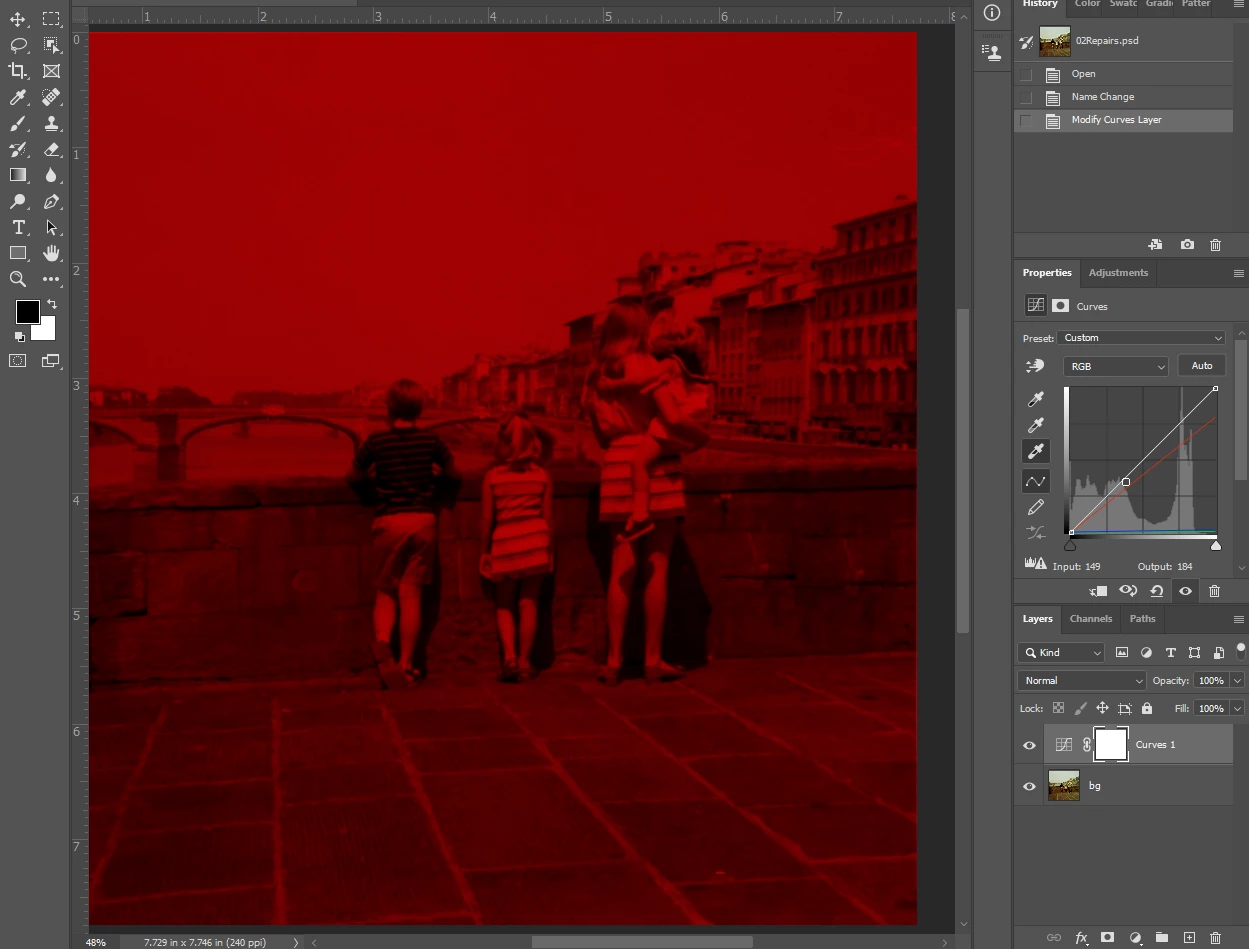
As stated in the subject, my Curves adjustment is giving me unexpected results. Every time I try to use the white or gray eyedropper tool in the Curves menu and click on any area in the image, the entire image gets an extreme red cast. Oddly, the black eyedropper tool works fine. The same thing happens when I use the Levels adjustment.
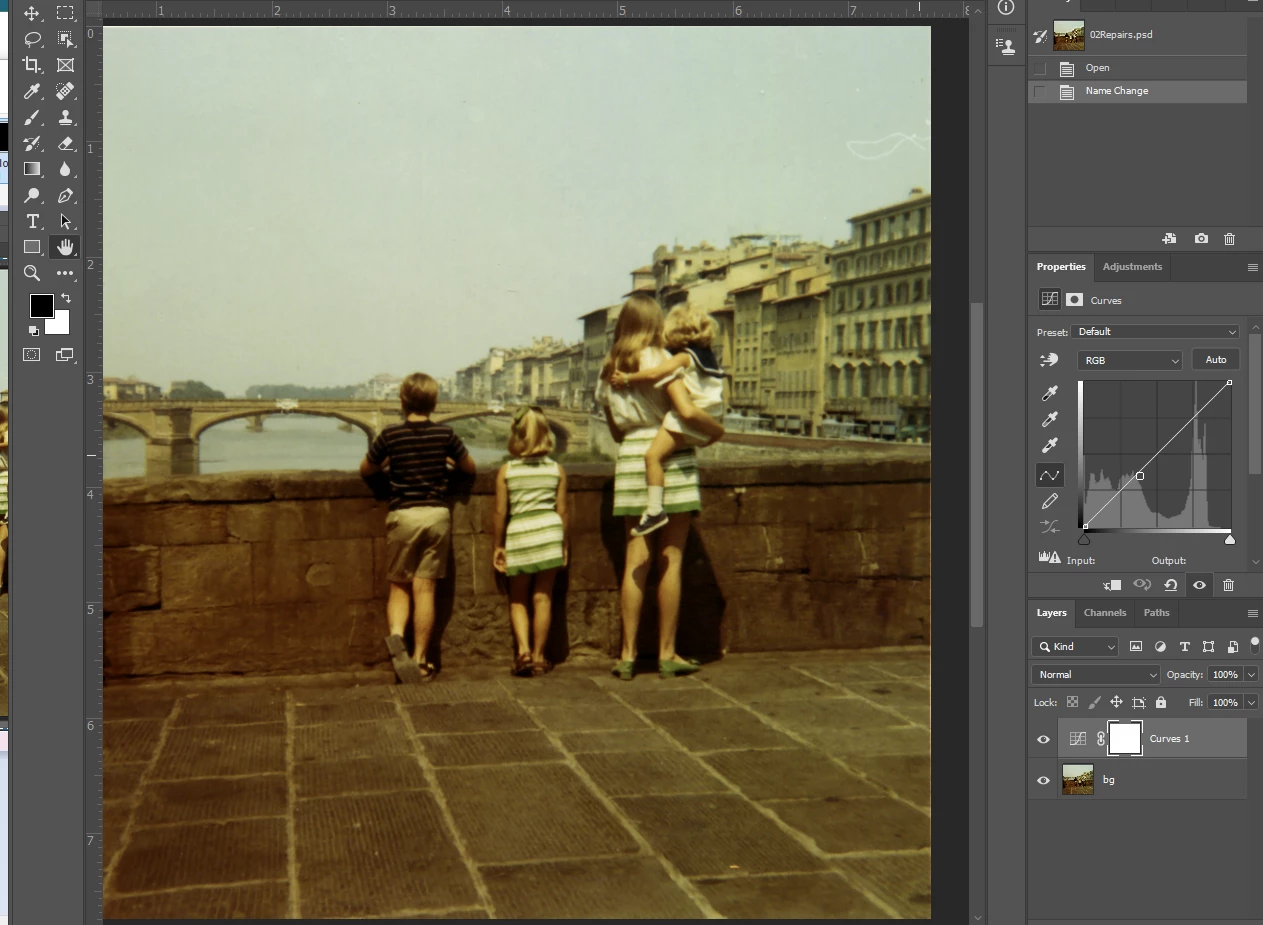


I'm not sure what's wrong. I've tried to restart Photoshop and I've also reset all my tools. This is the first time Photoshop has given me any problems. Any help would be appreciated, thanks!

This topic has been closed for replies.
Correct answer marliton

Hi. Maybe the eyedropper has values stored. Double click in the eyedropper and check the color values.


2 replies

marliton
Community Expert
marlitonCommunity ExpertCorrect answer
Community Expert
July 13, 2020

Hi. Maybe the eyedropper has values stored. Double click in the eyedropper and check the color values.


Marlon Ceballos
Participant
July 13, 2020

That's right, I just remembered that I followed a tutorial beforehand that had me store values to the eyedroppers. Thank you! If this happens again, do you know how I can reset the values without resetting all of my Photoshop preferences?

davescm
Community Expert
Community Expert
July 13, 2020

Double click the eye droppers in the Properties panel for the curve layer and set the white eyedropper to HSB 0,0,100

the grey to HSB 0,0,50 and the black to HSB 0,0,0


Well spotted Marlon 🙂


Dave

davescm
Community Expert
Community Expert
July 13, 2020

I can't replicate that here with your image. You have reset the tools, have you tried resetting Preferences (Preferences >General >Reset Preferences on Quit then close and restart Photoshop)?

Dave

Participant
July 13, 2020

Thank you, Dave. That helped! I had been resetting by right-clicking the tool icon at the top left.