bebez71
Known Participant
August 2, 2021
Question

Cut the same image multiple times with batch

  • August 2, 2021
  • 1 reply
  • 3698 views

Hi, I have a problem with a batch in Photoshop, I have been looking around for a while, but I have not found a real solution.


I have to cut images into several parts. From a single image I have to get two or four by cutting them in half or cross.

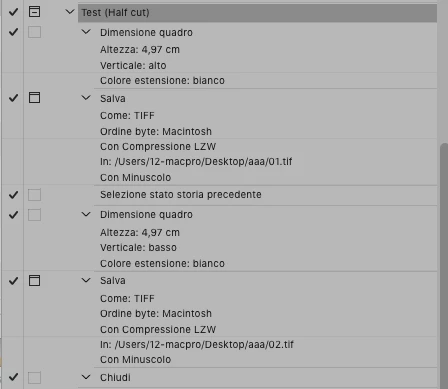
I made an action and if I manually activate it, it works fine (I set a stop at each save and manually put a different name each time to the file I save, 01, 02 etc ..).

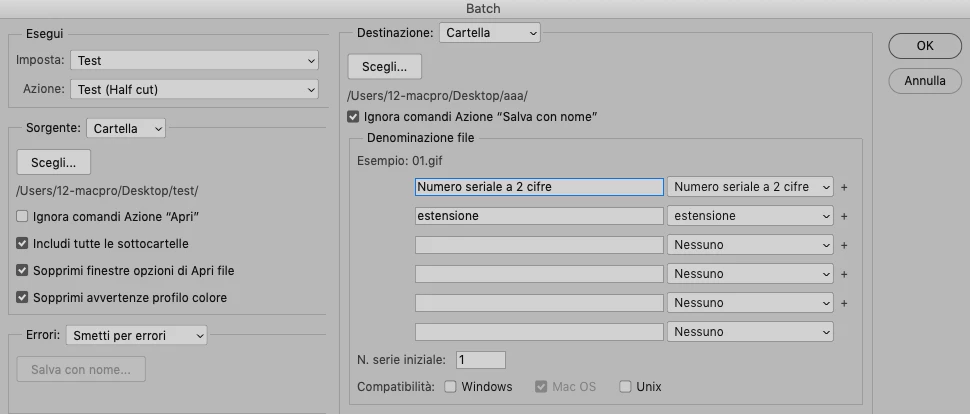
However, if I automate the action with the batch by giving a source folder, a destination folder and activating "Ignore Save As commands", setting the saving with only two-digit serial number and extension, in the end I only get 4 files instead of 8 (choosing the action that cuts the image in half).


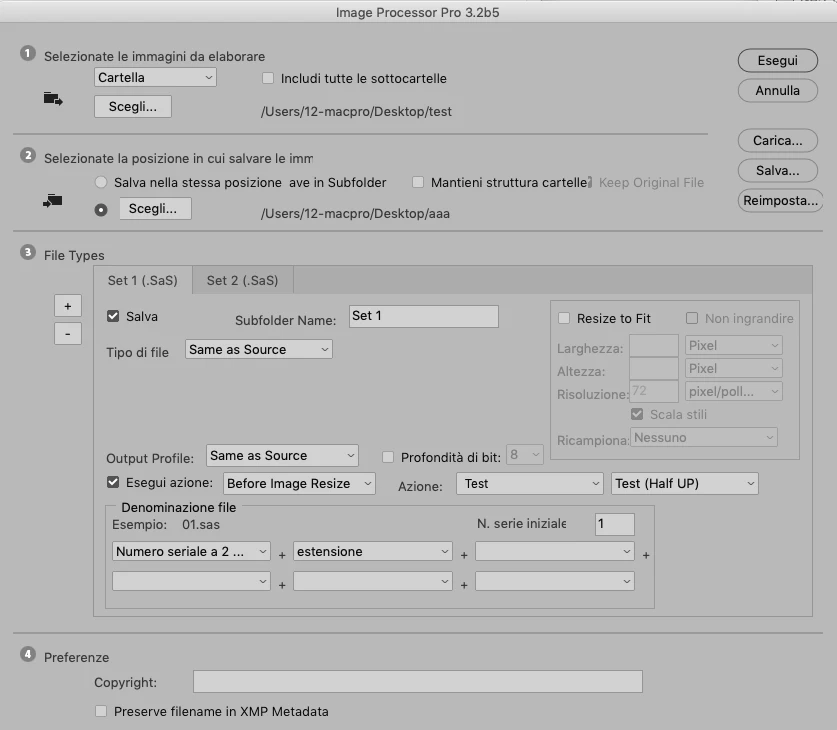
I also tried to create two distinct actions (one for the upper half and one for the lower half) and to use Image Processo Pro, but also in this case I get 4 files instead of 8.
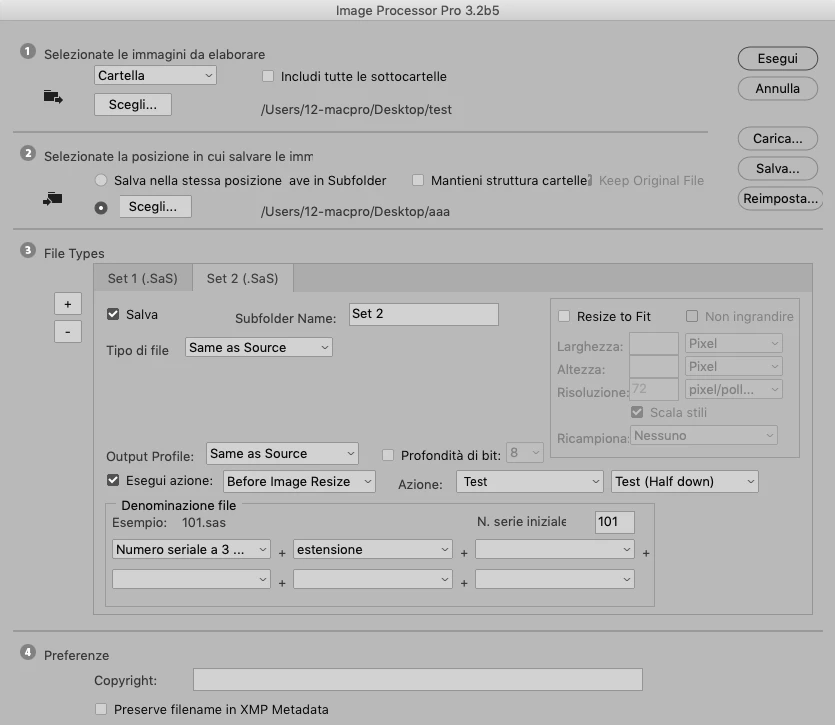
   

What I would like to obtain is an automated action / batch that in one shot (possibly without closing and reopening the original image, because each file I have to cut is about 1GB) creates and saves two or four portions from a single image.


At the following link a zip with the actions and 4 small images to be cut in half (as an example)

Archivio-test.zip

This topic has been closed for replies.

1 reply

bebez71
bebez71Author
Known Participant
August 2, 2021

Maybe I understand where I'm wrong.
In the action I have to put only the cutting of the image, without the action of saving and closing it, then Image processor Pro will take care of saving inside the various sets folder and closing the image.
Right?

JJMack
Community Expert
Community Expert
August 2, 2021

First of all if you want to batch an action the action  should not have any interactive steps. Batch should be a fully automated process.


Second if you want to have multiple image files saved out. You need to realize that Actions have limited saving capabilities. They can only save the current document. If the want to batch the action no file name should be recorded in the Save As step. So Photoshop will use the current document File Name its default operation.  Therefor you need to save each output image file into a different folder for they will have the same file names.


Third in you action set I saw no actions that cut images into parts and save each part as an image file.


So I create a CutUpImage action set and recorded a batch action the  doe the Top Button cutup. Output image file will be save o sub folders "Top" and "Bottom" in a folder name "ImageSave" which is on your desktop.  You need to create thees folders before you use the action.


CutUpImage.atn  I use Photoshop's 22.4.3 "Enable legacy "Save As"" preference for Photoshop 22.4.2  "Save As" brakes too many actions.


JJMack
JJMack
Community Expert
Community Expert
August 3, 2021

Hi JJMack, thank you very much for your reply.
I can't download your "CutUpImage.atn" action, it always gives me error.

I looked at the image of your action but it seems a little too complex (there are some steps that I don't understand why there are such as "make layer", "flatten", "paste", "Align", etc).


In any case I created 4 very simple actions that only cut the image in half (Top left, Top Right, Bottom Left, Bottom Right), then I performed them with Image Processor Pro and I get the 4 desired files in 4 different sets.


The best was to deals with various image sizes in actions is to work with relative size. Using ruler units percentage.


The code you did not understand in the batch action was there so the action could work on source images in any file format. The action added an empty layer to insure the current document was layered if the source image was flat. The action then flatten so any source image would be flattened, once  flattened the background was converted to a normal layer. Then relative size sections were cute from the bottom layer and stacked with paste.  Once the  Image was all diced up into same size pieces the layer were aligned to the top left so all the pieces were on top of each other. The canvas was then trimmed so the document canvas size became the diced up size then  action saved the top layer the a folder delete the top layer save the new top later to a different folder  etc. then closed the document no save. The single action dices and saved.  But needed to use  prepared output folder  for actions can not set output file names and needs Photoshop to use the current documents name for each save so all diced up images for an image will have the same name they need to be us a different output folders. Save As can set known folders for outputting files and have photoshop set the current file name.  Image Processor is a script. Scripts can generated and set output file manes.


Output file will be jpeg however input image files can be any image file formats.

JJMack