
Participant
January 15, 2024
Answered

Découpe nette d'éléments Photoshop

  • January 15, 2024
  • 4 replies
  • 346 views

Bonjour,
J'aurais besoin d'un petit coup de main pour une manipulation d'élément pour une création de logo.
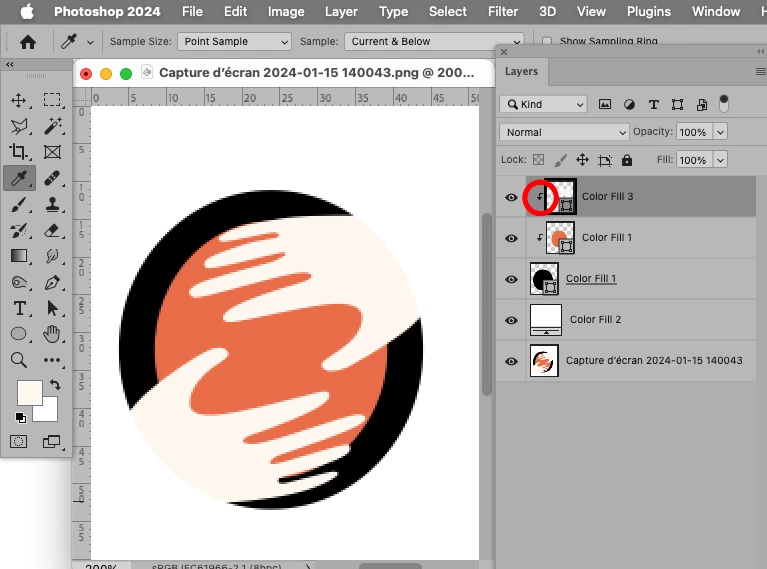
Je souhaite faire en sorte que les deux bouts de main ne dépassent pas du premier cercle extérieur "O". J'ai essayé avec l'outil Gomme mais cela ne fait pas net comme tracé.
Avez-vous d'autres suggestions ? Merci d'avance pour votre aide ! 🙂

This topic has been closed for replies.
Correct answer c.pfaffenbichler

If, as @jane-e already inquired, there are meaningful Layers you can Clipping Mask to the largest ellipse.  

4 replies

c.pfaffenbichler
Community Expert
c.pfaffenbichlerCommunity ExpertCorrect answer
Community Expert
January 16, 2024

If, as @jane-e already inquired, there are meaningful Layers you can Clipping Mask to the largest ellipse.  

c.pfaffenbichler
Community Expert
Community Expert
January 16, 2024

Could you please post screenshots with the pertinent Panels (Toolbar, Layers, Options Bar, …) visible? 

Participant
January 16, 2024

c.pfaffenbichler
Community Expert
Community Expert
January 16, 2024

Could you please post screenshots with the pertinent Panels (Toolbar, Layers, Options Bar, …) visible, not just snippets of the Layers Panel? 


Anyway: You could just group the whole stuff and apply the Vector Mask of »Ellipse 1« to that Group. 

Trevor.Dennis
Community Expert
Community Expert
January 16, 2024

I rather suspect that you have this as a flattened image, which means you will need to rebuild it.  That's going to be tricky with the small image size, so I would suggest increasing the image size, which lose image quality, but give you a better chance of averaging out errors and jagged line.  I still found the hands didn't select cleanly, so there was no option other than to use the Pen tool to make clipping paths.


This is a reworked version of the image, but if you save the attached 'Two Hands Logo.JPG' file and open it in Photoshop, you'll find it has clipping paths. Use those paths to fill with appropriate colour each in its own layer, and move the objects to where they need to go.

If you need help with any of that, shout and someone will definitely be here to help.


jane-e
Community Expert
Community Expert
January 15, 2024

@Marie348077552e70 


If they are on layers (you didn't say), select the layer in the Layers panel and use the Move tool to move the hand.


Jane