
Copy link to clipboard
Copied
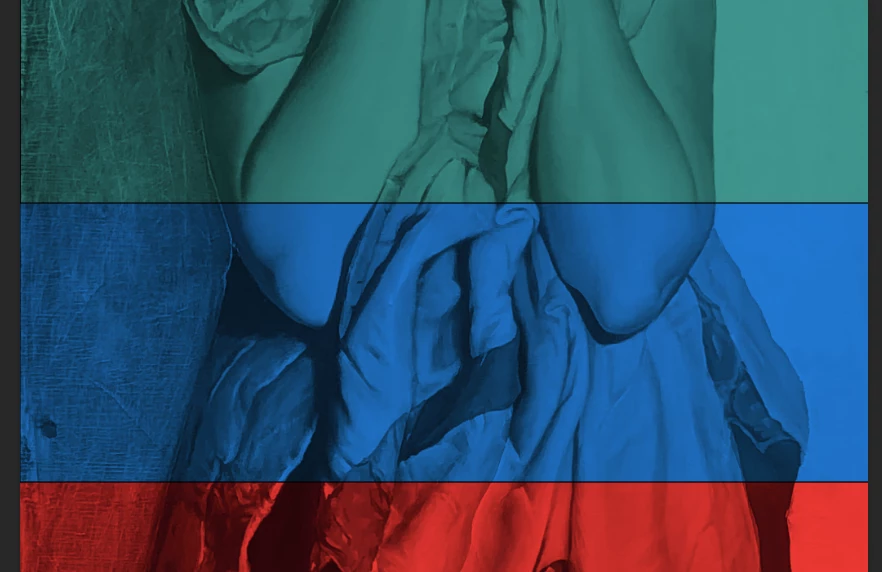
I have created separate layers with the rectangle tool, filled with color, and used the multiply setting for the image. I'm wondering how to get rid of the dark edges that look like a black line around the rectangles of color blocking. They are not overlapping, because even when I drag the rectangle much farther down there is still a dark edge.
I'm new to PS and have tried to find answers, but I'm so new I don't even know how to look it up. Any help is appreciated!
Copy link to clipboard
Copied
Please post a screen shot of this so that we may see the layers as identified in the layers palette.
Have you tried turning the visibility of the individual layers on/off by clicking on the eye icon(s) in the layers palette?
Copy link to clipboard
Copied
I have clicked the layer visibility eye and the shadow, or dark line, remains
Copy link to clipboard
Copied
It seems that you are using Photoshop and this is the Photoshop Elements forum.
Copy link to clipboard
Copied
Moved to the Photoshop forum.
Copy link to clipboard
Copied
The coloured rectangles are shape layers, so it is possible you have a stroke set.
If you Alt (Opt) click the eye icon for one of the coloured rectangle layers, that will turn the other layers off so you know for sure the selected layer has the black outline.
Then select any of the Shape tools and check the options bar. The Fill colour shows on the left, and the Stoke colour on the right. I am guessing the stroke is set to black with a low thickness value. Click on the stroke colour and select the icon with the diagonal line, which means no stroke.
You have added a second layer mask to one of your Curves layers. Was that intentional?
Copy link to clipboard
Copied
In the Layers panel click on one of the Rectangle layers, then go to Window>Properties and make sure there is no Stroke.
Get ready! An upgraded Adobe Community experience is coming in January.
Learn more