Known Participant
March 18, 2020
Answered

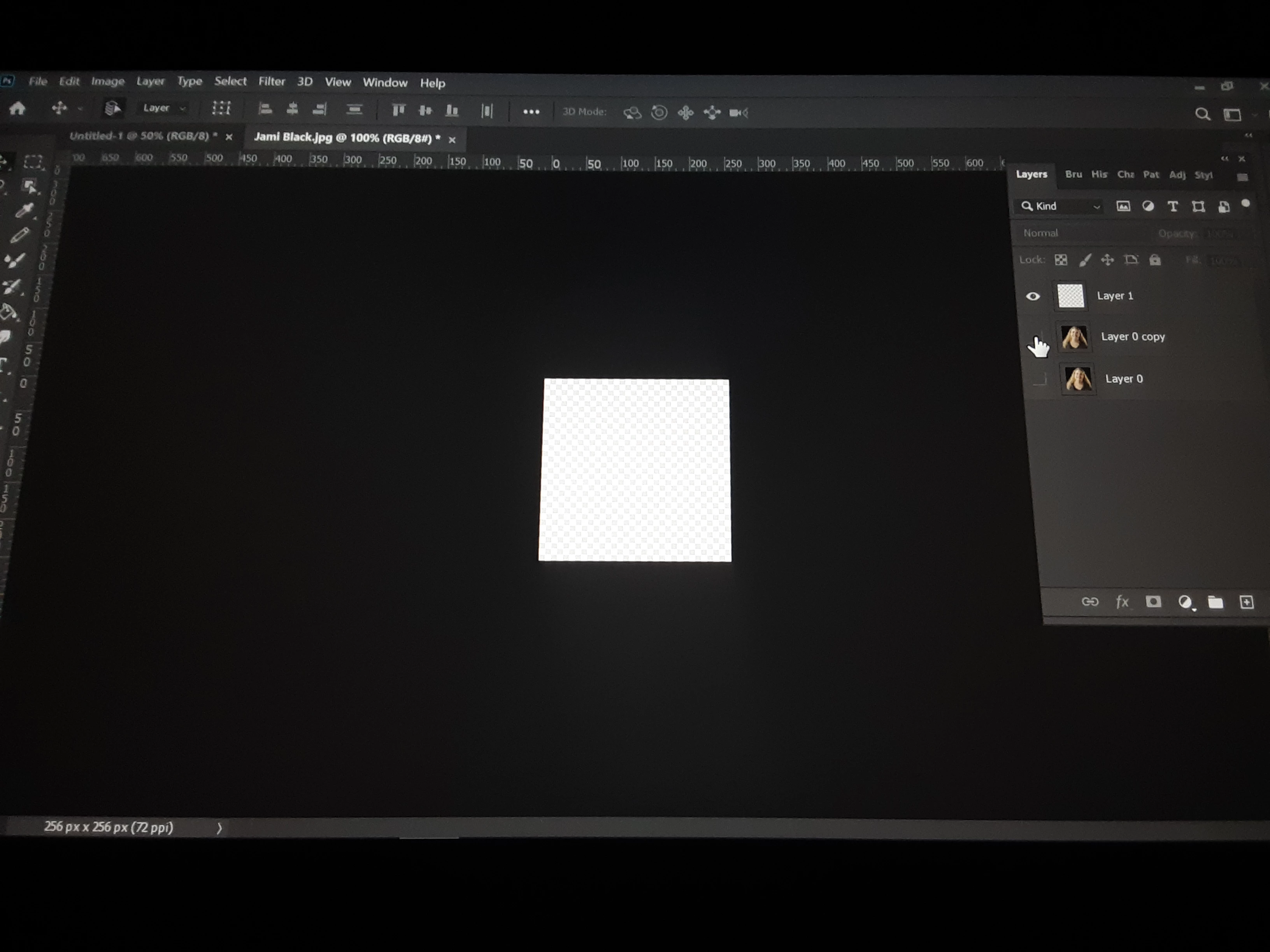
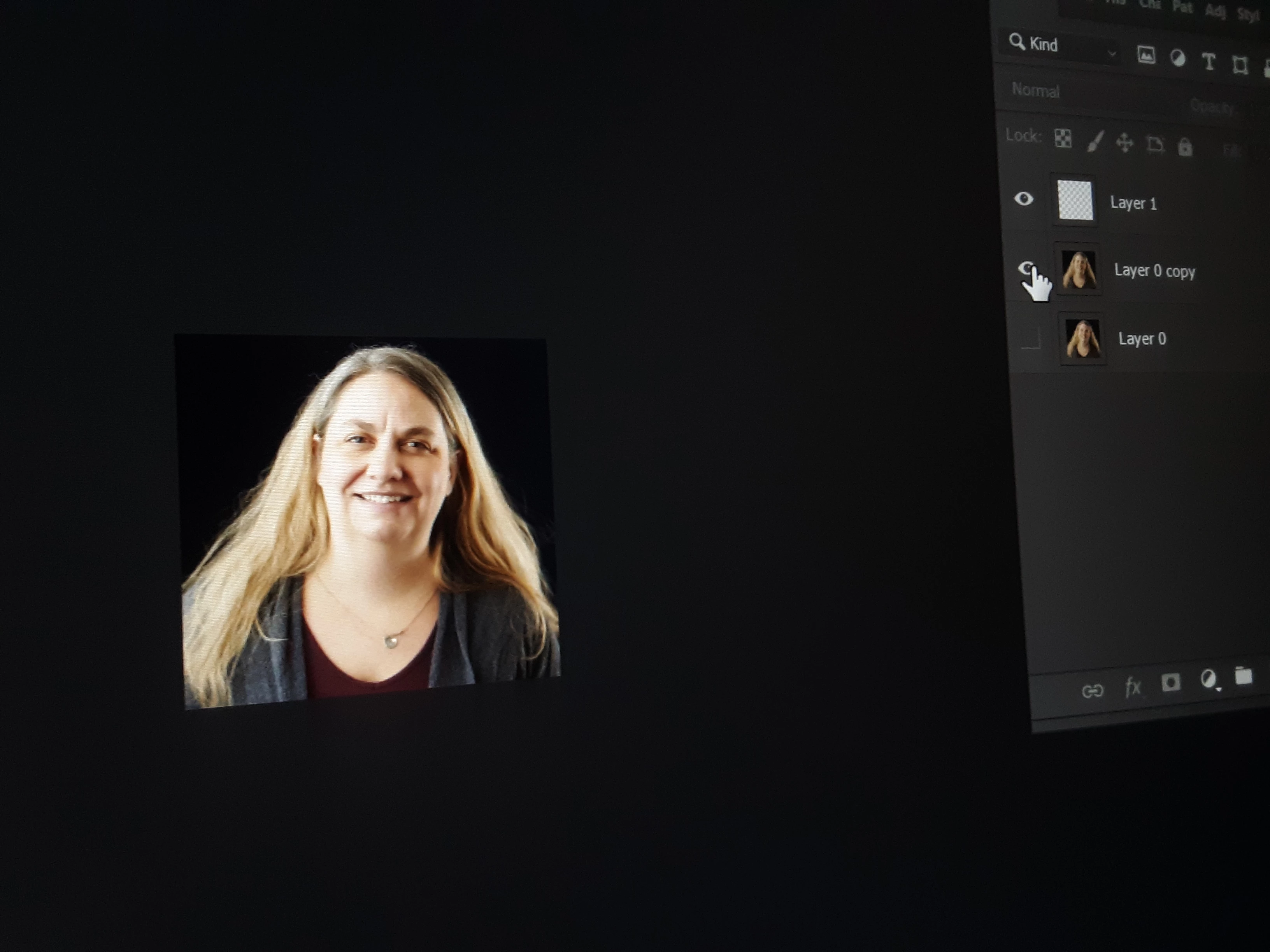
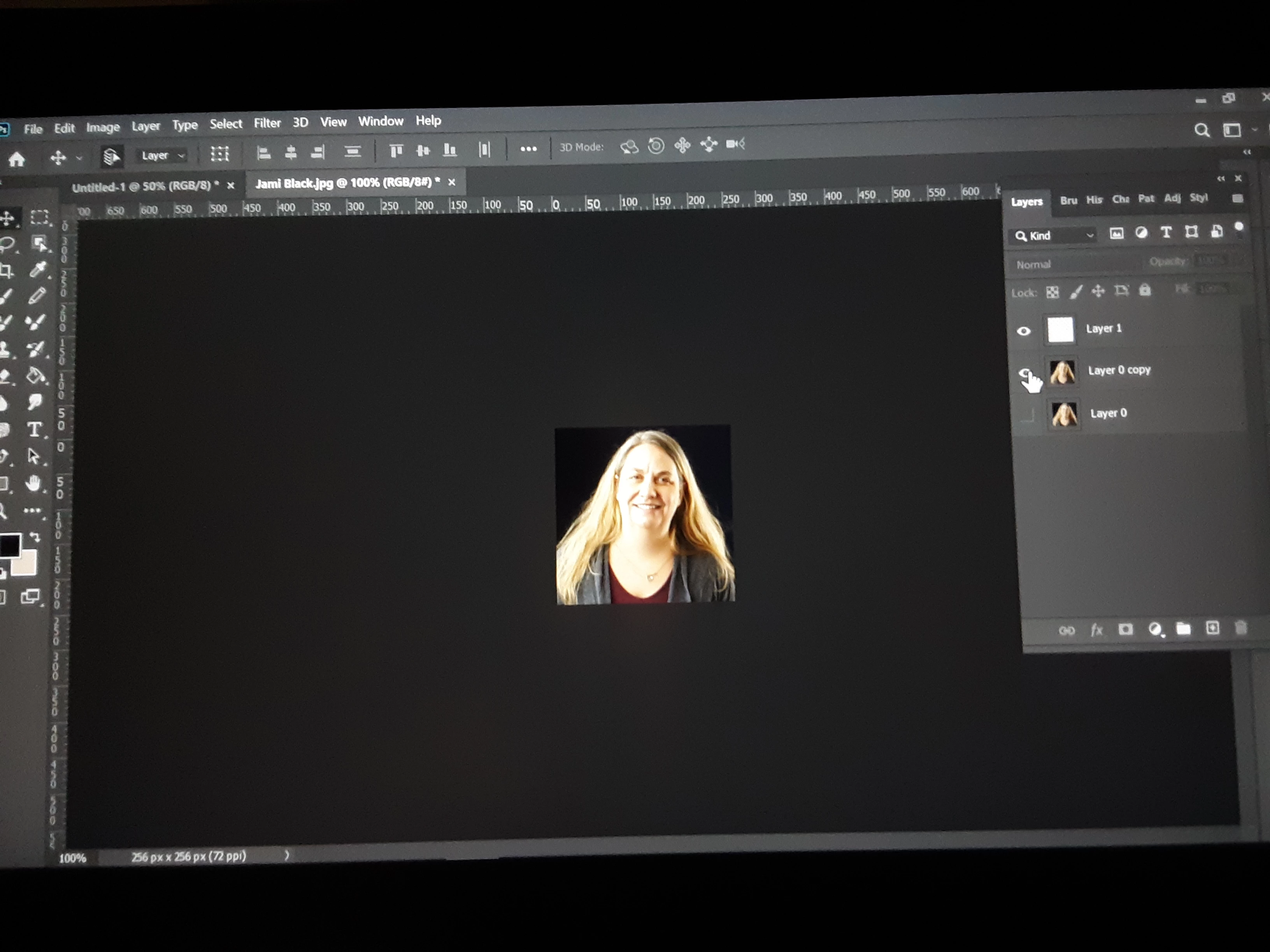
Dark frame around photo won't delete (see attachment)

  • March 18, 2020
  • 2 replies
  • 917 views

One of my main issues here is actually articulating my problem. Here goes: I have a small image that I want to enlarge. When I open it in Photoshop, it is surrounded by a dark frame that I can't delete or alter in any way. It essentially turns the layer into a very small and unworkable box. When I enlarge the image with free transform, it enlarges behind this dark "frame" so that I can only see what fits in that small box. Everything else is hidden behind the frame.
 

This topic has been closed for replies.
Correct answer davescm

The user interface background does not stop you from enlarging the image. 

To make it bigger on screen without changing the pixels just zoom in or out using Ctrl + or Ctrl -

To make the image itself a new size use menu Image - Image size.

Dave

2 replies

lambiloon
Community Expert
Community Expert
March 18, 2020

Hi, check the following video hope it helps you...regards


https://youtu.be/8ASKoyOQ9yk

Ali Sajjad / Graphic Design Trainer / Freelancer / Adobe Certified Professional
erics2020Author
Known Participant
March 18, 2020

Thank you for your response. That didn't solve my issue, but I defintely learned something I needed to know. So I appreciate the reply.


As I said, articulation is my my main problem..  I don't actually mind the color of the background. It's the fact that it prevents me from enlarging the image. I spent some time playing around in the Preferences, but I can't find a way there. Essentially, I want to get rid of that frame altogether so that I can enlarge the image.

erics2020Author
Known Participant
March 18, 2020

The user interface background does not stop you from enlarging the image. 

To make it bigger on screen without changing the pixels just zoom in or out using Ctrl + or Ctrl -

To make the image itself a new size use menu Image - Image size.

Dave


This got the ball rolling. Thank you! 


I'm new at this, so don't laugh.. But I used the lasso to copy the image, pasted it in a new page without that black frame that apparently just doesn't go away, and had no issues from there.


Thank you for taking the time. You guys are really awesome.

Jeff Arola
Community Expert
Community Expert
March 18, 2020

That area is not part of the image, it's just the border around the image that's part of the photoshop UI.


Right click on the Black area and set it to a different color.


erics2020Author
Known Participant
March 18, 2020

Thank you for your response. As I said, articulation was my my main problem..  I don't actually mind the color of the background. It's the fact that it prevents me from enlarging the image. I spent some time playing around in the Preferences, but I can't find a way there. Essentially, I want to get rid of that frame altogether so that I can enlarge the image.