
Known Participant
September 22, 2012
Answered

darkening lines of a hand drawing?

  • September 22, 2012
  • 4 replies
  • 57779 views

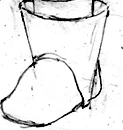
I have some hand drawings scanned into a computer that I want to clean up in Photoshop.I'm going to use the eraser tool to erase the smudges, though I want to darken the lines of the drawing without having to trace back over it with a pencil, pen, or paint brush. I played a bit by darkening the levels. Can anyone recomend anything else?

Thanks.
    This topic has been closed for replies.
    Correct answer Noel Carboni

    You're going to have some hand work as you have anticipated to get rid of the smudges and unwanted sketch lines.

    Just some things to experiment with after that to find a scheme you like:

    • Working at a higher resolution.
    • Image - Adjust - Threshold
    • Oil Paint with the Shine function set to 0
    • Filter - Other - Minimum
    • Filter - Noise - Median

    Have fun!

    -Noel

    4 replies

    the_wine_snob
    Inspiring
    September 23, 2012

    Not sure if you have, or have access to Adobe Illustrator, but I think that this would be a good candidate for AI's Live Trace, with a Threshold of about 200. Experiment with the Threshold, until completely satisfied.

    Hunt

    Noel Carboni
    Legend
    September 23, 2012

    Man, that almost makes me want to buy a license for Illustrator.

    -Noel

    the_wine_snob
    Inspiring
    September 23, 2012

    Noel,

    I cannot believe that you do not have AI. I spend most of my time in PS and Premiere Pro (with Encore thrown in), but when I need AI, I want my AI.

    It's like After Effects. It sits on my Desktop for weeks, but then, I drag it out, and it does some really neat stuff. I would not be without either one, though I do have to brush off cobwebs sometimes.

    Hunt

    PS - in another PS thread, I bemoaned having to now upgrade my full suite, when I only need, say PS, but that DOES keep my AI, and my AE upgraded too, so it ain't so bad, really. I just like to complain...

    Noel Carboni
    Noel CarboniCorrect answer
    Legend
    September 22, 2012

    You're going to have some hand work as you have anticipated to get rid of the smudges and unwanted sketch lines.

    Just some things to experiment with after that to find a scheme you like:

    • Working at a higher resolution.
    • Image - Adjust - Threshold
    • Oil Paint with the Shine function set to 0
    • Filter - Other - Minimum
    • Filter - Noise - Median

    Have fun!

    -Noel

    Participating Frequently
    September 22, 2012

    Noel, not helpful IMHO - I regret.

    The OP is talking about how to clean up a hand drawing.

    Image > Adjustment > Brightness/Contrast

    Spot Healing Brush here and there

    Why the heck an adjustment layer, as mentioned previously?

    http://www.fho-emden.de/~hoffmann/storni13052011.pdf

    p.3

    http://www.fho-emden.de/~hoffmann/reydethule06102011.pdf

    p.1

    Best regards --Gernot Hoffmann

    media katAuthor
    Known Participant
    September 22, 2012

    Gernot Hoffmann wrote:


    Noel, not helpful IMHO - I regret.

    Thank you for your honest opinion, Gernot.

    I'll admit to having done some reading between the lines to anticipate media kat's needs, and I'll be interested to hear whether media kat agrees with your assessment. 

    -Noel


    Thanks everyone for your replies.

    1.) Gernot, you suggested using Brightness/contrast, I cranked the brightness up and it got rid of a lot of the sketchmarks. I'm guessing that is because it is washing them out? Changing the contrast doesn't seem to do much. How does the contrast setting work in this case?

    2.) Noel, just to clarify:

    threshold to darken lines and clean it up?

    Oil Paint - to remove smudges?

    filter > minimum to clean smudges up?

    filter > noise to clean smudges up?

    JJMack
    Community Expert
    Community Expert
    September 22, 2012

    Pregaps add a levels adjustment layer in multiply mode and adjust the prperties of the lavel or curve adjustment layer

    JJMack
    station_two
    Inspiring
    September 22, 2012

    One easy thing to try:

    Duplicate your background layer as many times as needed and set the blending mode of each new layer to multiply.

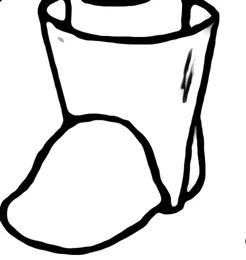
    As an example, this is the background + 3 duplicate layers each set to multiply: