
Known Participant
September 22, 2012
Answered

darkening lines of a hand drawing?

  • September 22, 2012
  • 4 replies
  • 57779 views

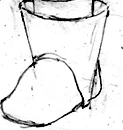
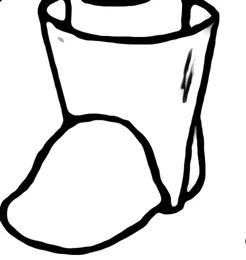
I have some hand drawings scanned into a computer that I want to clean up in Photoshop.I'm going to use the eraser tool to erase the smudges, though I want to darken the lines of the drawing without having to trace back over it with a pencil, pen, or paint brush. I played a bit by darkening the levels. Can anyone recomend anything else?

Thanks.
    This topic has been closed for replies.
    Correct answer Noel Carboni

    You're going to have some hand work as you have anticipated to get rid of the smudges and unwanted sketch lines.

    Just some things to experiment with after that to find a scheme you like:

    • Working at a higher resolution.
    • Image - Adjust - Threshold
    • Oil Paint with the Shine function set to 0
    • Filter - Other - Minimum
    • Filter - Noise - Median

    Have fun!

    -Noel

    4 replies

    the_wine_snob
    Inspiring
    September 23, 2012

    Not sure if you have, or have access to Adobe Illustrator, but I think that this would be a good candidate for AI's Live Trace, with a Threshold of about 200. Experiment with the Threshold, until completely satisfied.

    Hunt

    Participating Frequently
    September 23, 2012

    Bill,

    your graphic in #8 is quite convincing, but perhaps we should clarify

    media-cat's objective.

    For instance these scenarios:

    a) a B/W scan of a page with images or hand drawings. Increase the

    contrast and remove dust&dirt. This can be done by Brightness/Contrast,

    followed by Spot Healing Brush.

    Contrast is adjusted until black parts are black and Brightness is reduced

    until plain paper appears (marginally) with just  R=G=B=255 or L=100.

    b) a drawing should be converted into a B/W vector graphic.

    Your (Bill's) result is quite good, but the method doesn't work at all if

    we expect as a result something like a technical drawing.

    Noel, sorry for the somewhat harsh reply. I thought it had been clear

    that the OP did want to preserve the appearance of a hand drawing.

    Meanwhile I'm not sure about.

    Just for entertainment, I would like to present an advanced example of

    Illustrators Tracing function (based on distinct Munsell palettes):

    http://www.fho-emden.de/~hoffmann/casamunsell24062012.pdf

    Best regards --Gernot Hoffmann

    the_wine_snob
    Inspiring
    September 23, 2012

    As the AI Vector file will not attach, I just Placed the AI file into PS, and did a Save_As PNG.

    Just keep the AI, and all should be as desired, unless I am missing something.

    You seem to be indicating that the OP wants a particular workflow, where perhaps a better one exists. Now, the biggest stumbling block that I see is the access to AI. If one does not have that, then it would take a lot of such scans to justify its purchase. That is why I did not "champion" the AI route, but only mentioned it.

    Sorry that I did not focus on the stated, desired workflow, but others had covered that in good detail. I merely suggested a different workflow, based on the end-result that I had interpreted.

    Thanks,

    Hunt

    Noel Carboni
    Noel CarboniCorrect answer
    Legend
    September 22, 2012

    You're going to have some hand work as you have anticipated to get rid of the smudges and unwanted sketch lines.

    Just some things to experiment with after that to find a scheme you like:

    • Working at a higher resolution.
    • Image - Adjust - Threshold
    • Oil Paint with the Shine function set to 0
    • Filter - Other - Minimum
    • Filter - Noise - Median

    Have fun!

    -Noel

    Participating Frequently
    September 22, 2012

    Noel, not helpful IMHO - I regret.

    The OP is talking about how to clean up a hand drawing.

    Image > Adjustment > Brightness/Contrast

    Spot Healing Brush here and there

    Why the heck an adjustment layer, as mentioned previously?

    http://www.fho-emden.de/~hoffmann/storni13052011.pdf

    p.3

    http://www.fho-emden.de/~hoffmann/reydethule06102011.pdf

    p.1

    Best regards --Gernot Hoffmann

    Noel Carboni
    Legend
    September 22, 2012

    Gernot Hoffmann wrote:


    Noel, not helpful IMHO - I regret.

    Thank you for your honest opinion, Gernot.

    I'll admit to having done some reading between the lines to anticipate media kat's needs, and I'll be interested to hear whether media kat agrees with your assessment. 

    -Noel

    JJMack
    Community Expert
    Community Expert
    September 22, 2012

    Pregaps add a levels adjustment layer in multiply mode and adjust the prperties of the lavel or curve adjustment layer

    JJMack
    station_two
    Inspiring
    September 22, 2012

    One easy thing to try:

    Duplicate your background layer as many times as needed and set the blending mode of each new layer to multiply.

    As an example, this is the background + 3 duplicate layers each set to multiply: