
Desperate need of help with LR and PS color differences.
First I have scoured the forums (and Google) in hopes to fix this issue and no luck.
Workflow:
I apply a preset to all my photos after importing into LR
Make ALL color adjustments/corrections to final selection in LR develop module
Open final selection photos in PS ONLY for clone/clean-up purposes. I rarely further color correct in PS
Upon opening in PS via Edit in Adobe Photoshop CC 2018 from LR, the colors are immediately off.
PS seems to add way more contrast, and tint green. This is killer when I'm photographing people/skin tones in sunlight.
Here is an example:
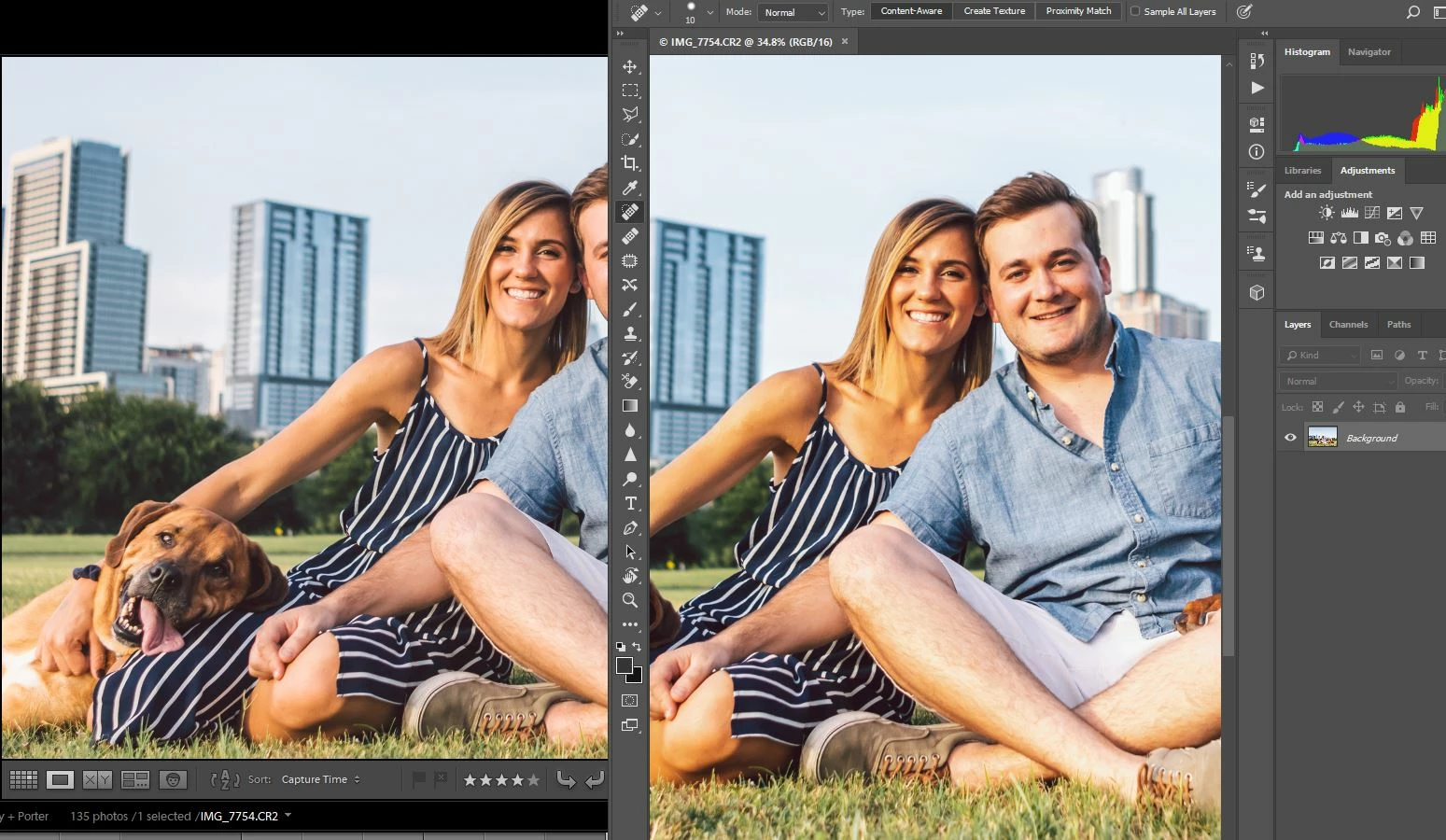
On the left (LR) is what I edited for. On the right (PS) my pink tint is gone leaving the woman looking yellow and the overall contrast has gone up.
It's not just a viewing difference, when I save as a .TIFF back into LR, the .TIFF version looks off (like in PS) while viewing in LR! This difference stays the same when exporting both .TIFF and .CR2 versions as well as printing.
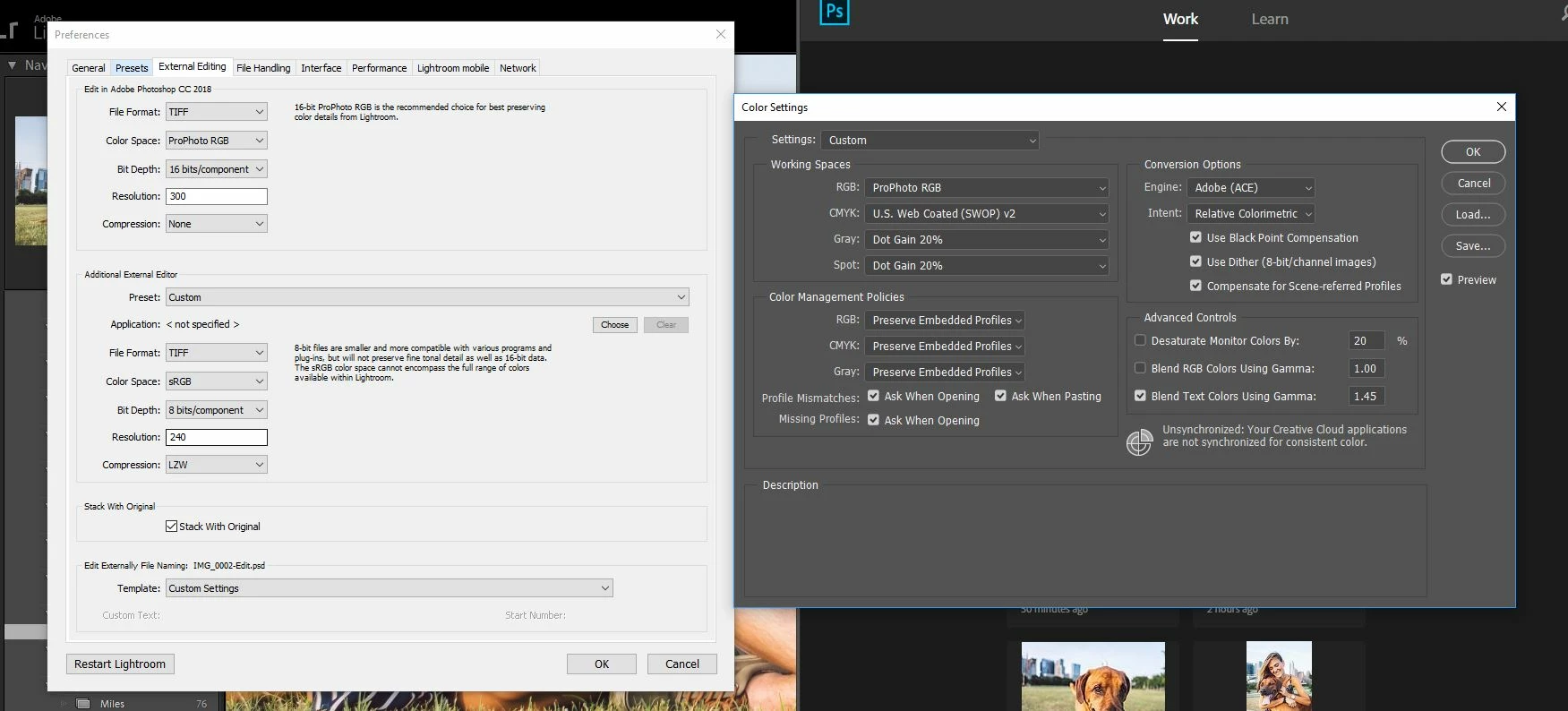
Edit: The Unsynchronized message on my Photoshop Color Settings doesn't seem to matter. I was having the same issue when it was listed as Synchronized, even though PS was working with North America General Purpose 2, sRGB IEC61966-2.1 and my LR settings were telling it to work in ProPhoto RGB (weird). I've "sync'd" them via Bridge and nothing changed/happend
I have:
- Ensured same color space/profile between the two programs (I have also tried every combination).
- Checked for corrupt monitor calibration by using a different default profile (still have the issue)
- Tried every option that's available so far on this issue that I could find
I calibrate with Spyder5 Pro, datacolor
Monitor is a ASUS VP239H recognized as a Generic PnP Monitor driven by a GTX 1070
Most updated Photoshop
2015 Lightroom CC. Lightroom CC Classic would not convert my catalogs to the newer ones so I couldn't use them.
Please help
 AdChoices