Inspiring
August 19, 2021
Answered

Does anyone know the best brush for this...?

  • August 19, 2021
  • 6 replies
  • 1506 views

Hi


Does anyone know of any brush sets you can download to achieve this sort of splat stain...?

They're like tea stains where they're faded in the centre, but with a harder edge. I've tried downloading various brush sets from watercolour, dirt, and coffee, but they all tend to be a combination of different splats formed together, and never anything like this.


Thanks

This topic has been closed for replies.
Correct answer Trevor.Dennis

It's possibly not something you'd chose to do with a brush preset because they appear to be single stamps of the brush, but you could very easily make a similar preset.  The thing to remember when defining a new brush is that 50% grey will have 50% opacity, full black 100% opacity etc. so you'd make your preset like this:


I've opened a new document and created a new layer

Made an elliptical selection, and filled it with a 25% grey.  You would decide how opaque the central section would be
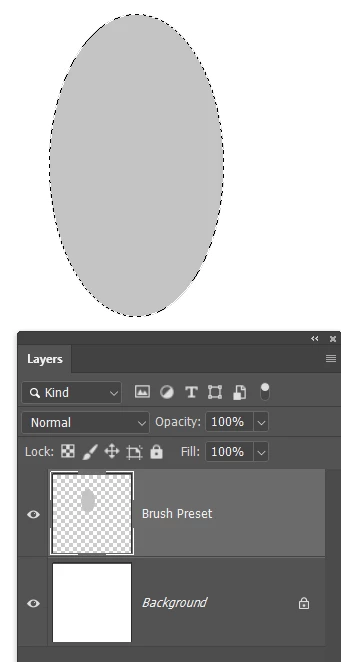
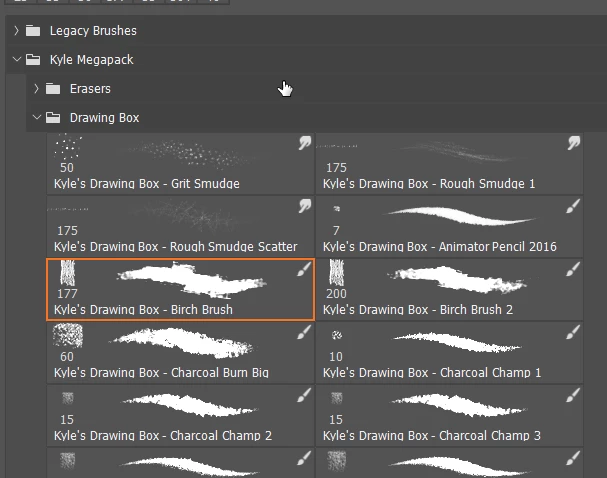
You need a brush preset that will create the ragged outline.  I am using this one from Kyles Megapack (which is free)
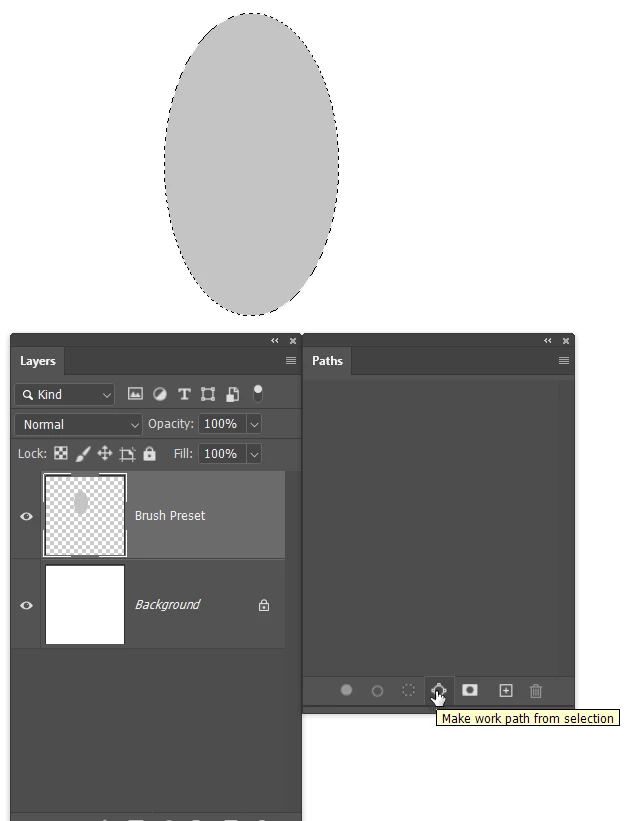
The easiest way to follow the periphery of the ellipse is to stroke a workpath.

Ctrl click on the ellipse (layer's eye icon) to load it as a selection, and then on the icon I have indicated at the bottom of the Paths panel.
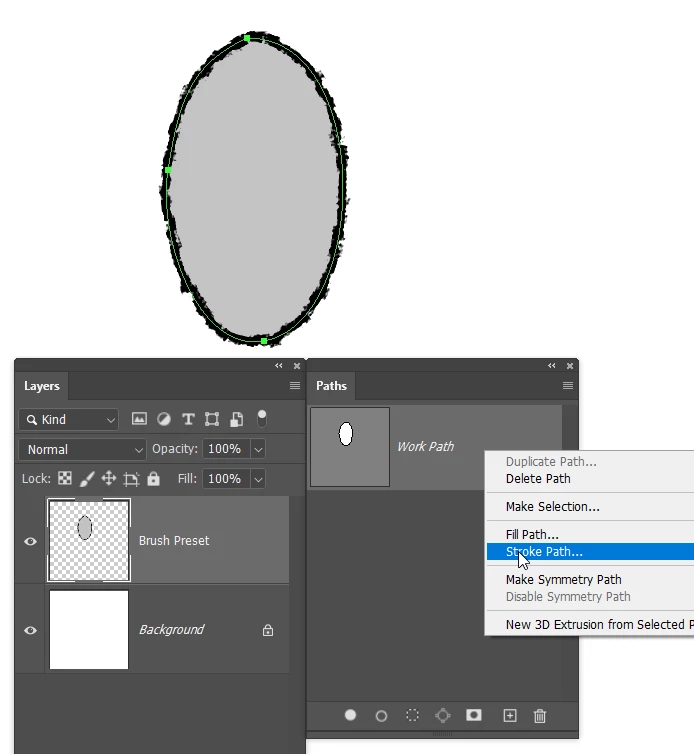
Stroking the path will use the existing brush size, so try a few stroke to get that right, then use Ctrl z to undo them.

Your foreground colour now needs to be full black.  Right click the path and chose Stroke Path and if the Brush tool is not already seelected, use the drop down to rectify that.  This needs to be on the same layer as they grey ellipse.
 

With that layer selected, go Edit > Define brush
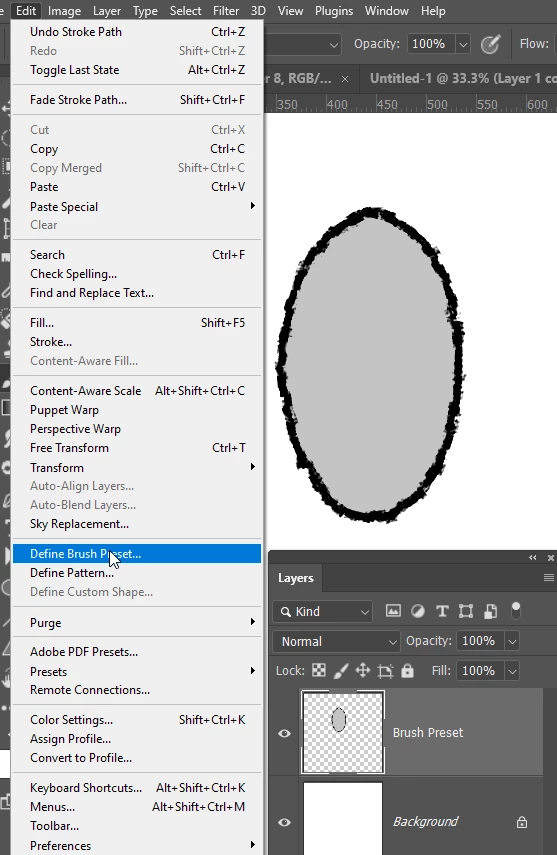
 

As it stands, it will produce a single stamp of the brush unnless you move the brush
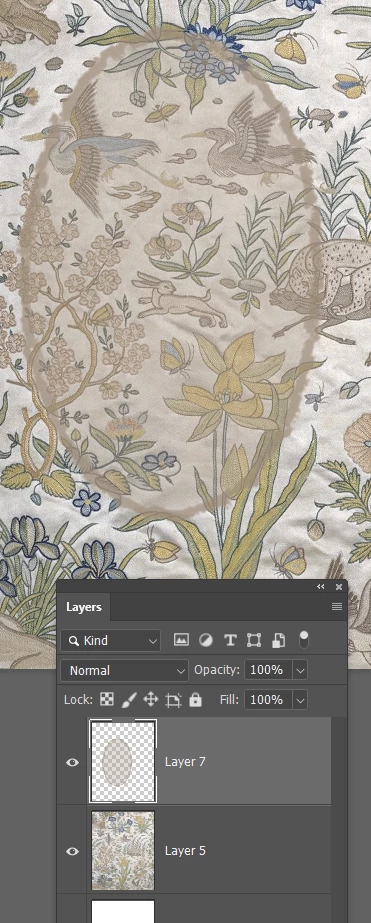
 

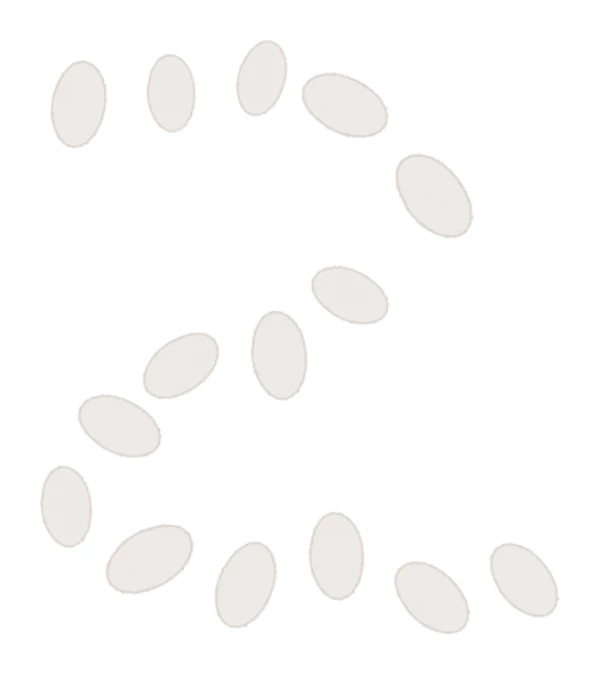
If you added some size, angle and scatter jitter in Brush Settings, and increased brush spacing, you can get somethig like this



6 replies

Trevor.Dennis
Community Expert
Community Expert
August 21, 2021

A few points after reading through the thread.


Kyles Megapack is indeed awesome, but there are so many great brushes it can be hard finding the ones you are after, so think about making a favourites group and dragging presets to it.  This temporarily removes them from the source group, but the next time you append the source group they will be available.


The way I do it nowadays is to use the search bar.  It's a good idea when starting out to turn on all the options in the brush panel.  Right click inside the document window with the brush selected and click on the little cog icon.  Then check all the options.

One of the most useful of those is the search bar.  Note it only looks in appended brush groups (open in the main panel window) and it can not do 'fuzzy' searching. i.e. if you used Water AND soft as search parameters it would probably find nothing although there is such a brush in the megapack.

Check out Wet edges. It gives a glowing edge effect


Although, I think as c.p. was saying, layerstyles can do all that a LOT better and if you find a layer style you like, you can save it as a Style and have it available with one click.  I often think that Layer Style are one of Photoshops unsung heroes and are under appreciated by a lot of users.


Leslie Moak Murray
Community Expert
Community Expert
August 20, 2021

You need to google "Watercolor Brushes Photoshop," and go to "Images."  From there you can see the shapes of each brush and choose the ones that fit your needs. Here are just a few:


-edit to reduce image sizes

c.pfaffenbichler
Community Expert
Community Expert
August 20, 2021

Depending on what exactly needs to be achieved, separate Layers, Groups, Patterns, Layer Styles and Blend Modes might also be useful. 

Inspiring
August 20, 2021

A feathered layer mask might be a nice touch. I'll keep that in mind. Thanks. 🙂

Known Participant
August 20, 2021

To me it seems like it's some kind of watercolor brush, let me know, i got some watercolor brushes that can actually mimic that.

Inspiring
August 20, 2021

I only have a couple of watercolour packs, but sure, I'd like to see if you have any different ones. 🙂

Inspiring
August 20, 2021

Something like that maybe?


Yeah, that might work. I can erase/tweak the edges up a bit. 🙂

Trevor.Dennis
Community Expert
Trevor.DennisCommunity ExpertCorrect answer
Community Expert
August 20, 2021

It's possibly not something you'd chose to do with a brush preset because they appear to be single stamps of the brush, but you could very easily make a similar preset.  The thing to remember when defining a new brush is that 50% grey will have 50% opacity, full black 100% opacity etc. so you'd make your preset like this:


I've opened a new document and created a new layer

Made an elliptical selection, and filled it with a 25% grey.  You would decide how opaque the central section would be

You need a brush preset that will create the ragged outline.  I am using this one from Kyles Megapack (which is free)

The easiest way to follow the periphery of the ellipse is to stroke a workpath.

Ctrl click on the ellipse (layer's eye icon) to load it as a selection, and then on the icon I have indicated at the bottom of the Paths panel.

Stroking the path will use the existing brush size, so try a few stroke to get that right, then use Ctrl z to undo them.

Your foreground colour now needs to be full black.  Right click the path and chose Stroke Path and if the Brush tool is not already seelected, use the drop down to rectify that.  This needs to be on the same layer as they grey ellipse.


With that layer selected, go Edit > Define brush


As it stands, it will produce a single stamp of the brush unnless you move the brush


If you added some size, angle and scatter jitter in Brush Settings, and increased brush spacing, you can get somethig like this



Inspiring
August 20, 2021

This is awesome. I want to give this a try and I've never used Paths before. However, I'm having a problem getting Kyle's Megapack. I go to Get More Brushes, which takes me to the Adobe webpage, and then it asks me to sign in. I sign in, but it just takes me round in circles asking me to sign in again. 😕😕


EDIT: Never mind. Signed out completely and then clicked on the sign in link and it's worked. 🙂

Bojan Živković11378569
Community Expert
Community Expert
August 20, 2021

I am not sure what is your end goal, it is small image. It seems to me regular brush. I do not think here is used any kind of special brush, perhaps some setting or blend mode is applied. Finally,  effect that you are looking for is at least very, very hard to see.