
dragantomas
Inspiring
August 15, 2023
Answered

Dont see blur outlines in blur gallery

  • August 15, 2023
  • 2 replies
  • 320 views

Hi all,


Mac M1 Max, latest versions of Photoshop and MacOS


Just tried a blur gallery after a long time. Problem is, say if I choose Irish blur (or any other of its applications), I do see the applied blur itself, but there are no containers or outlines which I can push and pull manualy in order to define where and how I want that blur to be.


Someone knows what is going on and what the fix is?


Thanks
This topic has been closed for replies.
Correct answer jane-e

@dragantomas 


Don't reset preferences. Instead try this:

  • Cmd+H will hide/show Extras (View menu)
  • Cmd+H actually hides/shows everything that is checked in View menu > Show

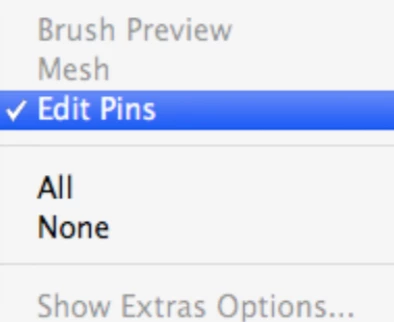
If Cmd+H (View>Extras) does not work, then confirm that "Edit Pins" is checked in View menu > Show first. 


Jane


2 replies

jane-e
Community Expert
jane-eCommunity ExpertCorrect answer
Community Expert
August 15, 2023

@dragantomas 


Don't reset preferences. Instead try this:

  • Cmd+H will hide/show Extras (View menu)
  • Cmd+H actually hides/shows everything that is checked in View menu > Show

If Cmd+H (View>Extras) does not work, then confirm that "Edit Pins" is checked in View menu > Show first. 


Jane


Sameer K
Community Manager
Community Manager
August 15, 2023

Hey @dragantomas. I'll need more info to help you figure this out. Please share screenshots or recorded videos with the system info of Photoshop from Help > System info > Copy & paste into a text document > Upload as an attachment here to share with us.


As a basic step, you can try to reset Photoshop to the default. Go to the location of the preference folder below and rename it to backup. https://helpx.adobe.com/photoshop/using/preferences.html


  • macOS: In the Finder, hold down the Option key when using the Go menu > Library > Go to Preferences/Adobe Photoshop [version] Settings
  • Rename the Adobe Photoshop folder by adding a .old at the end. (Adobe Photoshop 2023 > Rename > Adobe Photoshop 2023. old)


These changes will give a fresh start to Photoshop as a fresh install. Let me know how it goes.

Thanks!
Sameer K