as45120527
Known Participant
December 27, 2018
Answered

Dr. Applesmith 3D character modification [2018]

  • December 27, 2018
  • 7 replies
  • 4307 views

Hi


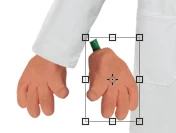
In Photoshop I was able to select and delete the Stock Character Dr. Applesmith's left hand with the mouse and then select his right hand and copy it so that I could make a left hand that had no mouse.


I just can't get the hand itself to flip horizontal, because when I flip horizontal, the whole character flips, even though I have the hand selected.


Also, I want to get rid of his coat and selected the coat layer, but only the central part of the coat will delete - what am I missing in terms of actions?


And how do I get other 3-D characters like Dr. Applesmith - Adobe Stock?


I'm trying to modify Dr. Applesmith for use in

Character Animator.


Thank you!

Correct answer davescm

Hi

The character, from Character animator if anyone is looking,  is not a 3D model - just a series of 2D elements.

To flip the hand, select it and use Edit > Transform > Flip Horizontal

Dave

7 replies

as45120527
Known Participant
December 27, 2018

Is there a way to change the voice to a male/female/accented of the audio microphone input in Character Animator?

Thank you!

davescm
Community Expert
Community Expert
December 27, 2018

Hi

You would be better asking that one in the Character Animator forum - rather than this Photoshop forum.

Character Animator

You can round trip the audio to Adobe Audition and alter it there.

Dave

davescm
Community Expert
Community Expert
December 30, 2018

Character Animator has no audio changing support. I used I think it was called Virtual Cable to feed mic into Adobe Audition for audio effects, then connect that up to OBS for me, but should work going into CH as well. Virtual Cable allows the speaker output of one program to become the microphone input of another program. I used it for live pitch bending when streaming to OBS/YouTube. Had to get all the delays set up right to keep the lips in sync with the audio after all the processing etc. See https://extra-ordinary.tv/2018/10/22/project-wookie-a-beginner-youtube-playlist/ (the project wookie videos) for the end result.


Thanks Alan - I also use VB-Virtual Audio Cable to pipe my microphone audio through Audition when talking live on Adobe Connect. It works well.

Dave

as45120527
Known Participant
December 27, 2018

Thank you very much!

as45120527
Known Participant
December 27, 2018

I changed the coat layer back to normal and then I get this missing area in the waist.

I tried the color change and I must not be doing something correct.

I also added a layer mask.

And I clicked the eye icon.

Also, are there no other different 2-D characters like Applesmith I can get?

Thanks!

davescm
Community Expert
Community Expert
December 27, 2018

The missing area at the waist is there because when you take away the coat layer there is nothing behind it. Removing a layer, or making it transparent with a mask, can only reveal what is behind if there is another layer with opaque pixels below it. If there is not, then you get a blank area as you are seeing.

If you want to put something in that area you will need to create a new layer and paint into the blank area.

For more character puppets to use in Character Animator see here:

Character Animator Examples

Dave

as45120527
Known Participant
December 27, 2018

Ohh thanks. So because there is no shirt sleeve behind the coat arms, does that mean that I have to leave the coat arms on to look less unusual?

I searched Adobe Stock and can't find any other 2-D characters like Applesmith - how should I search to find them?

Thanks!

as45120527
Known Participant
December 27, 2018

davescm
Community Expert
Community Expert
December 27, 2018

In your screen shot you have changed the coat layer blend mode to "Darker color". Change it back to "Normal".  If you want to change visibility of the layer use the eye icon or add a layer mask where you can decide what areas of the layer to make transparent. Where the mask is white the layer will show, where the mask is black the layer(s) below will show.

Dave

as45120527
Known Participant
December 27, 2018

When I select it, the edit>"transform">flip horizontal didn't do anything. And I had the hand layer selected on the far right. Then I went to another hand layer and I got it to work. I don't know how to identify the different layers. Is the a trick to that?

Also, How do I delete the white lab coat full, rather than partially just in the middle section revealing the blue short and tie, like is happening now?

Thanks!

davescm
Community Expert
Community Expert
December 27, 2018

Look at the layers panel.

The layer you have selected will be highlighted (blue or grey depending on your settings in Photoshop Preferences)

There is no overall coat layer. Layer shown below, labelled coat and arrowed red, is the "body" of the coat.
The arms and shoulders, arrowed green, are separate but there is no shirt sleeve layer behind them

Dave

davescm
Community Expert
davescmCommunity ExpertCorrect answer
Community Expert
December 27, 2018

Hi

The character, from Character animator if anyone is looking,  is not a 3D model - just a series of 2D elements.

To flip the hand, select it and use Edit > Transform > Flip Horizontal

Dave

as45120527
Known Participant
December 27, 2018

When I select it, the edit>"transform">flip horizontal doesn't do anything. And I have the hand layer selected on the far right.

Also, How do I delete the white lab coat full, rather than partially like is happening now?

Thanks!

davescm
Community Expert
Community Expert
December 27, 2018

Hi

Please show a screenshot including your layers panel so that we can see exactly what you have selected.

Dave