
Known Participant
August 1, 2025
Answered

Dragging JPG into PSD takes PPI size.

  • August 1, 2025
  • 4 replies
  • 303 views

Just installed PS 26.9.0. After 34 popups, I could finally work and dragged a 4k jpg into a 4k PSD file.


It opens smaller. While it actually says 100%.

Turns out that it reads the PPI size (pixels/inch) instead of the actual PIXEL size....

So now I have to open separately, then copy and paste........ REALLY?


Still no "fit" "fill" and "pixel to pixel" options?


You can't be serious, Adobe... 😭 Thousands of emplyees and none thinking of simple workflow improvements?...


In settings, disabling "skip transform when placing", "Resize image during place" and "Always create smart objects when placing" made NO difference. It opens smaller. Period.


(edit: changed DPI to PPI as I meant PPI)
 

Correct answer Stephen Marsh


Turns out that it reads the DPI size (pixels/inch) instead of the actual PIXEL size....

So now I have to open separately, then copy and paste........ REALLY?


By @Skiesmdb


https://community.adobe.com/t5/photoshop-ecosystem-discussions/scripts-to-place-embedded-amp-place-linked-at-1-1-scale-ignoring-ppi/m-p/14032422


There is no DPI for image construction in Photoshop, it's PPI, images are comprised of pixels, not dots. The resolution value (either pixels per inch or pixels per centimeter in density) and the physical print size value are dependent on each other, as is demonstrated when using Image > Image Size with resampling/interpolation off. The sizing of smart objects is based around the physical print size, as placed vectors don't have pixel resolution, so this is the constant used for sizing.


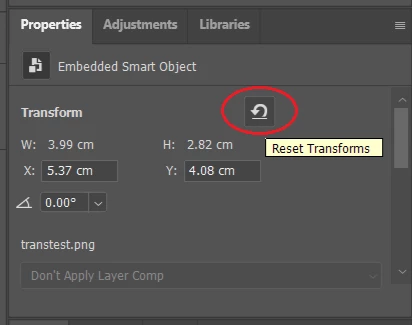
I have written scripts to automate various steps and processes, however the key step after the smart object is created is to use the Properties panel and the Reset Transforms button. This is the equivalent of copy/paste as it retains the original pixel sizing.


4 replies

D Fosse
Community Expert
Community Expert
August 2, 2025

It is as Stephen explains.


The thing that confuses you, is that smart objects honor physical dimensions, not pixel dimensions. This is by design, to mimic the behavior of a PDF or a vector file. The intended purpose is to enable seamless cross-platform workflows.


There are two ways to avoid this:

  • make sure the ppi numbers are the same. Then pixels will map 1:1 just as in standard pixel images.
  • don't use Smart Objects.
SkiesmdbAuthor
Known Participant
August 2, 2025

I meant PPI, apologies.


@Stephen Marsh 

Reset trasform worked! Thank you!

Quite odd, as it says 100% when importing. I wouldn't expect it to then reset to pixel values after all.


@D Fosse 

When the jpeg comes from another source like Resolve you can't change the PPI.

It also happens when disabling smart objects. It just places it resized, always 😱

So it's actually better to enable smart objects, as you can get the pixel values using that little reset button in the properties. as I've now learned..


I think I'll make an Action with shortcut for that...


@Adobe

I understand that for some workflows this behavior might be desirable but it should absolutely NOT be the ONLY behavior...

D Fosse
Community Expert
Community Expert
August 4, 2025

I should perhaps have been more precise: just copy/paste; don't Place. That aligns pixels 1:1, and that's what I meant by not using smart objects.


"Place" is a command borrowed from vector apps like InDesign or Illustrator, and it's intended and designed to work the same way: honor physical dimensions, not pixel dimensions. Drag/drop from outside sources will do the same thing. However, drag/drop from within Photoshop is a copy/paste.


You can change the ppi metadata for any file from any source. But of course you have to open it in Photoshop first, assign the ppi, then save.


Glenn 8675309
Legend
August 2, 2025

DPI is a  term applied to printers- has nothing to do with image size.  Nothing in Photoshop displays anything in dpi. 

Stephen Marsh
Community Expert
Stephen MarshCommunity ExpertCorrect answer
Community Expert
August 1, 2025


Turns out that it reads the DPI size (pixels/inch) instead of the actual PIXEL size....

So now I have to open separately, then copy and paste........ REALLY?


By @Skiesmdb


https://community.adobe.com/t5/photoshop-ecosystem-discussions/scripts-to-place-embedded-amp-place-linked-at-1-1-scale-ignoring-ppi/m-p/14032422


There is no DPI for image construction in Photoshop, it's PPI, images are comprised of pixels, not dots. The resolution value (either pixels per inch or pixels per centimeter in density) and the physical print size value are dependent on each other, as is demonstrated when using Image > Image Size with resampling/interpolation off. The sizing of smart objects is based around the physical print size, as placed vectors don't have pixel resolution, so this is the constant used for sizing.


I have written scripts to automate various steps and processes, however the key step after the smart object is created is to use the Properties panel and the Reset Transforms button. This is the equivalent of copy/paste as it retains the original pixel sizing.


Legend
August 1, 2025

Its complicated and involves legacy support for files that will be printed and smart objects but... yes, copy and paste. Place, drag, and paste all work slightly different.


https://helpx.adobe.com/photoshop/using/placing-files.html

https://community.adobe.com/t5/photoshop-ecosystem-discussions/drag-dropping-images-into-ps-resolution-question/m-p/11605730