Participating Frequently
November 22, 2018
Question

drop shadow on flatlay object

  • November 22, 2018
  • 3 replies
  • 2915 views

Hi there,

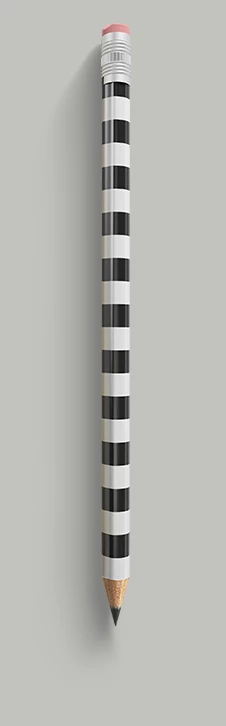
I am working on a project and I need to create a realistic drop shadow that is losing intensity the further it moves from the object. I found an example of something that I am trying to achieve and I tried to figure out how to recreate this but with no success. If anybody has experience with it or can lead me to a tutorial I would very much appreciate.

Many thanks
This topic has been closed for replies.

3 replies

Participating Frequently
November 22, 2018

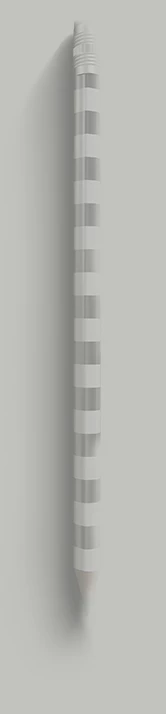
These are all very good alternatives but iwas more after this exact technique. So the shadow is on a separate layer looks like part of the pen still shows although the colours are washed out and the shadow is gradually looses its strength the further it moves from the object. I think maybe they used a channel? I’m thinking that because the pen lookes washed out  From a side like they applied Some sort of a drag effect from one side of the pen and creating a longer gradual shadoW. I am not sure how to use channels anyway but was thinking what was the exact effect and why the original pen still shows together with the dropped shadow on this example.

Participating Frequently
November 22, 2018

This is another example of the bowl

And the shadow

A spoon with shadow

And this is how the shadow then i remove the spoon layer looks like

Norman Sanders
Legend
November 22, 2018

Another option is to:

Double-click on the layer to access Layer Style and create a hard edged Drop Shadow.

Choose Layer > Layer Style > Create Layer (It is near the bottom of the list. This will put the Drop Shadow on its own layer below the image layer.

Add a mask to the drop shadow layer, then use the Gradation Tool (white-to-black) to control the gradation of the drop shadow.

(Edit: Note that you may use the Move tool to reposition the Drop Shadow.)

Trevor.Dennis
Community Expert
Community Expert
November 22, 2018

Assuming the pencil is on its own layer with transparent background:

Create a new layer beneath the pencil layer

Ctrl click the pencil layer's icon to load it as a selection, and fill that selection with black

Clear the selection, and move the shadow layer over to the desired location.

It is probably best to make the shadow layer a Smart Object (by right clicking it) so you can adjust the blur

Apply Gaussian Blur.  I used a value of 5

Add a layer mask to the shadow layer, and run a black to white gradient across it

Remember, being a Smart Object, you  can double click it  any time to adjust the blur.

By Alt clicking the layer mask, we can see the mask in the main window.    This is only useful for demonstration.

Trevor.Dennis
Community Expert
Community Expert
November 22, 2018

A couple more tips. 

We usually set shadow layers to Multiply to make them fully dense.

I've reduced the shadow layer opacity here.

I have also disabled the ling between the mask and layer contents.  This lets us move  he mask  independently from the layer contents to  fine tune its effect.

Good luck.