MahaB82A
September 13, 2025
Answered

Duplicating a Shape

  • September 13, 2025
  • 2 replies
  • 1321 views

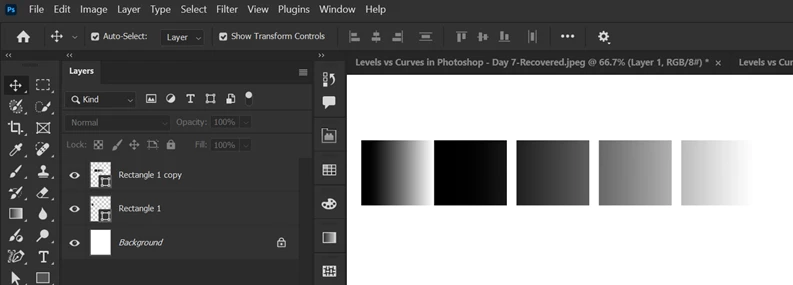
I want to Duplicate this Shape. First I activated [Ctrl+J] key to make a copy then activated [Ctrl+Alt+Shift+T] key to duplicate it. But it does not come. How to do it?


Correct answer Trevor.Dennis

Hi @MahaB82A 


@AlanGilbertson  The thread author is referring to Free Transform Step & Repeat, which is where Shift Ctrl Alt T comes in. It works reliably with raster layers, but is definitely problematic with Shape Layers and Smart Objects.  So you could rasterize the Shape Layer, but we discovered a workaround for Smart Objects fairly recently, so lets see if we can use that here?


OK, tested and it works, so this is the way:

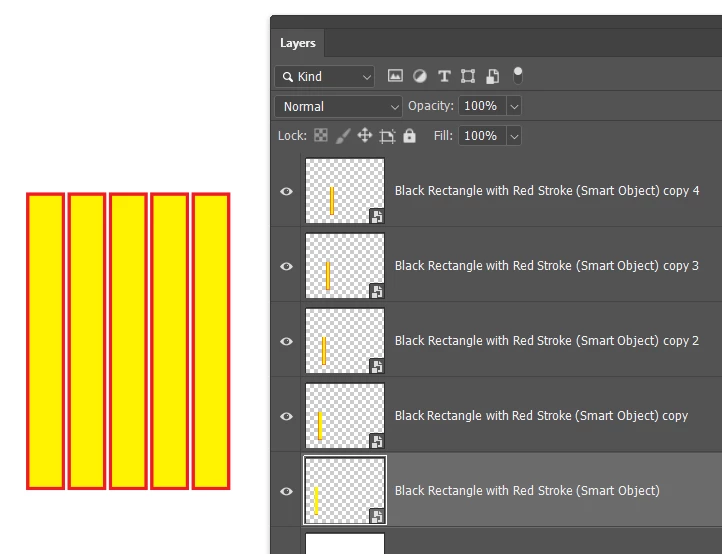
Create your Shape Layer, and make it a Smart Object (right click the layer)
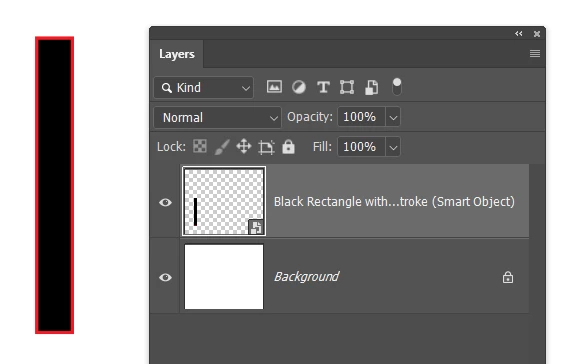
Right click the Smart Object Layer and choose New Smart Object Via Copy

Apply the first Transform to that layer.
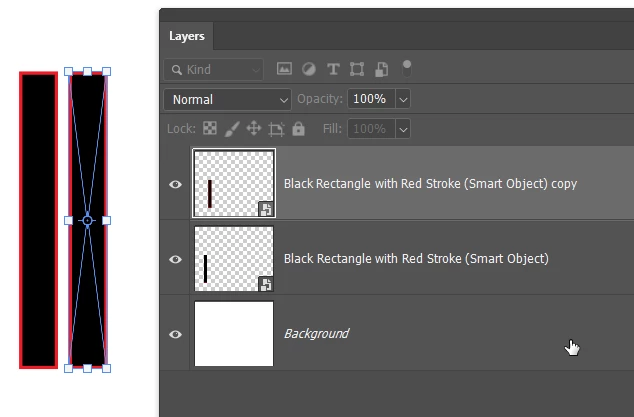
 

Now delete that layer, select the original Smart Object layer, and carry on with the Step & Repeat (Shift Ctrl Alt T)

It now works with shape layers and smart objects.
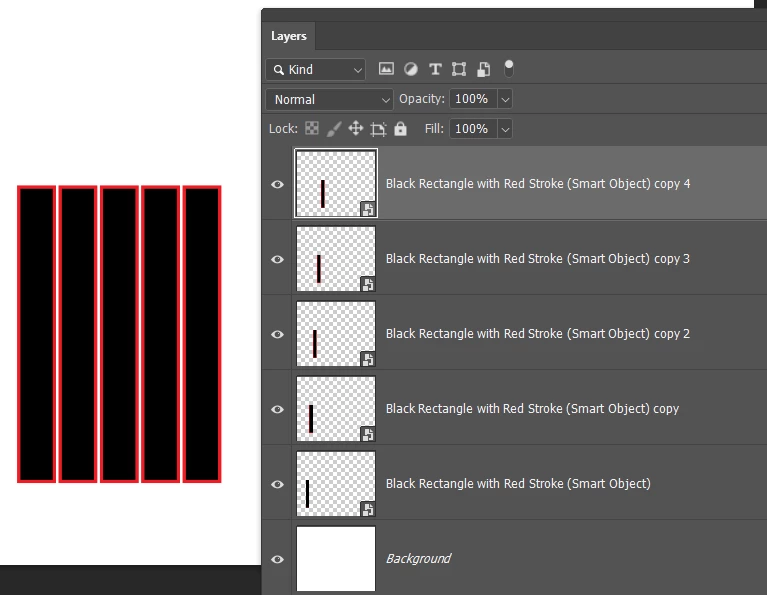
 

Because the shape layer is a Smart Object, you can edit the SO and change will be applied to all of the step & repeat layers.

NOTE:  You must apply the edit to the original layer.  It will not work if you edit one of the copied layers.
 

Just one more heads up: Step & Repeat is an undocumented shortcut, and is not included in Edit > Keyboard Shortcuts

So if you reasign Shift Ctrl Alt T step & repeat will not work.


I use it to arrange windows — from a Michael Ninness worksahop at MAX about ten years ago.
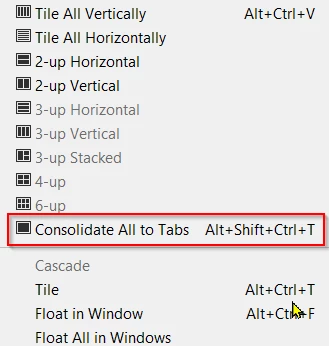
So I have my new shortcut saved to my main workspace, and switch to Essentials when I need to use Step & Repeat.


2 replies

Trevor.Dennis
Community Expert
Trevor.DennisCommunity ExpertCorrect answer
Community Expert
September 13, 2025

Hi @MahaB82A 


@AlanGilbertson  The thread author is referring to Free Transform Step & Repeat, which is where Shift Ctrl Alt T comes in. It works reliably with raster layers, but is definitely problematic with Shape Layers and Smart Objects.  So you could rasterize the Shape Layer, but we discovered a workaround for Smart Objects fairly recently, so lets see if we can use that here?


OK, tested and it works, so this is the way:

Create your Shape Layer, and make it a Smart Object (right click the layer)

Right click the Smart Object Layer and choose New Smart Object Via Copy

Apply the first Transform to that layer.


Now delete that layer, select the original Smart Object layer, and carry on with the Step & Repeat (Shift Ctrl Alt T)

It now works with shape layers and smart objects.


Because the shape layer is a Smart Object, you can edit the SO and change will be applied to all of the step & repeat layers.

NOTE:  You must apply the edit to the original layer.  It will not work if you edit one of the copied layers.


Just one more heads up: Step & Repeat is an undocumented shortcut, and is not included in Edit > Keyboard Shortcuts

So if you reasign Shift Ctrl Alt T step & repeat will not work.


I use it to arrange windows — from a Michael Ninness worksahop at MAX about ten years ago.

So I have my new shortcut saved to my main workspace, and switch to Essentials when I need to use Step & Repeat.


MahaB82A
MahaB82AAuthor
September 14, 2025

Thanks for the wonderful method & explanation. I did many YouTube search nearly 3-4 hours but I couldn' find a solution for this issue.

MahaB82A
MahaB82AAuthor
September 15, 2025
quote

I did many YouTube search nearly 3-4 hours but I couldn' find a solution for this issue.


By @MahaB82A


The world is a bigger place than YouTube. :]


I assume in the future ChatGPT is going to be bigger than the world. 

AlanGilbertson
Community Expert
Community Expert
September 13, 2025

I'm not sure I understand what you are asking for. You can duplicate the layer (Layer > Duplicate...), but I don't think that's what you're asking. Give us a little more detail.

MahaB82A
MahaB82AAuthor
September 13, 2025

I want to create like this.


AlanGilbertson
Community Expert
Community Expert
September 13, 2025

Start with Free Transform, but hold the Alt key down when you click on Edit > Free Transform OR use the keyboard shortcut Ctrl+Alt+T. Nudge the shape copy to the next position.

Press Ctrl+Alt+Shift+T multiple times until you have enough copies.

Select all the layers and use Ctrl+E to merge them.
