
Participant
June 13, 2019
Answered

Easy color changing with layer masks

  • June 13, 2019
  • 1 reply
  • 559 views

I really hope someone can help me out with this, I'm struggling so hard to remember how to do this! It's been a hot minute since my last digital illustration class, and I remember that we used some sort of layer style or tool that allowed us to paint where we wanted color to apply to a layer using layer masks. Then, if you wanted to change the color, you click on the square next to it, bring up the color palette, and then choose the color. Sorry if this sounds confusing, I have a picture below, I found it in one of my old files. How the heck do you make this and what's it called?!
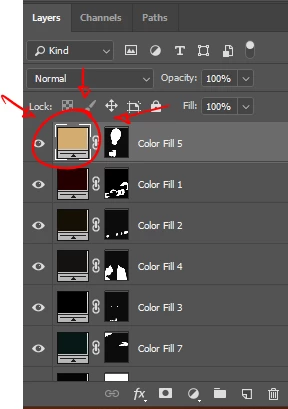
This topic has been closed for replies.
Correct answer Daniel E Lane
  • Down at the bottom of the layer pallet, Click on the little 1/2 black circle button "Create New Fill or Adjustment Layer"
  • In that dropdown, click "Solid Color"
  • Now you have a solid color you can modify as a new layer. Add your mask.
  • If you decide you want to change the color, Double Click on that colored square in your layers pallet

1 reply

Daniel E Lane
Daniel E LaneCorrect answer
Inspiring
June 13, 2019
  • Down at the bottom of the layer pallet, Click on the little 1/2 black circle button "Create New Fill or Adjustment Layer"
  • In that dropdown, click "Solid Color"
  • Now you have a solid color you can modify as a new layer. Add your mask.
  • If you decide you want to change the color, Double Click on that colored square in your layers pallet

noelle91Author
Participant
June 13, 2019

Ah! Thank you!