
Inspiring
June 20, 2019
Question

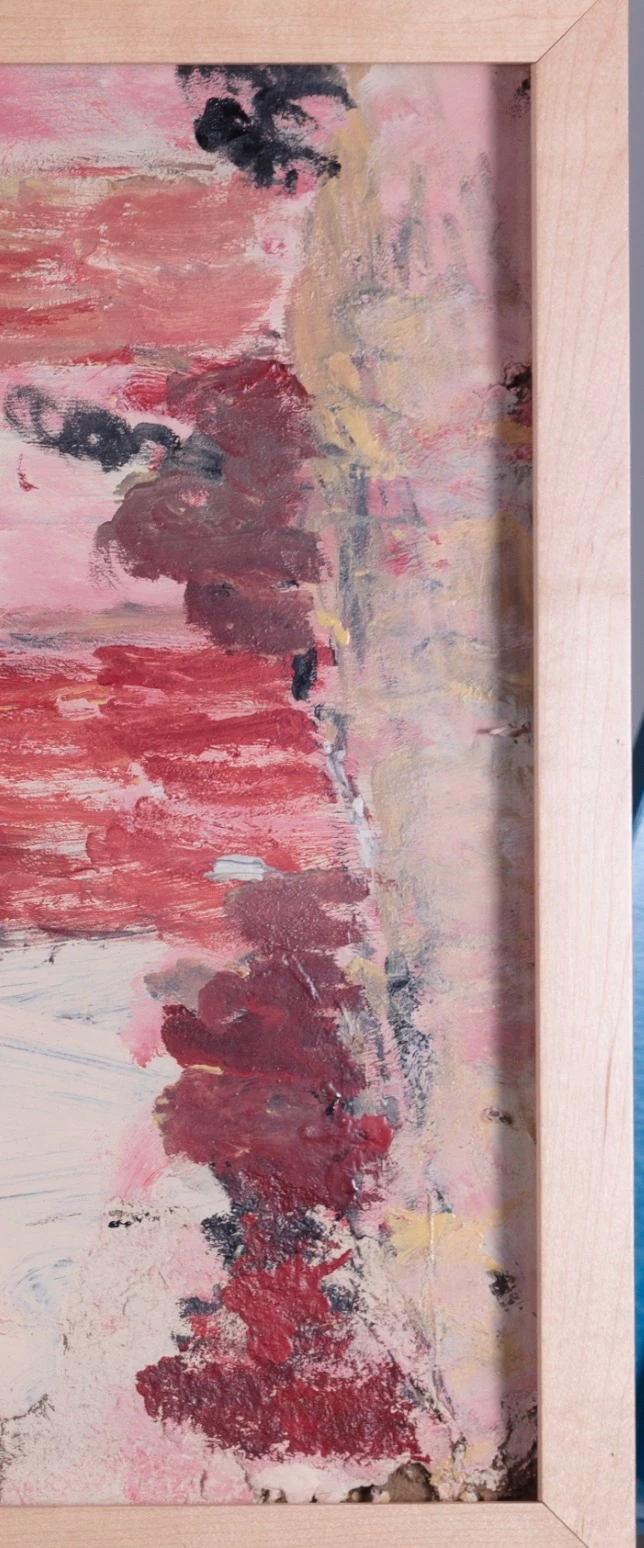
Edge shadow on painting from lighting

  • June 20, 2019
  • 8 replies
  • 1788 views

I shot a painting, and can't get the shadow from my lighting off of it.  There was no way around it on site, just wondering if anyone can help me figure out how to do it in post.  No matter how I do it I get a line from the shadow.
    This topic has been closed for replies.

    8 replies

    SRPcashieAuthor
    Inspiring
    June 21, 2019

    I guess I forgot to mention I no longer have access to the painting and my options were very limited in shooting it in situ having to have a black cloth up to block reflections limiting the positioning of both of my lights.  Had I the opportunity to shoot it again I would have tried to position my lights to get the same amount of light in the corners despite reflections for some of the exposures and tried to blend them.  But even if I could do that I would still have the problem of that line that appears whenever I try to blend them.  I guess what I was trying to ask was a more specific way to try and address this line and problems blending in post.  Cropping the piece itself was also not an option.

    Any thoughts on specifically how to use the lighten blend mode and masks to accomplish brightening this area without getting a line? 

    Any tutorials out there that might help? I did use a curves adjustment layer on the shadows and that helped.  But I found it impossible to blend in the shadow from an overexposed image that had lighter shadows. 

    Trevor.Dennis
    Community Expert
    Community Expert
    June 21, 2019

    silvia1169  wrote

    I guess I forgot to mention I no longer have access to the painting and my options were very limited in shooting it in situ having to have a black cloth up to block reflections limiting the positioning of both of my lights.

    Ahhh... I was thinking you'd done well to keep reflections off the glass. 

    silvia1169  wrote

    Any thoughts on specifically how to use the lighten blend mode and masks to accomplish brightening this area without getting a line?

    The approach I take in that sort of situation is to use a hard edged layer mask in a Curves layer.

    I then ignore the obvious seam while adjusting the curve, and go just a bit too far.

    (If this happening with a raster layer, I unlink the mask so I can move it independently of the layer's contents)

    I use Mask Properties to adjust the feather, and move the mask left and right.

    And use either the density slider in mask properties, or reduce the layer opacity to lessen the effect (if still talking about a curves layer).

    This has the advantage of being non destructive and infinitely adjustable to fine tune

    Hard edged mask

    Mask feathered and nudged to the left

    What I've done here is add a copy merged layer to the top of the stack, and set it to Screen.

    Then added a hide all layer mask, and run a soft white brush down the slightly darker bit

    I've now lowered the layer opacity

    Unlinked and feathered the mask

    And nudged it to the right

    You can free transform a layer mask independently of the layer contents, which let my widen the mask a touch

    Or I could hold down Shift, and run a soft white brush down the mask to slightly widen the reveal area

    I can see it is a bit bright towards the bottom of the reveal area.  We already have a mask, but if we made the layer a Smart Object we could add a new layer mask, and run a black to transparent gradient up it.  

    I hope this helps.  I've got to go out and I am late, so will check later

    SRPcashieAuthor
    Inspiring
    July 9, 2019

    This is so great of you to help.  I have some questions.  Your original hard edged mask goes from the frame and just a bit beyond the shadow area, correct?

    In order to nudge the mask to the left you have to unlink it, correct?

    Then when you say,

    What I've done here is add a copy merged layer to the top of the stack, and set it to Screen.

    Then added a hide all layer mask, and run a soft white brush down the slightly darker bit

    It means you just hit command J from the original layer (named painting area copy in your screen), changed blending mode to screen and hid it behind a black mask?

    Also why do you unlink the mask to feather it?

    I'm not sure if it's proper to ask this on the same thread but would you use the same method to correct the bright light on this image?

    D Fosse
    Community Expert
    Community Expert
    June 21, 2019

    I assume you have a light on both sides. Take three exposures, one with both lights on, and two with one light turned off. Increase ISO a full stop to compensate. Then it's fairly straightforward to use soft masks and lighten blend mode to lift only the shadow parts, leaving the main area unaffected.

    In the pre-digital era you had to use very large soft boxes to soften the shadows. You couldn't get rid of them, but soft shadows are a lot more visually acceptable. This increases the risk of unwanted reflections significantly, so great care is required in positioning the lights. You also had to use polarizing film on the lights, and a polarizer on the lens rotated 90 degrees (cross-polarized light).

    If you can't get rid of the shadows, it may sometimes be better to light from above.

    SRPcashieAuthor
    Inspiring
    June 21, 2019

    Could you be more specific on this -- 'Then it's fairly straightforward to use soft masks and lighten blend mode to lift only the shadow parts, leaving the main area unaffected.'

    Chuck Uebele
    Community Expert
    Community Expert
    June 21, 2019

    I don't know your original equipment set up, but I still hold to my original comment about moving the lights and using lighten blend mode to eliminate the shadow. Especially since the painting was suspended.  I used to do this all the time with my work.

    Trevor.Dennis
    Community Expert
    Community Expert
    June 21, 2019

    'Light Science & Magic' by Fil Hunter is the de facto book for this and, pretty much, most other photography lighting situations.  It is up to edition 5 now, but earlier editions are available as PDF files. Pages 52 onward covers photographing paintings.

    I actually use a slightly different approach I learned from either David Hobby or Jo McNally.  I think it was from Joe's first book 'The Moment it Clicks' but whoever I loaned it to forgot to return it.  This approach makes use of light fall off with distance and the light's axis, and takes a bit of balancing, but you aim the light's axis at the far side of the canvas, and adjust the distance and angle so the fall off towards the edge of the beam on the closest side of the painting, matches the fall off with distance with the furthest side.  You do this with two diffuse light sources, which gives you a lot of lee way so it's not hard to get right.

    If your artwork was behind glass, then you have done well to avoid reflections in the glass I'd say, but your light source is way too small judging from the very shallow Shadow Edge Transfer.  I'd also hazard a guess that you only used one light?

    Anyway, to fix this particular situation, then as Nancy and Chuck have said, sacrifice the shadow area.

    There are any number of approaches. Quick and dirty would be to select the good area of the artwork

    And stretch it with Free Transform to cover the shadow area

    SRPcashieAuthor
    Inspiring
    June 21, 2019

    Not only could I not unframe the piece but it was behind glass and hanging from strings.  It couldn't be moved except for the gentle sway it had going from hanging.

    Trust me, I also do this for a living and I tried everything.  I took some shots over exposing the piece and thus exposing the shadows correctly but any time I try to line them, or mask them, or anything I get a line.  I'm really stuck.  I can't crop the painting.

    Chuck how did you get that result with a curve adjustment layer? 

    bellevue scott
    Inspiring
    June 21, 2019

    Yeah, that shadow. I do this for a living, so I run into this a lot.

    If you can't take it out of the frame, then Turn the painting and shoot it again. Take a few shots if you have to, but turn the painting, not the lights. Make sure your light is even and unmoved. Once you have your shots you can rotate them , so they're all the same position on screen. Now crop out the shadow areas and use the panorama stitching function to stitch it back together. (file -> Automate -> Photomerge).

    Another thing you can do is to crop the image so there's no frame, and then you can put a rectangular marque around the shadow, and then hit the delete key and select content aware. There isn't anything too important in the shadow of this particular piece, so you'll get a natural looking fix.

    The most obvious thing is to use the gradient tool to lighten that shadow, but I can assure you it will never work well. Ever. Try the first two things, and one of them should work for you.

    SRPcashieAuthor
    Inspiring
    June 21, 2019

    How would you use the gradient tool to lighten the shadow?  I tried using it on a mask but couldn't get it to work.

    Chuck Uebele
    Community Expert
    Community Expert
    June 20, 2019

    I would agree with Nancy about removing the canvas, or taking several photos and move the lights around, so that you can fill in the dark area and blend the exposures. But if you have to work with this image, you can use curves and very carefully mask in the corrections.

    SRPcashieAuthor
    Inspiring
    June 21, 2019

    This looks pretty good.  How did you get curves to get you this?  Did you do two separate adjustments?

    Chuck Uebele
    Community Expert
    Community Expert
    June 21, 2019

    I just used the polygon lasso tool to make a selection down the line, the feathers it. I tried to make the dark area the same as the light area. The transition was an issue, so first tried just to get the areas further from the transition to look close. Then I went back with a soft. Rush and touched up the transition. There was still a grayish line in the transition, so I added the second  curves layer to lighten it and add a bit of yellow red to that area, and then painted in the correction on a mask.

    Nancy OShea
    Community Expert
    Community Expert
    June 20, 2019

    Next time remove the canvas from it's frame BEFORE you shoot the photograph.  There isn't much pixel data left to work with.  I would probably crop it.

    Nancy O'Shea— Product User & Community Expert