bretth14947816
Participant
November 8, 2018
Question

Eraser Tool erases outside of selections.

  • November 8, 2018
  • 6 replies
  • 5794 views

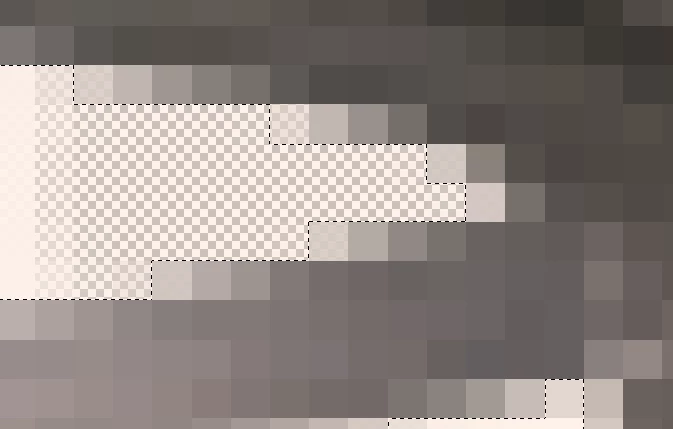
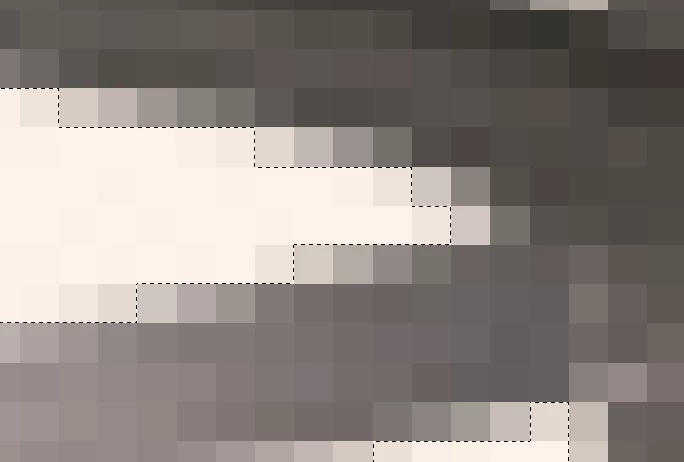
My eraser tool bleeds out of my selections, I have Select -> Feather set to 0.1

Pictures below for example.

I am going insane, please someone help me.
This topic has been closed for replies.

6 replies

Omar.Fathy
Community Expert
Community Expert
November 17, 2018

Photoshop by default use the Anti Alias technique. Anti Aliasing is a software technique for diminishing jaggies - stairstep-like lines that should be smooth.

To have the accurate selection without edge smoothing / anti aliasing, make sure that you have anti-alias unchecked and feather set to [0] .

Feathering also add pixels from outside your selection depending on the value of it.

Trevor.Dennis
Community Expert
Community Expert
November 17, 2018

It's difficult to assess this without knowing the zoom level, but that does look to be more bleed than you'd expect.  With angled and curved lines, you'd see some anti alias effect, but on square to canvas bounds, you should see a clean edged.  The screen shot below is zoomed in to 800% and shows zero bleed on the square selection, and barely any on the round.

So you have to take account of what Lukas has said, and think about how the selection was made?

If it was with the Marquee tools, then I'd check the Options bar for feather.  A i pixel feather produces this (same zoom ratio)

If the selection was made with Quick Select, Magic Wand, Colour Range, Focus etc. then all bets are off.

bretth14947816
Participant
November 19, 2018

Anti-alias is turned off, my feathering is set to 0. I believe this particular selection was made utilizing colour range. Does this mean that if I want to make a clean edge I have to use the marquee tools?

Legend
November 19, 2018

The easiest way to see how the edges of your selection look is Quick Mask (Q key) and zoom in. If there is feathering, you'll see it there.

Lukas Engqvist
Community Expert
Community Expert
November 16, 2018

The marching ants do not show the selection, they represent the threshold of 50% selected. Since selections are 256 levels there are 128 levels of selection inside and 128 levels selection outside the marching ants. If you want to see the selection better enter pick mask mode, or endure Select and mask workspace where you can better understand the non binary selections by viewing them as a mask or quickmask etc.

Peru Bob
Community Expert
Community Expert
November 16, 2018

Try resetting the preferences and/or tools.

Kanikas
Community Manager
Community Manager
November 16, 2018

Moving to Photoshop

John T Smith
Community Expert
Community Expert
November 8, 2018

Please post the name of the program you use so a Moderator may move this message to that forum

-A program would be Photoshop or Dreamweaver or Muse or Premiere Pro or ???

bretth14947816
Participant
November 8, 2018

This is in Photoshop