
Participant
August 20, 2019
Question

Eraser Tool issue with Photoshop CS5

  • August 20, 2019
  • 6 replies
  • 510 views

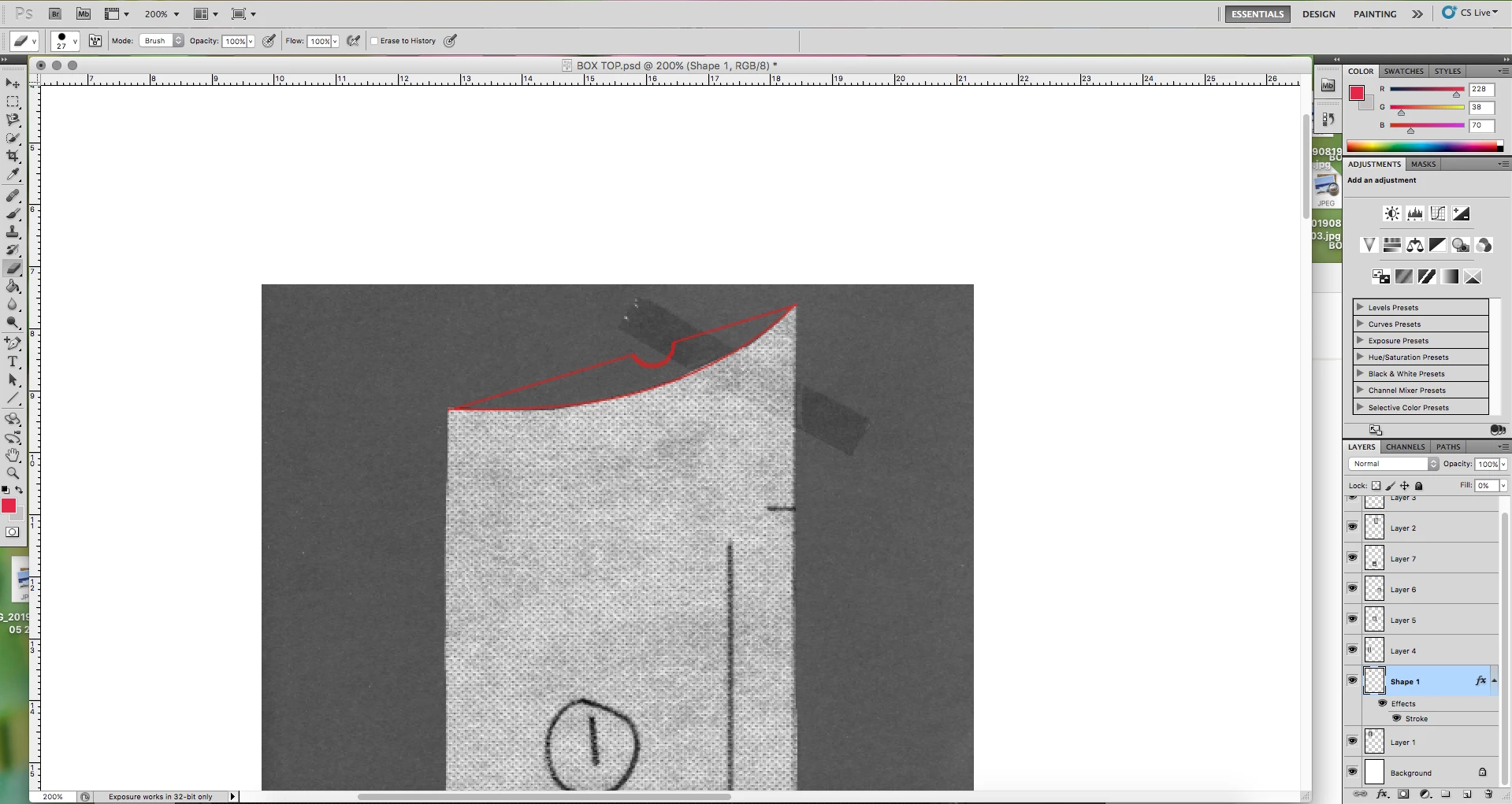
Can someone please explain why this keeps happening when I try to erase the top line.... or better still explain the best way to erase the unwanted line. Thanks in advance.
Message was edited by: Sahil Chawla

This topic has been closed for replies.

6 replies

Participant
August 21, 2019

Thankyou everyone I will try what has been advised. Before I do however can I explain that I am attempting to trace around pieces of a sewing pattern I wish to eventually turn into a pdf and even though I'm in my 50's it turns out I have the computing brain of an 8yr old!

In order to create the curves I require I used the line tool which with the aid of anchor points was dragged to create the curve and it's the original line which needs to be erased/removed. My question is, do you think this method is the best way to go about creating the curves I'll require? Thankyou again for your time.

Nancy OShea
Community Expert
Community Expert
August 20, 2019

Do you have the right layer selected?  Click the Eyeball icon to turn visibility off.

Nancy O'Shea— Product User & Community Expert
Chuck Uebele
Community Expert
Community Expert
August 20, 2019

As others mentioned, a mask is better than using the eraser tool, as it's non-destructive. Second, if the layer you're taking about is the one that is highlighted in your layer's panel, that is a shape layer and the eraser tool will not work with it. You need to use a mask or re-edit that shape.

Norman Sanders
Legend
August 20, 2019

It is usually best to use a mask rather than the Eraser tool. I suggest that you use it here.

Put a dark gray layer matching background color below the image layer. Then return to the image layer

Enlarge the view and use the Magic Wand to make the selection. As you see, it the red does not trap exactly to the area below.

Choose Select > Modify > Expand ... and expand the selection 4px

Inverse the selection, then click on the Mask symbol at the bottom of the layers panel

Last, use the Brush tool to fill in the gaps in the dark diagonal black in the upper right above and to the side of the object

Sahil.Chawla
Adobe Employee
Adobe Employee
August 20, 2019

Hi Jody,

Could you please provide some more details what Ged has asked for?

Also, you may try resetting the Eraser tool in Photoshop and see if that helps with the issue: Basic troubleshooting steps to solve problems and issues in Adobe Photoshop

Regards,
Sahil

Just a reminder, the Adobe Forums are transitioning to a new community experience soon. New threads and replies posts to the forums between August 22nd and September 9th will likely be lost, but we’re here to help!

August 20, 2019

Hi

What top line are you talking about, perhaps you could highlight it