
Inspiring
October 10, 2018
Answered

Eraser tool not precise and no tail

  • October 10, 2018
  • 3 replies
  • 2190 views

I upgraded to a new PC which has newer graphics card so I don't think that is problem. Anyhow on my old PC my eraser tool holds brush tip shape and has a tail and allows me to trace objects on a layer and erase them precisely.  It operated almost like masking.

When I downloaded the newest version  - I no longer see this occurring. Can't get the tail nor preciseness.  I checked all settings in preferences comparing my old laptop  eraser and preferences to my new laptop and they look the same.(including Cursor settings and all other selections in preferences).

I really liked that feature - would never assume they would remove it. I noticed one previous question similar but seemed to only recommend useing masks - which doesn't fit my workflow.it

This is a PC with most current Windows 10 64bit  graphics card Intel(R) UHD Graphics 620
    This topic has been closed for replies.
    Correct answer Mike_Gondek10189183

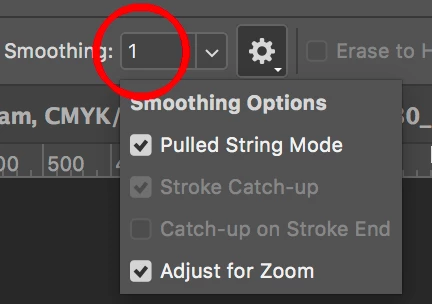
    The settings are greyed out if smoothing is set to the default of 0%. Set to alteast 1% .

    Very few people use or know of smoothing on eraser tool, so big thanks to Jeff on the save for figuring this one out.

    3 replies

    Inspiring
    October 11, 2018

    Well this was extremely helpful especially with the example graphic showing where the Settings were for Eraser Tool  – could never find that. 

    It was set on my old PC but not on my new Laptop. For some reason the Settings is grayed out except for smoothing line.

    I thought that it might be my graphics card but would assume for the price paid and a 4 year newer machine it would be able to handle:

    My New PC (Dell) -NVDIA Corporation  GeForce MX150/PCIe/SSE2

    My old PC (HP): Intel(R) HD Graphics 4600

    The cursor setting I had set up that way.

    Thank you and Jeff for this valuable information and your time. Any ideas why my Settings has those options grayed out.  

    Seems silly – but in my workflow I love this tiny feature.

    Funny I tried to capture what the tool was doing but the screen capture stopped my action so I couldn’t show.

    Mike_Gondek10189183
    Community Expert
    Mike_Gondek10189183Community ExpertCorrect answer
    Community Expert
    October 11, 2018

    The settings are greyed out if smoothing is set to the default of 0%. Set to alteast 1% .

    Very few people use or know of smoothing on eraser tool, so big thanks to Jeff on the save for figuring this one out.

    Inspiring
    October 11, 2018

    That did the trick. Consider matter closed -THANK EVERBODY for their input. I checked correct on answer  - so this can be closed.

    Now I'll go fill out a request on my Brush palette issue.

    barbara_a7746676
    Community Expert
    Community Expert
    October 11, 2018

    If you want precision, make a selection with the Pen tool.

    Mike_Gondek10189183
    Community Expert
    Community Expert
    October 11, 2018

    Not sure what this tail looked like, did your brush have a comet shape? You can draw your own brush shape, select with marquee and then use edit >> define Brush Preset

    Try turning on show crosshair

    If you hit caps lock key will turn your brush into a crosshair.

    Inspiring
    October 11, 2018

    I tried that - it did put crosshair inside but did not get the tail  nor does it trace with edges of object

    (for instance I may align a layer of clouds over a scene and want to erase along the barn roof. The cursor actually could tell the difference and keep me on a straight line -even with that shaky hand of mine. I don't select magic eraser but worked something like that.

    Jeff Arola
    Community Expert
    Community Expert
    October 11, 2018

    In the Eraser Tool options you want Pulled String Mode checked and in the Photoshop CC (Edit) Preferences>Cursors you want Show Brush Lease While Smoothing checked.