
Participant
February 2, 2018
Answered

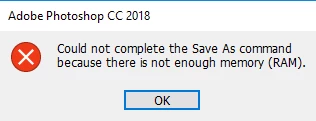
Error: Not enough memory(RAM) for saving file
  • February 2, 2018
  • 4 replies
  • 77586 views

Hi

My name is rohith.

     I was using photoshop 2018. While I was trying to save one file after editing, it is showing this error "Could not complete the Save/ Save As command because there is not enough memory (RAM)." I clearly have 13 GB remaining in my C Drive. Now I can't save my file which I edited.

     Can anyone please give me a solution on how to fix it as soon as possible?

Thanks in advance...

Correct answer c.pfaffenbichler
I clearly have 13 GB remaining in my C Drive.

What does that have to do with RAM?

Please read this page on Photoshop Performance:

https://helpx.adobe.com/photoshop/kb/optimize-photoshop-cc-performance.html

You can try freeing up RAM in Photoshop by closing all other images and invoking Edit > Purge > All.

4 replies

Participant
August 13, 2021

I'm having the same trouble with Photoshop on my macOS. The instructions that apply to a desktop computer don't work.

Any advice on how to fix this would be greatly appreciated.


Thank you so much!

Participant
February 23, 2021

Hello!

I´m having the same issue, I work with the latest update of photoshop with macOS Catalina, what can i do to fix it?


Thanks!

Participating Frequently
May 11, 2020

this does not work for Adobe Photoshop 2020 NEW version still getting this as of now and won't go away this will be a YouTube video report slamming Adobe down for their failures!!!


Participant
May 28, 2020

Have you been sent a fix for the 2020 adobe photoshop? I am having the same issue and it's driving me insane. 

(I use cs6 on windows 10 for anyone with advice) 

c.pfaffenbichler
Community Expert
c.pfaffenbichlerCommunity ExpertCorrect answer
Community Expert
February 2, 2018
I clearly have 13 GB remaining in my C Drive.

What does that have to do with RAM?

Please read this page on Photoshop Performance:

https://helpx.adobe.com/photoshop/kb/optimize-photoshop-cc-performance.html

You can try freeing up RAM in Photoshop by closing all other images and invoking Edit > Purge > All.

Participant
June 11, 2018

just tried this and all is not highlighted.   i have tried all fix options here and online and to no avail.

earnknowledge
Participant
October 1, 2018

Hi All,

This issue has been fixed in Photoshop CC 19.1.5 (June 2018 release). Please refer the solution mentioned in this article Error while accessing performance preferences - 'An integer between 96 and 8 is required.' before updating.

Update Photoshop to the latest version, see Keeping Photoshop Up-To-Date

Here's a list of what's new in this release: Fixed issues in Adobe Photoshop CC

Let us know if the update resolves the problem for those affected and share your feedback with us,

Regards,

Akash Sharma


Thanks it worked issue has been resolved following the same steps.