


- Home
- Photoshop ecosystem
- Discussions
- Export to Save for Web Legacy is tiling
- Export to Save for Web Legacy is tiling

Copy link to clipboard
Copied
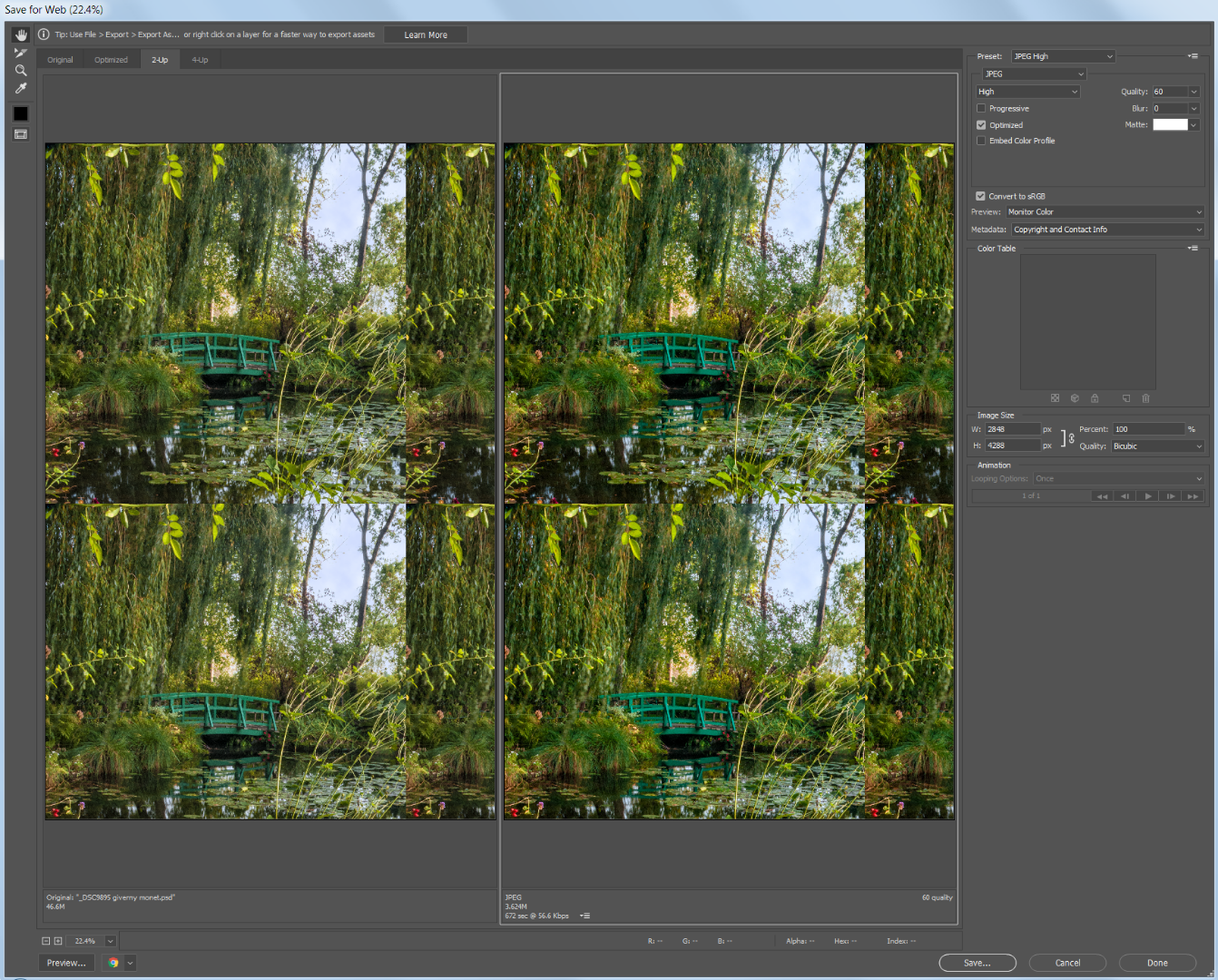
Even when I choose Fit in View or Fit on Screen, the image is tiling. And no matter which zoom percentage, part of the image is cut off.
This started happening only recently, maybe when I updated Photoshop. It never used to do this and I can't find a setting to turn off tiling.
Is there a way to stop the preview from tiling and show just one complete image?


 1 Correct answer


Try resetting Photoshop preferences file. If that doesn't work, try uninstall/reinstall with the Adobe CC Cleaner tool.


Explore related tutorials & articles
 24
Replies
24
24
Replies
24


Copy link to clipboard
Copied
You previewing 2 Up and we have no idea as to what your image look like. Can you cancel out of Save for web and use menu view fit on screen (Ctrl+0) and post a screen capture so we can see you document full image.
Copy link to clipboard
Copied
Nothing special about that image, Tiling happens with every image.

Copy link to clipboard
Copied
Click on the "Optimized" Tab at the top. You somehow got the 2 up tab (2 windows tiled vertically) arrangement.
Gene
Copy link to clipboard
Copied
Tiling happens in every tab, not just 2-up.
Copy link to clipboard
Copied
If something like this shows up again, a simple trick to try out is to hold down the Alt key on the keyboard which will change the Cancel button to Reset not only for SFW but for most any dialog.
It may, but not always save a reinstall.
Copy link to clipboard
Copied
Try resetting Photoshop preferences file. If that doesn't work, try uninstall/reinstall with the Adobe CC Cleaner tool.
Copy link to clipboard
Copied
Uninstall/Reinstall did the trick. Thanks!
Copy link to clipboard
Copied
It's happening again!!!
When I use Save for Web (legacy) all images are tiling and are cut off so that the whole image does not show.
Is a bug? Is anyone else experiencing this?
Copy link to clipboard
Copied
post a screen capture
Copy link to clipboard
Copied
This is one example. It happens with all images and with all views (2 up, 4 up, original, opimized).
This is the complete image:
100% Optimized view:

Fit on Screen Optimized view:

Original set to Fit in View:

If I change to 50% or lower view it stop tiling and shows the whole image, but it is harder to see details at that view:

I see that another person had this issue, but their question was never answered. Save for web saving file tiled (image attached)
Copy link to clipboard
Copied
The image you posted seem to be 3px wider abd 3px higher the what you save for web shoes

Copy link to clipboard
Copied
Three pixels is nothing compared to what's happening in the Save for Web dialog box. In Save for Web only a fraction of the image is showing and that fraction is tiling. The tiling is the problem.
Copy link to clipboard
Copied
Does the Alt key Reset described in post 7 help?
Copy link to clipboard
Copied
If not:
Navigate to this folder: Users/[user name]/AppData/Roaming/Adobe/Plugins/Adobe Save For Web CC/Photoshop
and move the Save for Web Prefs file to the Desktop.
Restart and Photoshop should create a new one. See if SFW will work now.
Copy link to clipboard
Copied
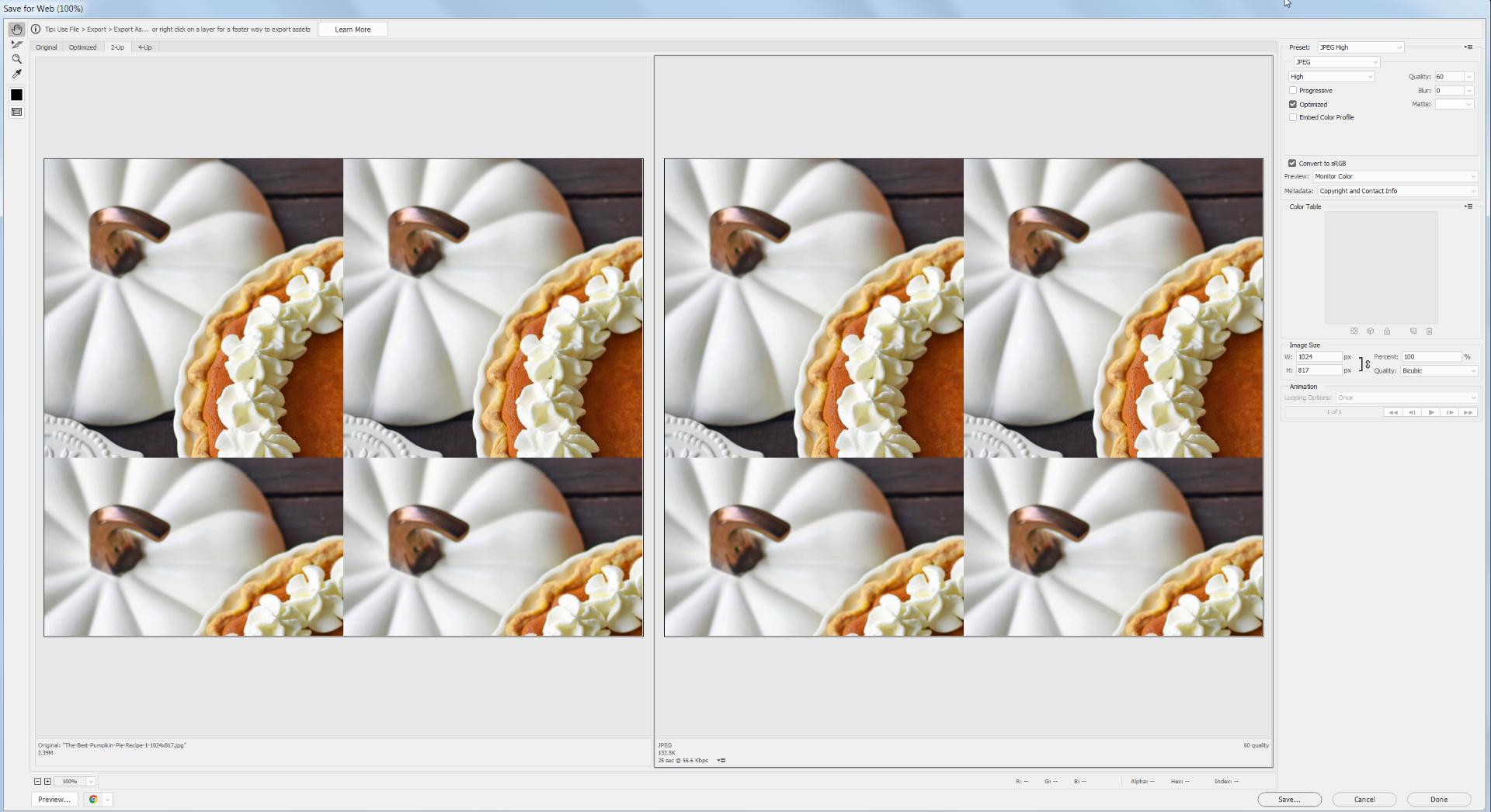
I closed Photoshop, moved the Save for Web Prefs file to the Desktop, restarted my computer, restarted Photoshop. Save for Web is still tiling (see screen capture below).
I even saved the file from the Save for Web dialog box, closed Photoshop, reopened the file and tried Save for Web again. Still tiling.
Strangely, the Save for Web Prefs file did not get re-created.

Copy link to clipboard
Copied
Unfortunately, no.
Copy link to clipboard
Copied
Close Photoshop. Thenrename the following folder:
"C:\Users\your user id\AppData\Roaming\Adobe\Adobe Photoshop version"
to
"C:\Users\your user id\AppData\Roaming\Adobe\Adobe Photoshop version old"
Start Photoshop see if Saver for web works.
Copy link to clipboard
Copied
I renamed Adobe Photoshop CC 2018 Settings to Adobe Photoshop CC 2018 Settings to old. I restarted Photoshop. Photoshop re-built the folder. However, still tiling.
Copy link to clipboard
Copied
That is not the folder I asked you rename not :
"C:\Users\your user id\AppData\Roaming\Adobe\Adobe Photoshop CC 2018\Adobe Photoshop CC 2018 Settings"
its parent
"C:\Users\your user id\AppData\Roaming\Adobe\Adobe Photoshop CC 2018\"
to
"C:\Users\your user id\AppData\Roaming\Adobe\Adobe Photoshop CC 2018 old\"
Copy link to clipboard
Copied
Sorry for the typo. I did rename the Adobe Photoshop CC 2018 folder. Actually, I renamed Adobe Photoshop CC 2018 first. When that didn't fix the problem, I renamed Adobe Photoshop CC 2018 settings also. Neither one of the re-namings fixed the tiling.
Copy link to clipboard
Copied
Then your CC 2018 install has been corrupted. Renaming that folder is like deleting all you users ID application data for CC 2018 new default data will be created for you userid when you start Photoshop. CC 2018 was working when you last re-installed it. Now it does not. Adobe is still working on many CC 2018 issues. CC 2018 19.1.2 has terminated on me several times and sent dumps to Adobe on its own and Windows crash reports were not created for these Photoshop terminations. 19.1.3 has not set any dumps to Adobe so far.
Copy link to clipboard
Copied
Before CC, Photoshop used to be such a stable application. I could always count on new releases to be free of bugs for the most part.
Since CC, it's a shame that Adobe feels the need to release what is essentially a beta version of the software, resulting in wasted time for users and causing all kinds of frustration for users like myself.
Copy link to clipboard
Copied
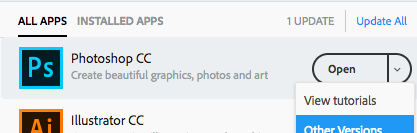
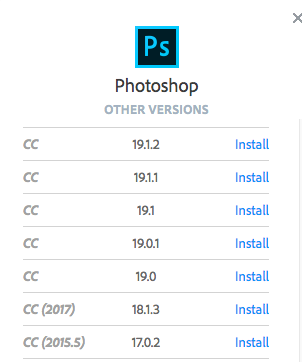
If you are on the CC plan, you can install and use an earlier version alongside your present one to see if the problem remains.
Select "Other Versions" from the drop-down menu:
Copy link to clipboard
Copied
When I went to install an earlier version of Photoshop, I noticed that an update was available. After installing the update, the tiling problem went away.
I very much appreciate the help from you, JJMack, and Barbara.


Get ready! An upgraded Adobe Community experience is coming in January.
Learn more
 AdChoices