
wdishon111
Participant
January 29, 2017
Answered

Exporting image with starry night sky effect

  • January 29, 2017
  • 2 replies
  • 1127 views

Hi

I've made this effect for an image i'm working on that generates stars in the background. It works fine but whenever I try to export or flatten the image the star effect completely goes away

Here's what it looks like in Photoshop

And here's what it looks like when I try to export it
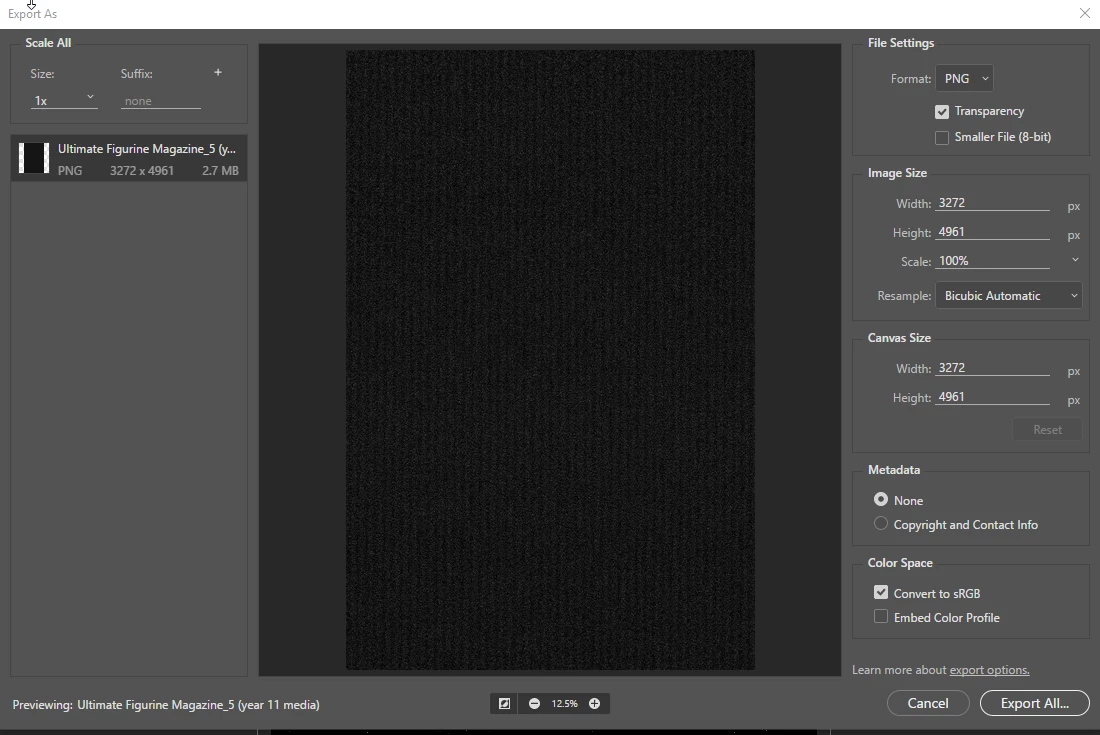
I think it has something to do with my levels layer since whenever I make it invisible it comes up with a similar looking image. Just a lot lighter than the one exported.

I basically followed a tutorial step by step from this website to get the effect - Create A Starry Night Sky In Photoshop

If anyone could help me out with this it would be greatly appreciated.

This topic has been closed for replies.
Correct answer davescm

You need to view each step at 100% zoom. Other zoom levels are showing a preview not the actual layers and you will often see a difference when flattening - particularly with small points of light like starts

Dave

2 replies

Participating Frequently
January 29, 2017

Try clicking on the Levels adjustment layer in the Layers panel, to select it.

Next, click on the New Layer icon at the bottom of the Layers panel to add a new blank layer above the existing layers.

Select the New Layer, and merge the visible layers, with Alt+Shift+Ctrl(Cmd) + E, or hold down the ALT key and click on Layer > Merge Visible

Finally, try exporting again.

Let us know if this helps.

D Fosse
Community Expert
Community Expert
January 29, 2017
davescm
Community Expert
davescmCommunity ExpertCorrect answer
Community Expert
January 29, 2017

You need to view each step at 100% zoom. Other zoom levels are showing a preview not the actual layers and you will often see a difference when flattening - particularly with small points of light like starts

Dave