
Inspiring
July 24, 2022
Question

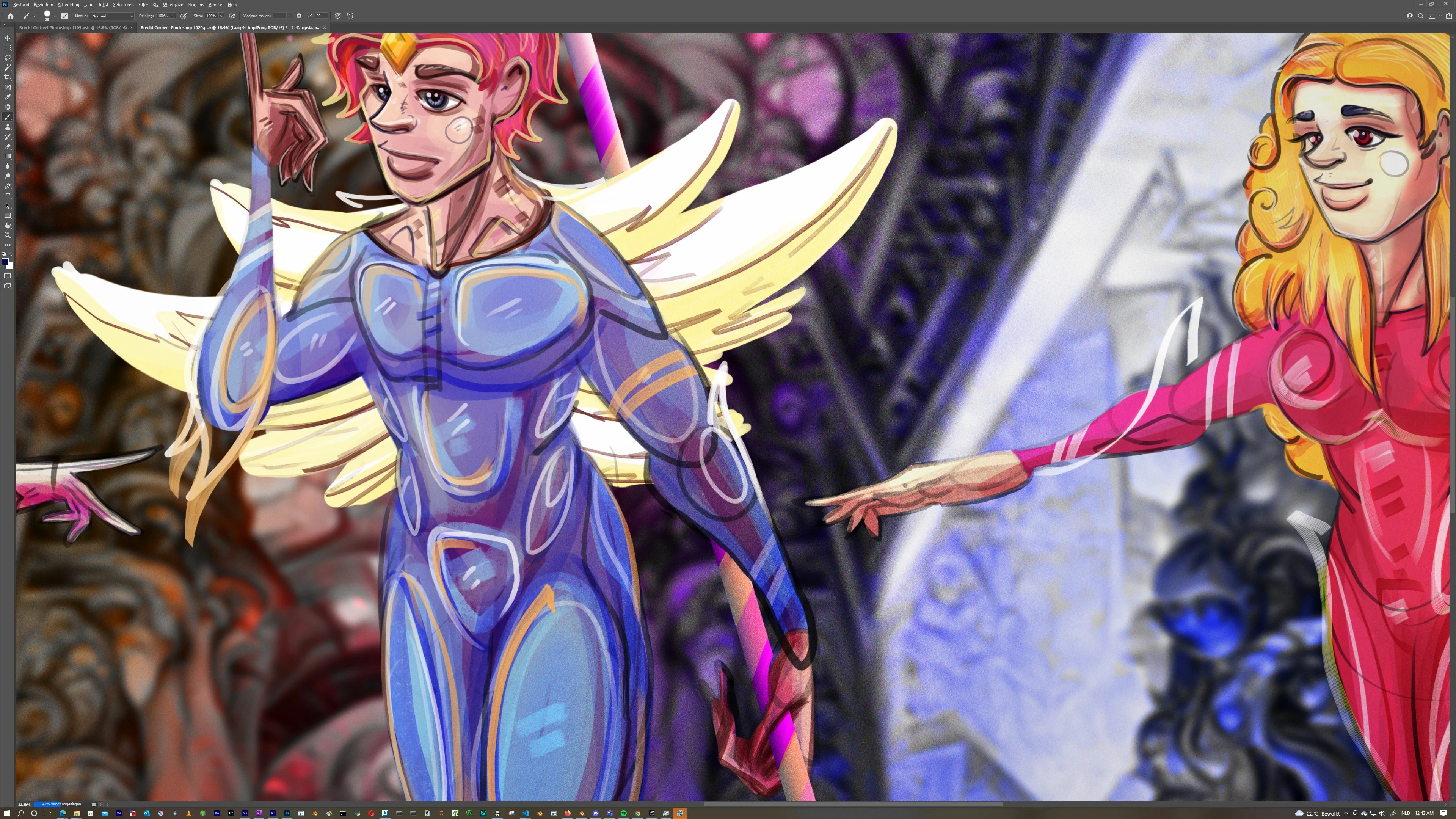
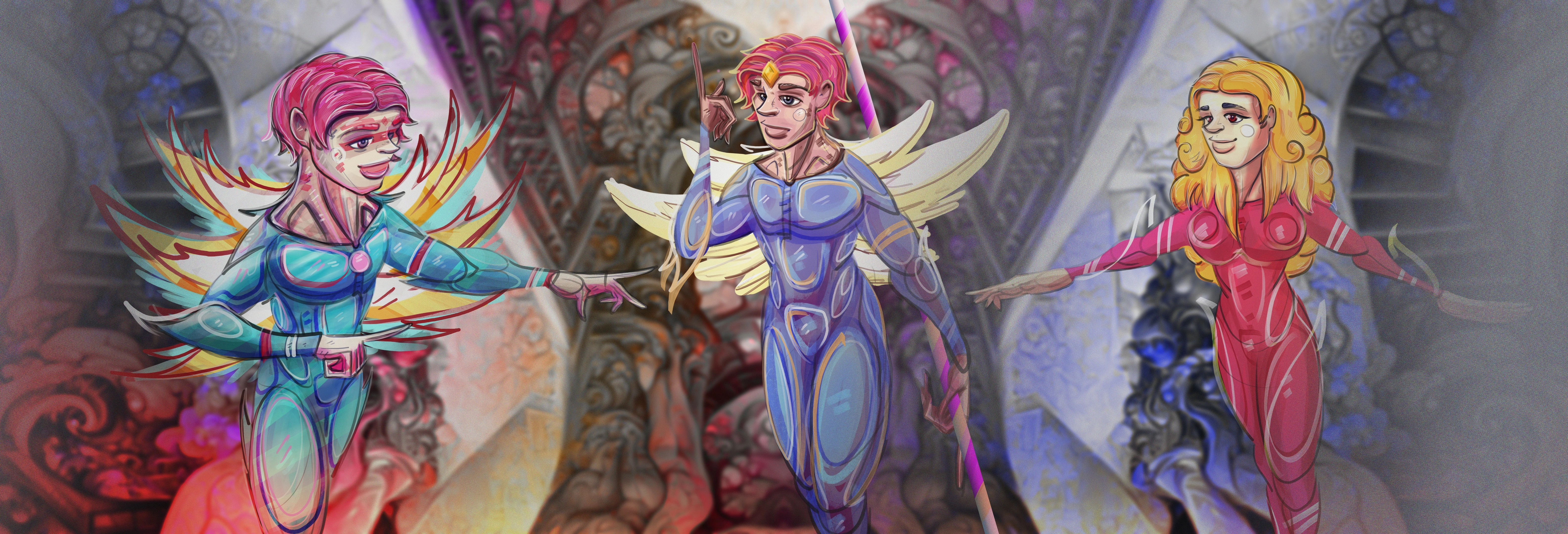
extreme difference in export of a noise layer with blending mode on

  • July 24, 2022
  • 7 replies
  • 840 views

Flattening does not work gives same problem, all other layers have blending modes on, is only a problem with noise, has been an issue for many years, only now did I find it important enough to complain as this prevents me from adding texture and detail to my file.

file res:  30.000 x 10.000


pretty sure this is one of those super high res problems.


Screenshot in photoshop:
 export:
This topic has been closed for replies.

7 replies

davescm
Community Expert
Community Expert
August 5, 2022

Hi

The reason is the way that the preview is calculated in order to produce an image at speed.


Photoshop can handle 300,000 x 300,000 pixels and use hundreds of layers. In order  to quickly display a preview image when zoomed out, e.g. to see the entire image, Photoshop averages the pixels on each layer into groups and then blends those groups together for each layer. There are cache levels used for calculating and storing these groups (set in Preferences Performance).  If it did not work that way, Photoshop would have to calculate the individual blending for every image pixel then it would average the results together for display as no screen has that many pixels. That additional processing would result in an extremely slow screen response.


At a zoom level of 100%, which means 1 image pixel mapped to 1 screen pixel, then blending of every individual pixel is done (no combining of pixels in each layer first) and the result displayed on screen. However this is only needed immediately for those image pixels covered by the screen area so speed of screen redrawing speed is not an issue.


When flattening or exporting an image , every individual pixel is calculated before blending. So this matches the method used at 100% zoom.


There is also another impact if you work in 16 bits/channel. At zoom levels of less than 66.7%, the preview is calculated using 8 bits/channel. Again this is done for speed.


In 99% of images the difference between the two screen preview methods is so small it is all but invisible. However if the image has fine noise then that difference between blend every pixel and average groups then blend those groups can indeed become visible. That is why blending should always be checked at a preview of 100% zoom as that is the only entirely accurate preview.


Dave

Inspiring
August 5, 2022

Ok I figured out what you meant yes it does do that I don't know why it does that it is annoying especially in a visually oriented software tool.

davescm
Community Expert
Community Expert
August 1, 2022

Your statement does not answer the question so I'll ask again. Does the flattened/exported version match the preview at 100% zoom?

If it does not, please post comparion screenshots, showing the difference between the two with Photoshop set to 100% zoom in both cases. At other  zoom levels a difference on flattening/exporting is expected.


Dave

Inspiring
August 1, 2022

It does not have anything to do with zoom it is an export problem.

Inspiring
August 1, 2022

It does not have anything to do with zoom it is an export problem.

davescm
Community Expert
Community Expert
July 25, 2022

Does the export match the preview when the preview is viewed at 100% zoom?


At lower zoom levels, pixels are combined within layers before blending. At 100% zoom each individual pixel is blended. In some images that makes no noticable difference, but if the image has fine noise the difference can be significant. The correct view is 100% zoom which should match the flattened and exported version.


Dave


CShubert
Community Manager
Community Manager
July 25, 2022

Hi @Brecht Corbeel sorry to hear this. You say this has been happening for many years, any idea how long or in what version you first noticed?


Let's make sure we're in a default state and there are no stale settings somewhere: 

Restore your preferences using this manual method:  

https://helpx.adobe.com/photoshop/using/preferences.html#Manually 

Does it work correctly? 

If that doesn't solve it, you can quit Photoshop and put the Settings folder back. 


It may help if we could see your Photoshop System Info. Launch Photoshop, and select Help >System Info...and copy/paste the text in a reply.  


Thank you,