Inspiring
April 5, 2022
Answered

Faint Line Around PNG

  • April 5, 2022
  • 2 replies
  • 1699 views

Why is PS putting a faint line around PNGs?  I am trying to put a pattern together so the sides all have to mesh as it's a repeating pattern, but I get a faint line around my PNGs and it makes no sense.  I create part of the pattern in Illustrator and export it as png 300 dpi.


See attached.

This topic has been closed for replies.
Correct answer rayek.elfin

I design fabric, so I need a 300dpi file as scaling up is often done.


In order to avoid the fractional upscaling anti-aliased seam what could I do differently?


I design patterns in Illustrator and Procreate, PC doesn't do vectors so if I need a vector I change it over to one in Illustrator.  Depends on the design.  I will bring the pattern into PS if I need to make a scale change or yes, apply a filter to make it brighter and sharper.


When working in Procreate, do you set the canvas to the dimensions that you require for the final pattern? Suppose you need a 20" by 20" pattern, the physical width and height must be set for the canvas and the PPI (mistakingly called "DPI" in Procreate) to 300.
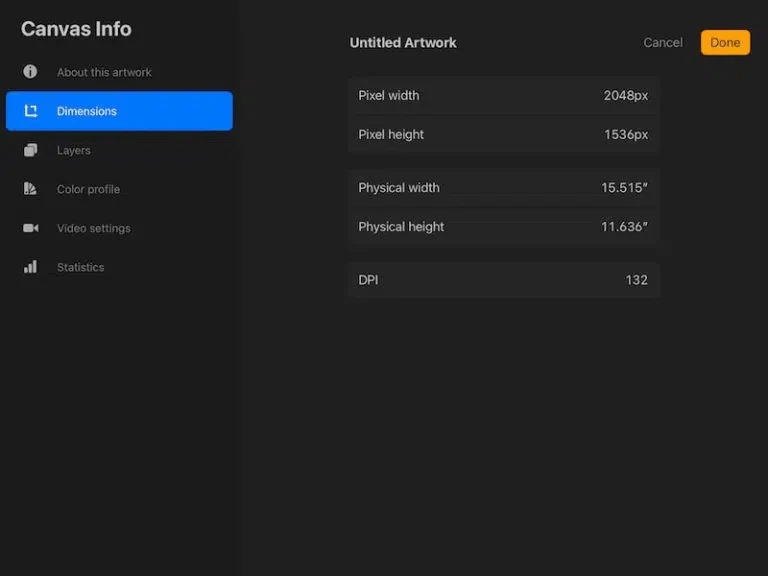
 

In this case there is no need to up- or downscale in Photoshop.


Anti-aliased edges in bitmap textures/patterns like the ones in your sample are almost always the result of fractional positioning and/or scaling up/down with (semi) transparent areas surrounding the edges of the artwork.

Ensure that no partial transparency is present in the edge pixels. If there is, remove that transparency or delete the edge pixels before upscaling.


To check for this: open the file in Photoshop, and choose Layer-->Layer Mask-->From Transparency.

This will convert all transparency to a layer mask. Inspect the layer mask for any gray values along the edges. Or simply delete the mask to remove all transparency from the image.


Sometimes you may have to manually cut off the offending edges.


But again: the most optimal method is to work at the exact resolution that you require. Or if unsure, work at twice the expected size/resolution, because downscaling always is preferable, of course.


[I intended to insert an explanation about anti-aliasing and Illustrator, but then noticed your post
https://community.adobe.com/t5/illustrator-discussions/repeating-pattern-lines-help/td-p/11452541

So you already work that way. 😉 ]

2 replies

Participant
December 2, 2024

I think what is happening here is when the alpha channel is exported, Photoshop puts white in the RGB channels wherever the image is totally transparent. So, the anti-aliased edge of the alpha channel picks up a little of the white edge PS creates in the RGB. This is a plugin that allows you to export alpha and RGB channels seperately 

 https://fnordware.blogspot.com/2014/06/superpng-25.html


You have to create an alpha channel and click on the alpha channel option in the save dialog instead of using the transparency in the image. It's kind of a pain, but it's the only reliable way of controlling what's exported in the RGB and alpha channels to remove that faint line. I have to do this for all my png's that don't have light edges. 


If someone from Adobe could offer a better work around or just fix the problem, I would be eternally grateful.

Myra Ferguson
Community Expert
Community Expert
April 5, 2022

It looks like the line is from anti-aliasing around the edge of your PNGs. Anti-aliasing could be applied to the edges if the dimensions of your PNGs include fractional pixels.

Inspiring
April 5, 2022

How can I stop it?  I export PNG from illustrator with the attached settings because I need 300 dpi, it's the only way I can figure to get a 300 dpi png.  any help is appreciated.

rayek.elfin
Legend
April 5, 2022

Is your pattern meant to be used for printing? I ask, because saying that you need a "300 dpi" image is rather meaningless. The actual pixel resolution depends on the size it will be printed at.


PPI/DPI is meaningless otherwise.


Anyway, it looks as if your image is scaled up or down and sharpening was applied as well (the edges suffer from that typical high-lighted edge caused by a sharpening filter). Fractional upscaling could also explain the anti-aliased seam.


How are you placing the Illustrator file in Photoshop? What exactly is your workflow? Could you share an example file with us?
