Inspiring
June 11, 2018
Answered

Fill adds solid hard outline

  • June 11, 2018
  • 2 replies
  • 628 views

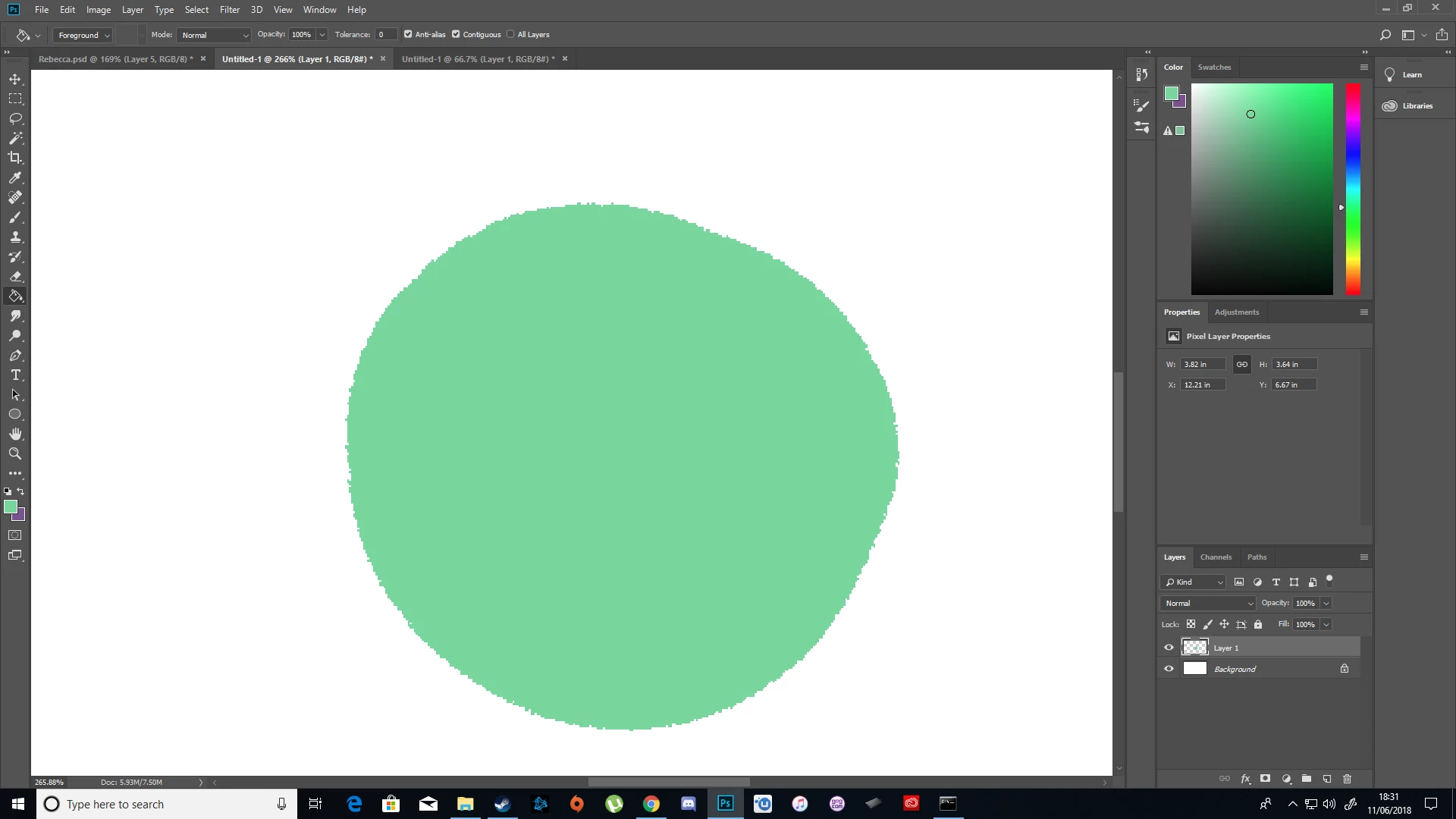
Whenever I use fill it outright adds to whatever I'm filling like this
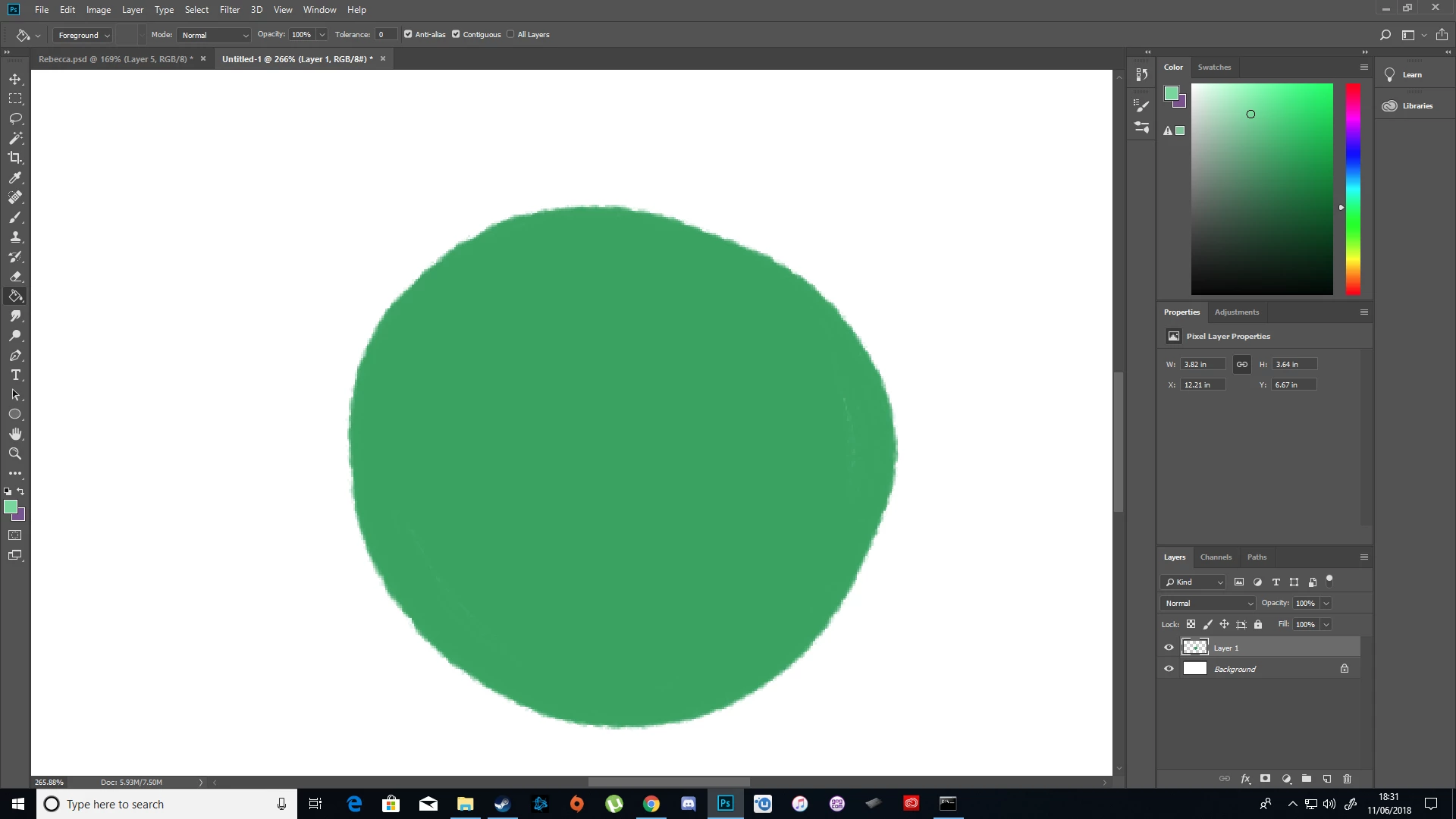
The above image has a soft outline but when I fill it it makes it bigger with a hard outline. If I were to keep on clicking fill it would simply get bigger and bigger everytime.

Selecting an area and then filling also gives me that horrid hard outline because it just fills the entire selected area. How would I just fill an entire shape whilst maintaining softness?
    This topic has been closed for replies.
    Correct answer Norman Sanders

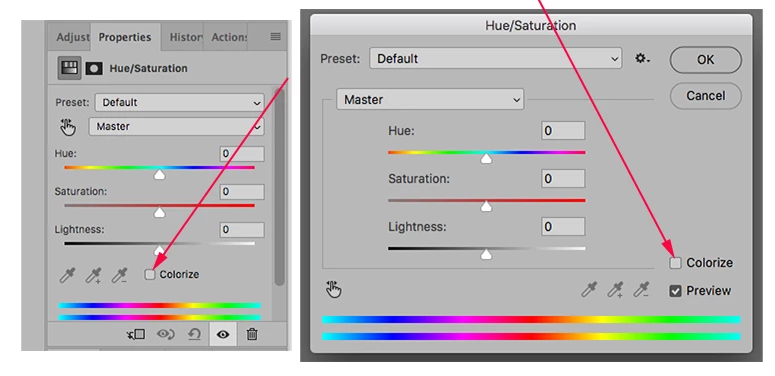
    On the left: as an Adjustment layer from the Layers panel.  On the right: as Image > Adjustments..

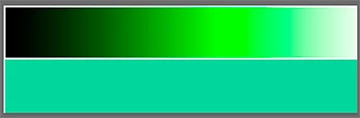
    Note that with Edit > Fill anywhere tone appears in the Selection, the full value of the Fill color will appear

    2 replies

    Norman Sanders
    Legend
    June 11, 2018

    Edit > Fill fills with the full value of the color wherever in the Selection tone value appears.

    Try this instead: Note that Colorize has been checked.

    Inspiring
    June 11, 2018

    I seem to have a different window to you. I can't find colourise anywhere and it just either fills the entire layer of whatever is selected with the hard outline still present.

    This comes up when i click Edit > Fill:

    Norman Sanders
    Norman SandersCorrect answer
    Legend
    June 11, 2018

    On the left: as an Adjustment layer from the Layers panel.  On the right: as Image > Adjustments..

    Note that with Edit > Fill anywhere tone appears in the Selection, the full value of the Fill color will appear

    JJMack
    Community Expert
    Community Expert
    June 11, 2018

    If you have a selection or a color with a soft edge a feathered selection what you ar seeing is paint build up in the soft feathered area.

    JJMack