

TenTin
Known Participant
November 2, 2022
Answered

Fill opacity and Clipping layer

  • November 2, 2022
  • 1 reply
  • 493 views

Hi,
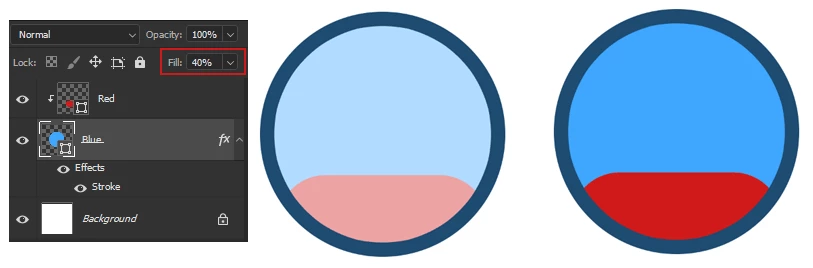
How to disable the impact of Fill Opacity on the Clipping Layer? I want to decrease the circle fill opacity (blue circle), but it also decreases the clipping layer (red) opacity. Is there a way to disable the impact of the main layer effects on the clipped layer?
This topic has been closed for replies.
Correct answer melissapiccone

Your answer is right there in your screenshot - On the clipped layer (bottom one) uncheck Blend Clipped Layers as Group.

1 reply

Myra Ferguson
Community Expert
Community Expert
November 2, 2022

Instead of using a clipping mask, make a layer mask. Here's how:

  1. Undo the clipping mask on the Red layer (Layer > Release Clipping Mask)
  2. Make sure that the Stroke layer style effect on the blue circle is set to Outside
  3. Load the selection of the Blue layer (Ctrl (Windows)/Command (macOS) + click on the thumbnail of the circle in the Layers panel) -- also, if the Stroke in step 2 is set to either Center or Inside, then go to Select > Modify > Contract... and enter the number of pixels needed to modify the selection)
  4. Select the Red layer and click the Add layer mask button at the bottom of the Layers panel (third from the left)
  5. Set the Blue layer to a 40% fill
TenTin
TenTinAuthor
Known Participant
November 2, 2022

Thanks. I am aware of this technique! I think there was a setting in Advanced Blending that could disable the main (master) layer effects on the clipped layer. The method you mentioned has a problem! That has a conflict with the Stroke (inside/centre mode).

melissapiccone
Community Expert
melissapicconeCommunity ExpertCorrect answer
Community Expert
November 2, 2022

Your answer is right there in your screenshot - On the clipped layer (bottom one) uncheck Blend Clipped Layers as Group.

Melissa Piccone | Adobe Trainer | Online Courses Author | Fine Artist