
Participating Frequently
December 8, 2018
Answered

Filling only a transparent section

  • December 8, 2018
  • 2 replies
  • 678 views

Hello,

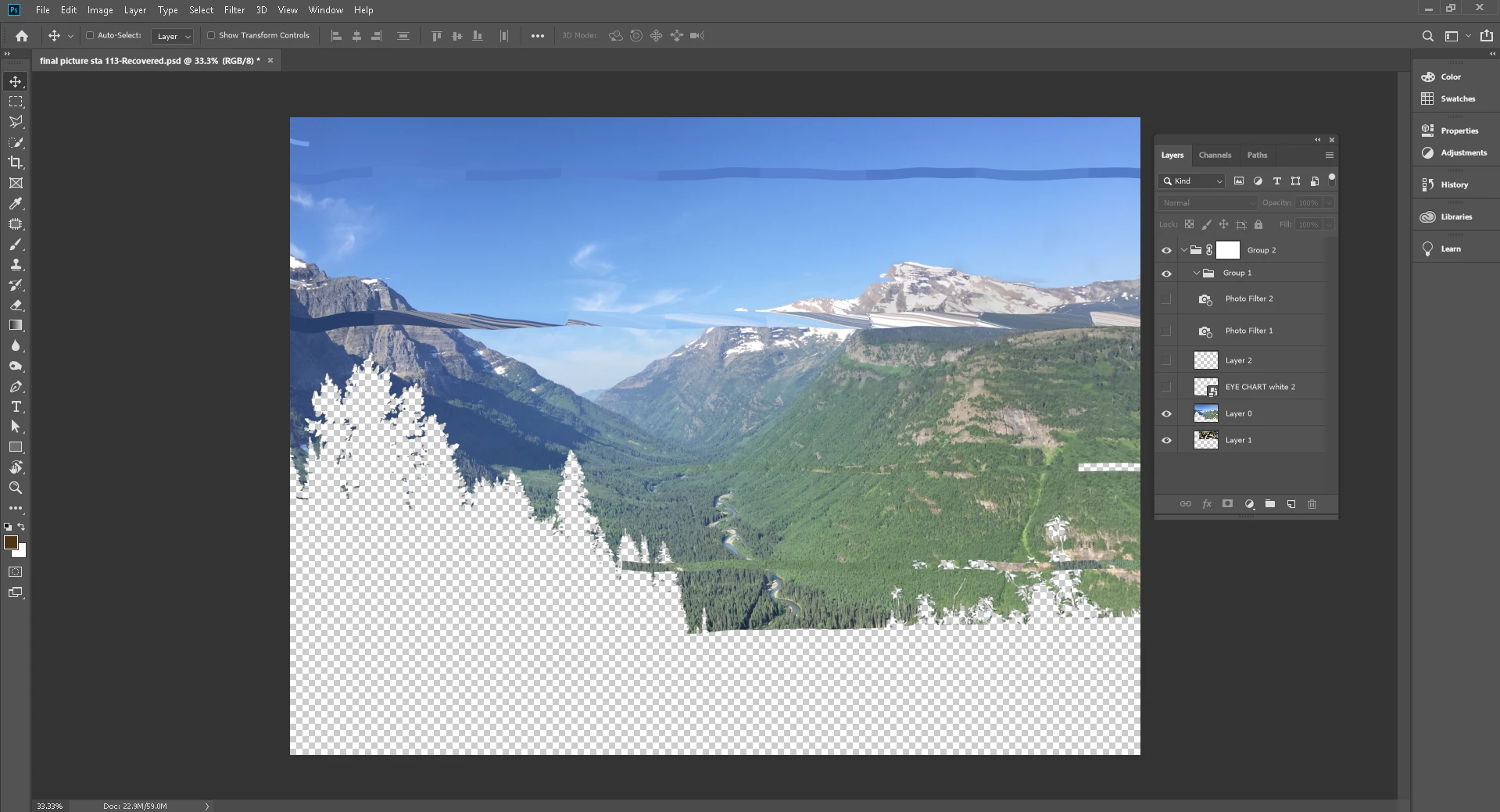
Is there any way that I can use a picture to only fill the transparency section on this image? I don't want to place the image below within the layers because I need it to be placed on top of the landscape for the project I am doing. Any help would be great!
    This topic has been closed for replies.
    Correct answer Norman Sanders

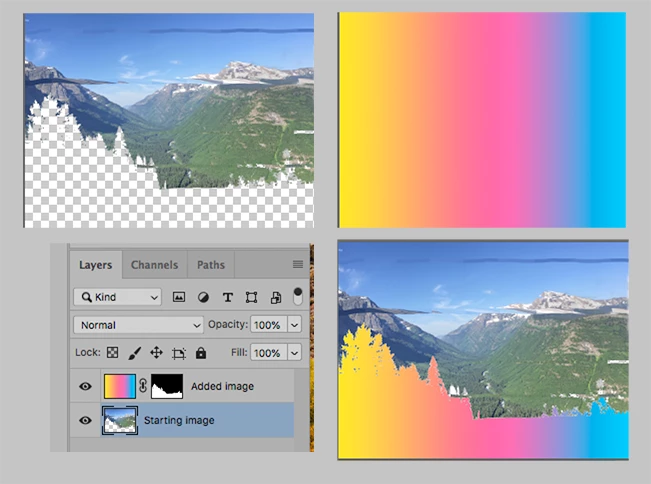
    Assuming you want the image filling the currently blank layer to be on a layer above your Starting image:

    1. Add the new image above your Starting image

    2. Return to the Starting image layer and, using the Magic Wand with Contiguous in its Options bar unchecked, click on the checkerboard area.

    3. Choose the Added Image layer and click on the Layer Mask symbol at the bottom of the Layers panel

    (The mask shown here is only approximate because your illustration showing the transparent area is displayed as an actual printable pattern.When you work with the actual file the mask will be accurate.)

    2 replies

    c.pfaffenbichler
    Community Expert
    Community Expert
    December 8, 2018

    You can load the Layer’s Transparency as a Selection and invert it and use it however.

    Of course you need to keep in mind that any feathering or anti-aliasing will result in »edge effects« –  two pixels (Layers) with 50% opacity atop one another do not result in a pixel of 100% opacity.

    Participating Frequently
    December 9, 2018

    Thank you for the answer. How do you actually go about doing that?

    Norman Sanders
    Norman SandersCorrect answer
    Legend
    December 9, 2018

    Assuming you want the image filling the currently blank layer to be on a layer above your Starting image:

    1. Add the new image above your Starting image

    2. Return to the Starting image layer and, using the Magic Wand with Contiguous in its Options bar unchecked, click on the checkerboard area.

    3. Choose the Added Image layer and click on the Layer Mask symbol at the bottom of the Layers panel

    (The mask shown here is only approximate because your illustration showing the transparent area is displayed as an actual printable pattern.When you work with the actual file the mask will be accurate.)

    Mohammad.Harb
    Community Expert
    Community Expert
    December 8, 2018

    Place the image you want, then Make a selection for the transparent area, then click on the layer mask icon