Known Participant
January 14, 2018
Answered

Filter Gallery not working

  • January 14, 2018
  • 4 replies
  • 4615 views

please help!

Every setting is ok.

8 bits, Rgb mode, default b/w background. Everything was fine yesterday.

It works until I try to select a style, but nothing is happening???

    This topic has been closed for replies.
    Correct answer c.pfaffenbichler

    It works as long as I use the one in the menu beneath filter gallery. But yesterday I could also do in the menu i showed you. It's really weird...

    Thank you for your help. Just got PS a week ago and I am still learning


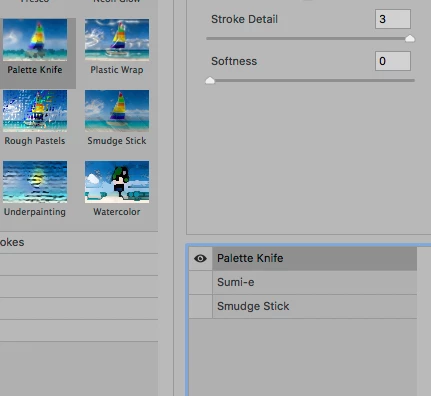
    Have you tried clicking the visibility icon left of the filter name in the list on the right?
    4 replies

    Participant
    January 29, 2022

    Im Having the same problem. The filter gallery is not working. Non of the artistic

    filters are working.


    Participant
    March 21, 2022

    same thing is happening to me. Not a single filter is working for me when it was quite literally last night. I've checked and reset my color settings multiple times I know not to miss the eye icon.Restarted my laptop, opened new projects to see if it persists and it does. I'm trying to use the chrome filter and each time I apply it my text(rasterized and turned into smart objects each time) it turns the text grey/black....getting very frustrated considering I was doing heavy texture work seamlessly last night but now basic functions aren't working.  Please don't judge my on phone screenshot I can't use my laptop 

    c.pfaffenbichler
    Community Expert
    Community Expert
    March 21, 2022

    Could you please post proper screenshots and not clip them to exclude releveant parts? 


    Do you understand what the Filter Chrome does and whether it even utilizes a Layer’s transparency? 

    Have you tried adding a white background in the Smart Object? 

    Barb Binder
    Community Expert
    Community Expert
    January 14, 2018

    Hi ceciliet10953852:

    From your original photo, it looks like you added both the Palette Knife and Graphic Pen, but both are hidden.

    In the screen shot below: the eyeballs control the visibility of a filter—I don't see eyeballs in your photo, so click where you see mine to turn them on. You can add multiple filters with the folder button at the bottom, and you can remove them by selecting one in the list and clicking the trash can. I'd start with just one. Some filters work off the foreground/background colors, which is why c.pfaffenbichler is suggesting that you reset them. (Just press the letter D without a dialog box open.)

    And for maximum flexibility, before you add any filters, take the extra step of selecting Filter > Convert for Smart Filters which allows you to turn filters off later, or modify them.

    ~Barb

    P.S. Photoshop is a complex application, with a sharp learning curve, so don't be surprised that getting up to speed is a slow process. Training helps!

    ~Barb at Rocky Mountain Training
    Known Participant
    January 14, 2018

    OMG!

    Thank you so much both of you

    Saw it now

    Barb Binder
    Community Expert
    Community Expert
    January 14, 2018

    We are always happy to help!

    ~Barb

    ~Barb at Rocky Mountain Training
    Known Participant
    January 14, 2018

    Oh, couldnt on the phone

    c.pfaffenbichler
    Community Expert
    Community Expert
    January 14, 2018

    That is not the Filter set you were talking about previously.

    Please post a different kind of screenshot:

    FAQ: How do I capture and post a screen shot or video?

    c.pfaffenbichler
    Community Expert
    c.pfaffenbichlerCommunity ExpertCorrect answer
    Community Expert
    January 14, 2018

    It works as long as I use the one in the menu beneath filter gallery. But yesterday I could also do in the menu i showed you. It's really weird...

    Thank you for your help. Just got PS a week ago and I am still learning


    Have you tried clicking the visibility icon left of the filter name in the list on the right?

    c.pfaffenbichler
    Community Expert
    Community Expert
    January 14, 2018

    Please post a meaningful screenshot (including all pertinent Panels and the Filter Gallery dialog).

    Which Filter/s are you talking about specifically?

    Known Participant
    January 14, 2018

    The one with glass effect etc.

    I can get in and see my pic, I can adjust effects, but nothing happens in the display window or in the original pic. I can click in on every effect, but my pic does not change

    c.pfaffenbichler
    Community Expert
    Community Expert
    January 14, 2018

    Is a Selection active?

    What have you done for general trouble-shooting so far?

    Restoring Preferences after making sure all customized presets like Actions, Patterns, Brushes etc. have been saved might be a good starting point:

    https://helpx.adobe.com/photoshop/kb/basic-trouble-shooting-steps.html