
Filter mask drilling all the way down to original image
I am trying to restore one of my aunt's photos from Las Vegas from April 1975. In order to remove some dust and scratches, I looked up and followed this tutorial from Piximperfect.
https://www.youtube.com/watch?v=Tum_IwQ2bus
I went along okay until he added the copy of the first dust and scratches filter. What he calls Removal 2. As I wnt to paint on the Removal 2 mask, I thought it would just allow my Removal 1 to show through. Instead it appears to be also getting rid of Removal 1.
Here's is a zoomed in part of my original photo so that you can see what I'm trying to get rid of.
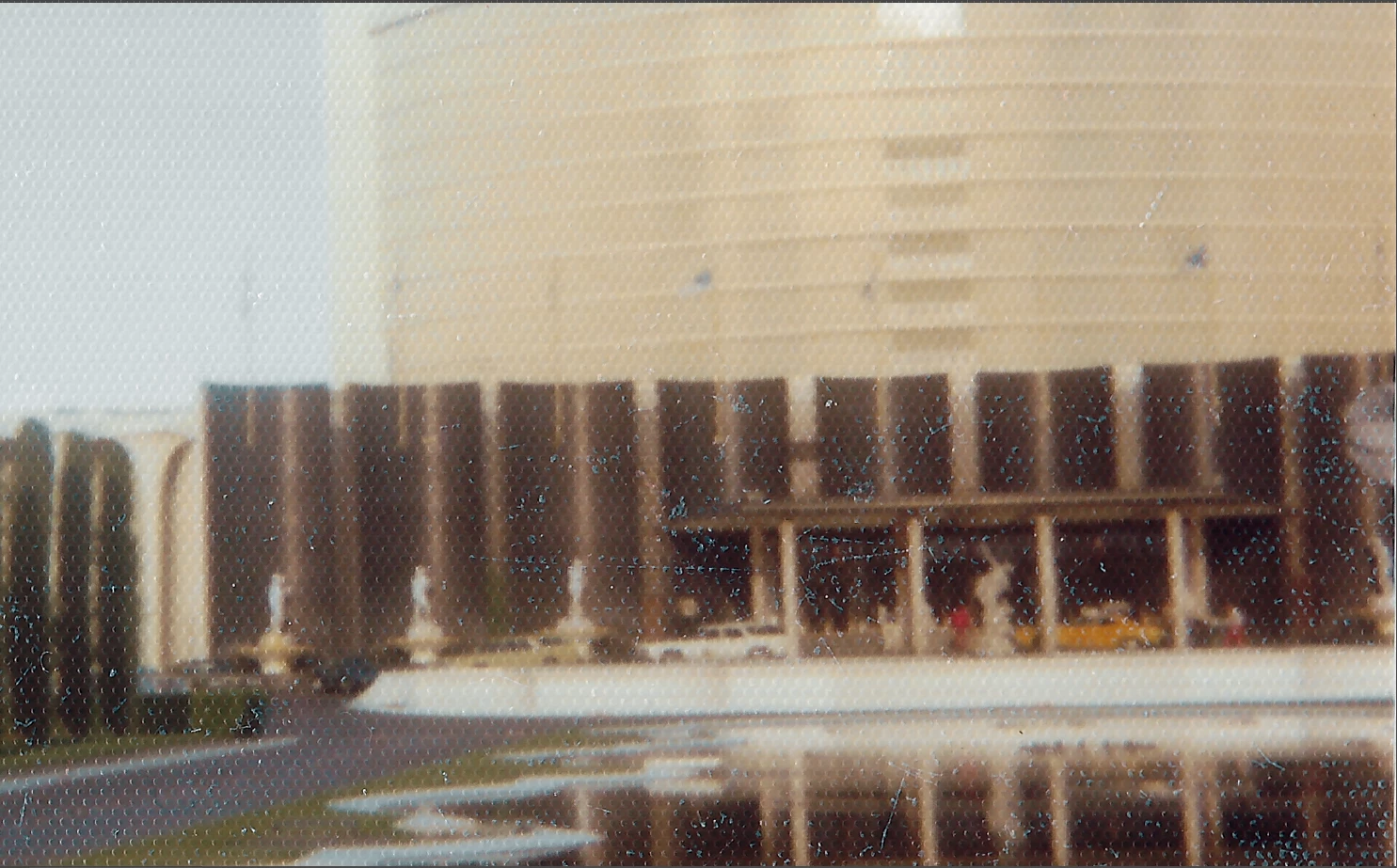
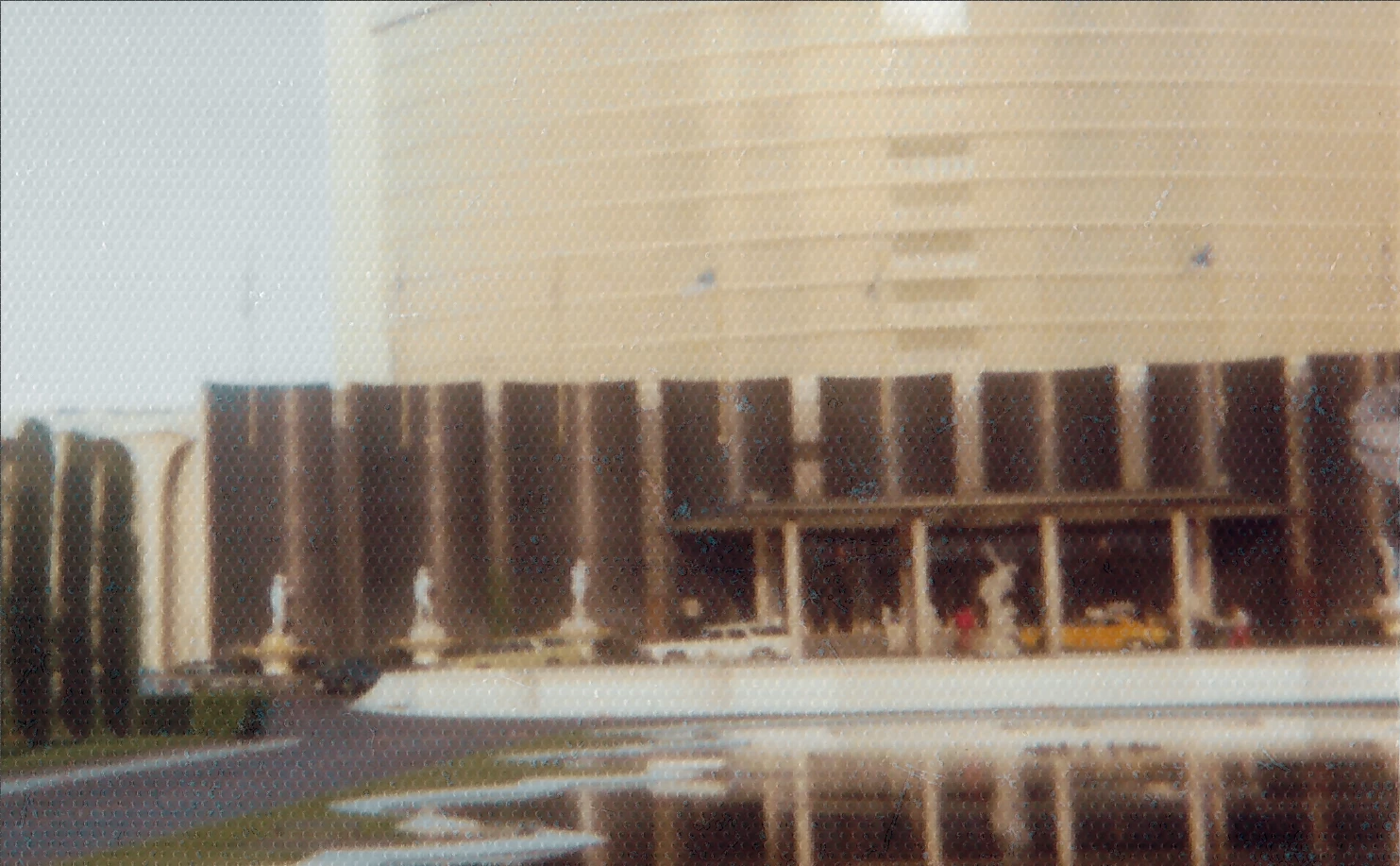
Those blue specks. Here is after I added the first pass of the dust filter.
Here is with Removal 2 turned on (I really exaggerated it so that i could tell it was turned on. I'm not really gonna use this)
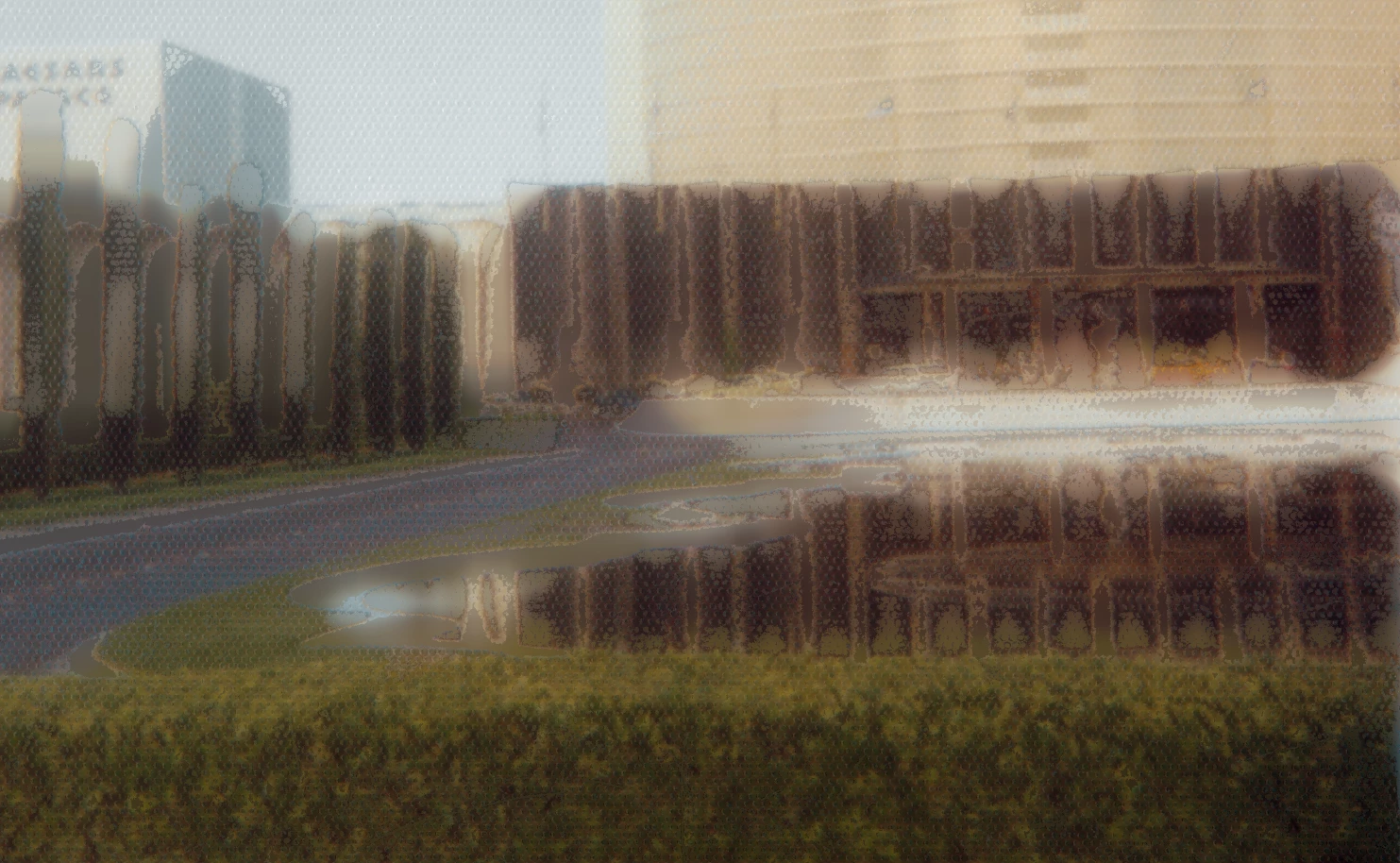
If I use a black brush on the filter mask, I get this.
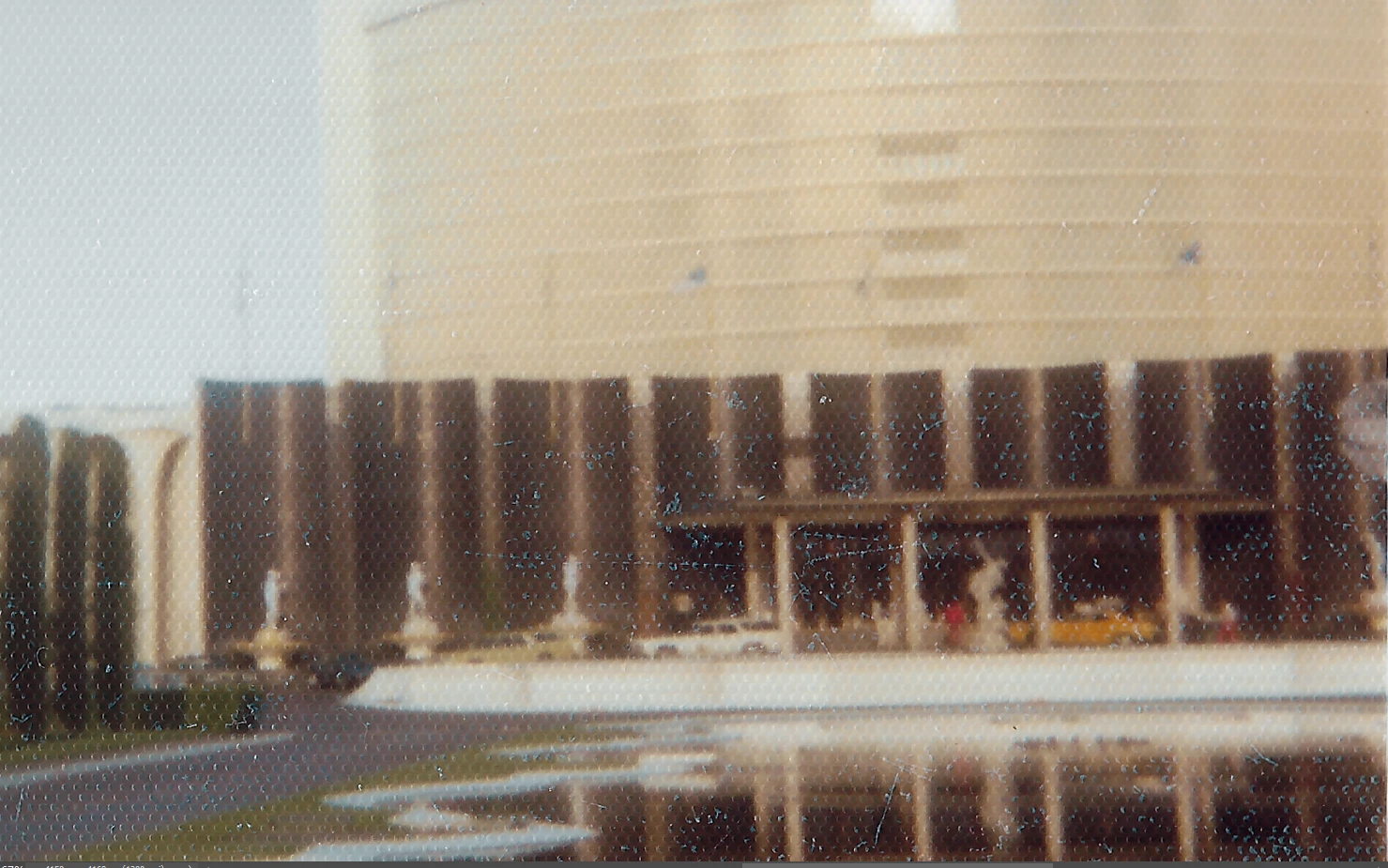
That looks identical to my very bottom layer. 😕😕
I think the masks look okay.
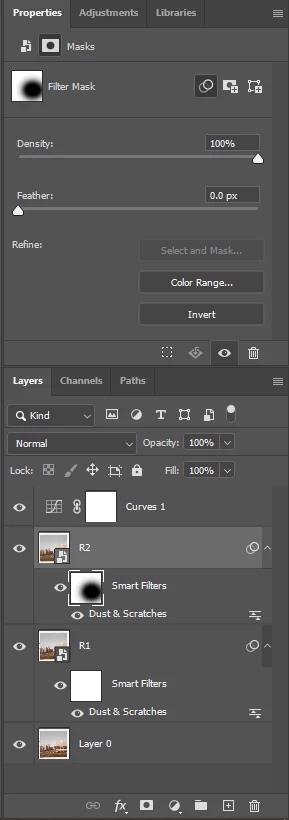
My brush mode is normal, opacity is 100%, and my foreground/background colors are full black and white. Do masks not work on TIFs or something? That's what I scanned it in as. When I toggle R2 off, R1 shows up just fine.
EDIT: Something just came to me. I'm not painting on a layer mask. All I'm doing is painting on the filter mask. Gah. One of those days where I can't think until i walk away from it. Thanks guys.
 AdChoices