
Fixing a “Tiny Canvas” glitch in Photoshop CS6 on my high DPI screen
I'm trying to fix a "tiny canvas" glitch in Photoshop CS6 on my high DPI (hidpi) laptop screen.
I'm working in Photoshop CS6 (64-bit) in Windows 10 on my Lenovo Yoga 730-15 laptop's hi-dpi screen (running at it's native 3840x2160 resolution).
On a clean install, the Photoshop CS6 user interface was so super-tiny on the high-dpi screen I could barely see the icons, so I searched around for a solution.
I found a built-in Windows 10 high-dpi screen fix which at first seemed to solve the problem as it made the UI elements look the correct size.
However, when I tried to open and work on a Photoshop file, there is a glitch that makes the normal Photoshop "working canvas" window super tiny and jammed up in the top left corner of the screen, overlaying the top menu bar items.
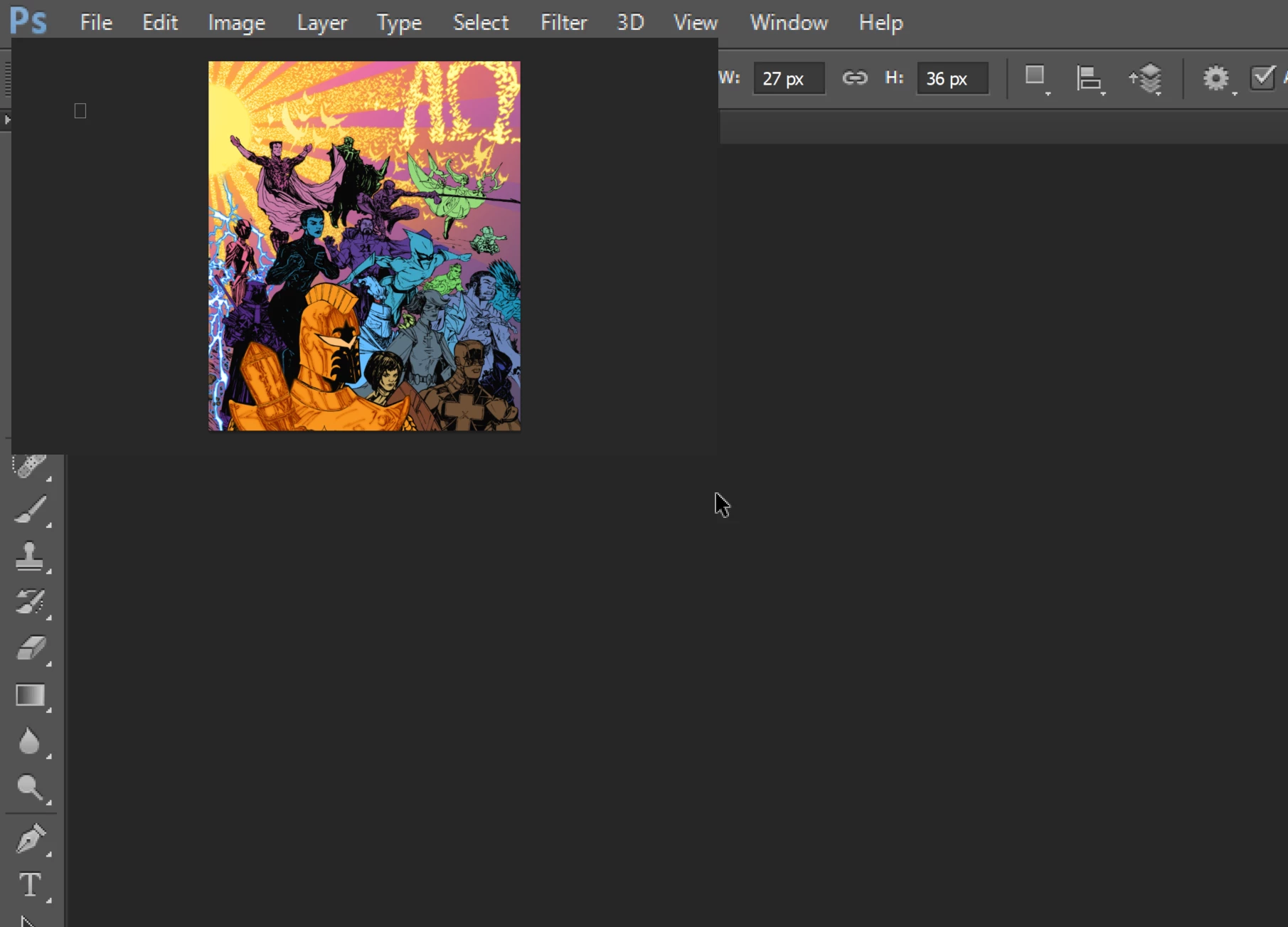
Oddly, the program still seems to think that the canvas working area is sized normally as it still interprets commands in the black background space as if they are entered on the corresponding tiny canvas working area.
I have been looking for a way to fix this odd glitch and still have not found one. It's super confusing and frustrating. Please let me know if you have any suggestions. Any help would be welcome.
Please refrain from answers or comments that suggest I upgrade to a CC subscription. I am looking for a fix for CS6 in particular.
This problem appears to apply to Windows only as there appears to be a Retina screen fix available for Macbooks.
 AdChoices