
Known Participant
September 23, 2022
Answered

floating outline around text font

  • September 23, 2022
  • 3 replies
  • 6137 views

I'm curious out to do a floating outline around the text as it shows in the screenshot attatched. I found  font a really like however i cant figure out how to do the floating outline.


Ive tried  creating a "Stroke" layer and lowering opacity so im left with the outline which works, however when trying to resize the original layer to use as a fill, to creat the floating outline, it will just never fit properly, even by doing each letters individually.
Correct answer Bojan Živković11378569

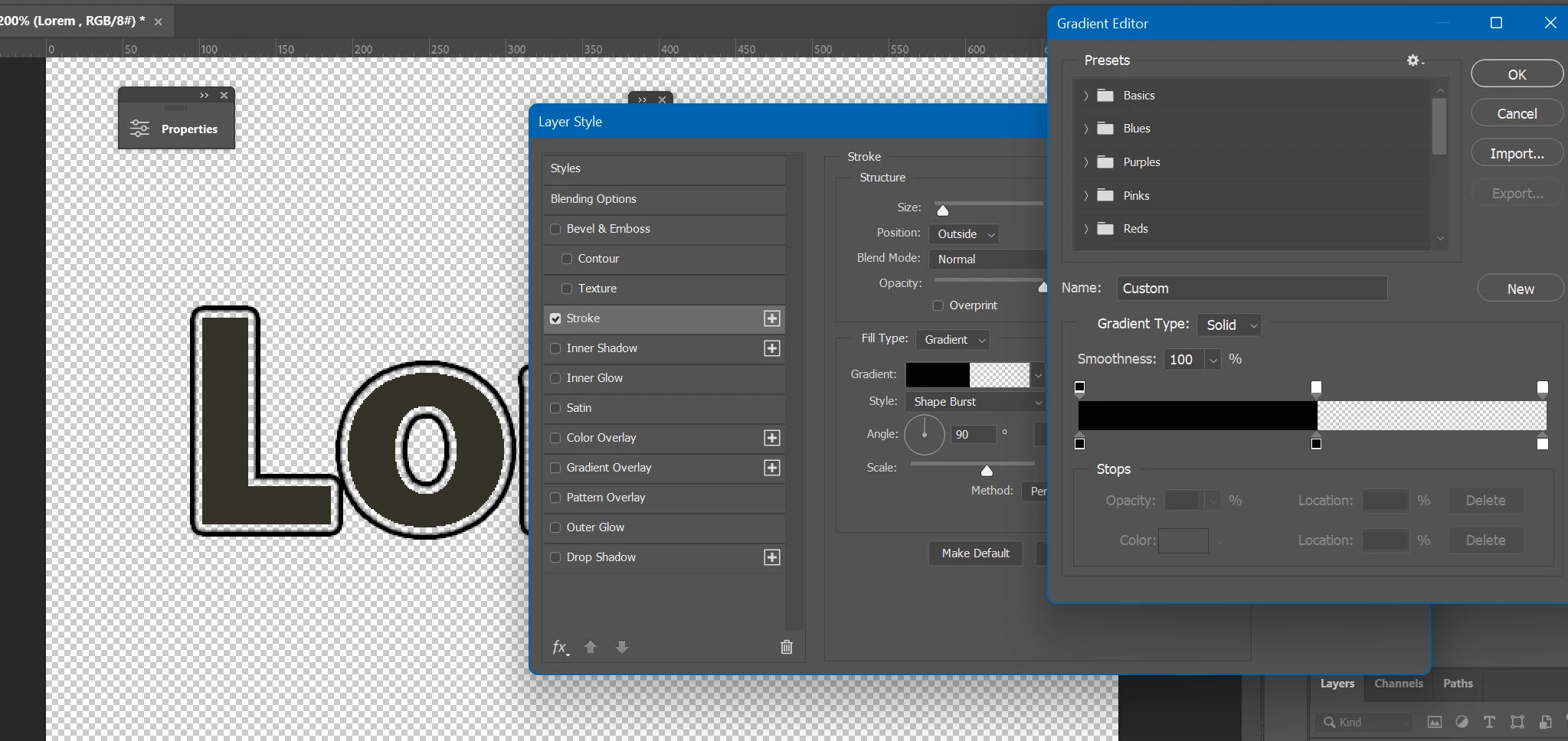
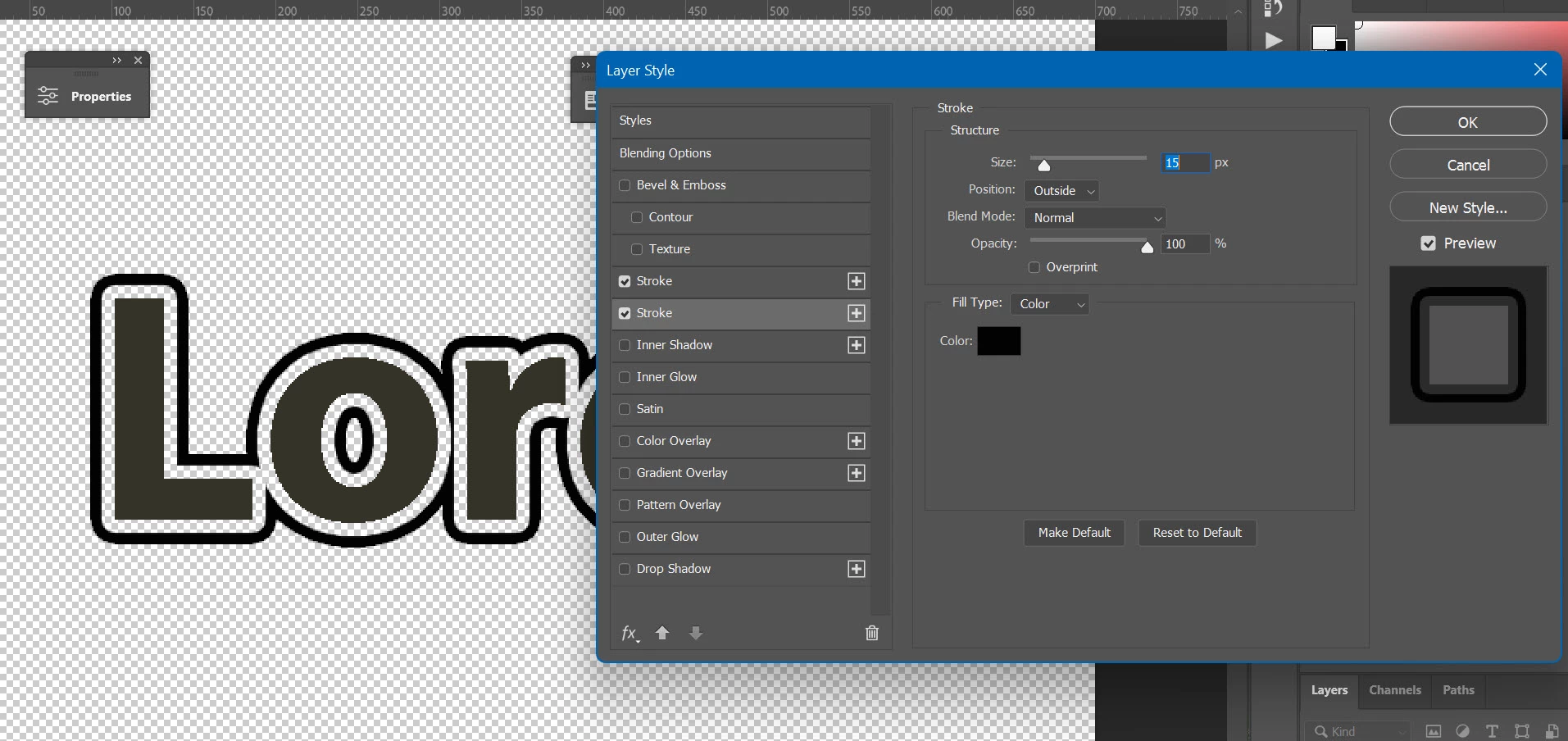
You have two options using Layer > Layer Style effects. Both are using Stroke effect: either using Gradient for stroke or using Stroke > Color twice, please see screenshots. 


When using Gradient you must manipulate stops and opacity.

When using double stroke set first stroke to 8px Color, Outside, for example, and Opacity to 0. In this case I set font to 200. Create new stroke by clkicking on plus sign on the right side of Stroke and set Outside, Color, 16px, for example, but this time move Opacity slider to 100%. Play with Tracking from Character panel for different spacing between characters.

You can set and Inside for the first Stroke effect but that will change font design what is not what I would like to do.

3 replies

Participant
September 13, 2025

Hi following this post, Does anyone know how to do this font style in Photoshop? Or maybe a downloadable one? 

Ged_Traynor
Community Expert
Community Expert
September 13, 2025

@Charm Ayuzawa just make a copy of the type layer, move it below the original layer, change the colour to white, add a black stroke, move the layer to the appropriate position


Bojan Živković11378569
Community Expert
Community Expert
September 23, 2022

It seems you want to create old style 3D efffect. Here is one tutorial, steps 3 and 4 explains how to create depth https://design.tutsplus.com/tutorials/create-a-3d-retro-text-effect-using-layer-styles-in-adobe-photoshop--cms-23118

You need somehwat different effect so tutorial will need some modifications, good luck!

Ryan PKAuthor
Known Participant
September 23, 2022

the 3d effect isnt so much what im looking to so. just a solid floating outline.

Bojan Živković11378569
Community Expert
Community Expert
September 23, 2022

You have two options using Layer > Layer Style effects. Both are using Stroke effect: either using Gradient for stroke or using Stroke > Color twice, please see screenshots. 


When using Gradient you must manipulate stops and opacity.

When using double stroke set first stroke to 8px Color, Outside, for example, and Opacity to 0. In this case I set font to 200. Create new stroke by clkicking on plus sign on the right side of Stroke and set Outside, Color, 16px, for example, but this time move Opacity slider to 100%. Play with Tracking from Character panel for different spacing between characters.

You can set and Inside for the first Stroke effect but that will change font design what is not what I would like to do.

mglush
Community Expert
Community Expert
September 23, 2022

Hi! 

Is the floating outline part of the font? If so, then you might need to use the Font size dialog (or slider) to resize it rather than one of the other tools. Let us know how the floading outline was applied to the text.

Michelle

Ryan PKAuthor
Known Participant
September 23, 2022

the font with the floating outline, (see screenshot) was a premade font i downloaded. my question is, i found an entireley different font with no floating outline, but i would like to stick to the same style and create floating outline around the new font i have found, it doesnt currently have the floating outline on the new font.

Semaphoric
Community Expert
Community Expert
September 23, 2022

I can think of a couple of ways, depending on whether you want an outline or an inline.


For an outline, select the text, and add a new layer. With the new layer active, Select > Modify > Expand, then Edit > Stroke, followed by deselect. . You could use any color for this. Link this layer with the text, so they can be moved as a unit.

For ans inline, add a layer mask to the text, load the text as selection, Select > Modify > Contract, then Edit > Stroke with black, and deselect.

Both of these methods will require regenerating them if the text is edited.