

kentmcpherson
Inspiring
July 8, 2019
Question

Frame Tool Problem

  • July 8, 2019
  • 3 replies
  • 897 views

I am trying to create a template doc that allows me to quickly replace a picture that has a picture frame around it to show what a photo looks like framed.  Here are the layers I have in my test document:
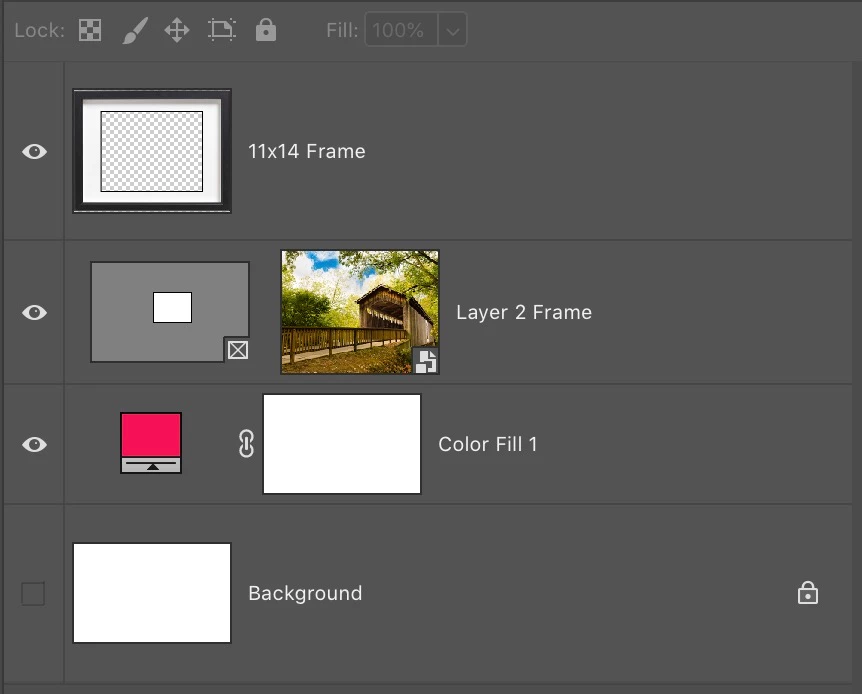
This works but when I drag another photo into this document, highlight the bridge photo in Layer 2 Frame above and hit Delete, it deletes the layer about it too (11 x 14 Frame).  Why are these linked and how to do I get it unlinked so I can change photos quickly?  Thanks.

This topic has been closed for replies.

3 replies

JJMack
Community Expert
Community Expert
July 8, 2019

Just before you hit delete look at the Layers palette what is targeted? If both layers are targeted both should be deleted. Your screen capture does not show these layer are linked. If they were linked there would be link icone on the layers in the layer Palette. And even if they were linked if only one layer was targeted delete would just delete the layer targeted not the other layers.  Linked layers move and resized together.

JJMack
Community Expert
July 8, 2019

If you're just making a template for the frame in order to show how a image can be placed and if the frame has a transparent opening where you can see the layer below based on what I'm seeing on the layers,  I wouldn't think you'd need all the fill and masking layers.  You could just place the image normally as a layer below the frame layer.  I could be completely wrong though.

kentmcpherson
Inspiring
July 8, 2019

The color fill layer in the test document was simply to make it easier to see if everything was working. See below.  It would not be kept in my final document. 

Community Expert
July 8, 2019

gotcha

Community Expert
July 8, 2019

Is the color fill layer intended for the frame?