
Known Participant
July 25, 2022
Answered

Fuzzy cutouts with pen tool

  • July 25, 2022
  • 6 replies
  • 1667 views

hi there,

My pen tool seems to have stopped working!
It used to result in clean-cut edges of an object I would cut out from an image and now the edges are all fuzzy. And 'different fuzzy' each time!

I did experiment with feather settings, but have now changed them back to zero, but this didn't bring back the sharpness of the edges (I do have 'anti-aliasing' checked). I'm including screenshots of two post pen tool cut-outs and hoping you can point me to what I can check for to bring the sharpnes back!
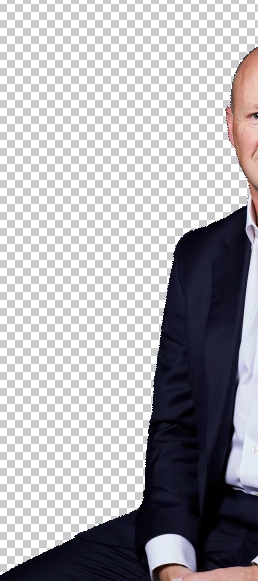
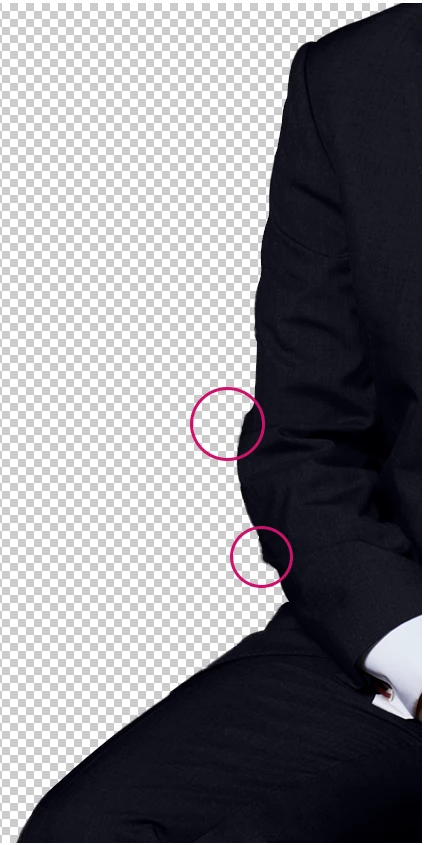


This topic has been closed for replies.
Correct answer c.pfaffenbichler

thanks for rely @c.pfaffenbichler - is 'Belnd mode' the box next to 'Opacity' (in the 'Layers' panel)? If so, it is set to 'Dissolve'.


Why Dissolve? 

Have you tried another, like Normal? 

6 replies

MargoM.Author
Known Participant
July 26, 2022

hi All,

Thanks for all your replies!
@melissapiccone - I did reset preferences and the strangest thing happened: it seems to have worked for one of the images, but not the other...!
@c.pfaffenbichler - I am tehrefore including a screenshot of the image that is still malfuncioning to your specifications below. (please let me know if there's anything other speacific setting you'd like included)

(Screenshot removed by moderator)

@Theresa J - I don't normally use masks for cutting. Instead, I 'Make Selecion' of the path I have drawn with pen tool and create a new layer by Layer > New > Layer via Copy. I did try cutting out with the use of mask (Layer>Layer Mask> Reveal Selection) but the result was the same (exactly same fuzzy edge).


c.pfaffenbichler
Community Expert
Community Expert
July 26, 2022

You forgot the Layers Panel. 

What is the Layer’s Blend Mode? 

MargoM.Author
Known Participant
July 26, 2022

thanks for rely @c.pfaffenbichler - is 'Belnd mode' the box next to 'Opacity' (in the 'Layers' panel)? If so, it is set to 'Dissolve'.


Theresa J
Community Expert
Community Expert
July 25, 2022

What exact steps are you taking to create the mask? Are you using the pen to draw a working path or a shape? Are you creating an alpha mask from the path or a vector mask? Are you making a selection from the path? What are the settings?

melissapiccone
Community Expert
Community Expert
July 25, 2022

Feather settings will make it blurred, antialiasing will not. I suggest you reset preferences to make sure you cleared out the settings you were playing with. 

Melissa Piccone | Adobe Trainer | Online Courses Author | Fine Artist
c.pfaffenbichler
Community Expert
Community Expert
July 25, 2022

Have you tried using a Vector Mask? 

c.pfaffenbichler
Community Expert
Community Expert
July 25, 2022

Could you please post screenshots taken at View > 100% with the pertinent Panels (Toolbar, Layers, Options Bar, Paths, Properties, …) visible? 

MargoM.Author
Known Participant
July 25, 2022

oh, just realised (although not sure if this'll be relevan/ helpful) - the source image is a TIF.