
Participant
October 9, 2019
Question

GAMUT WARNING BROKEN?

  • October 9, 2019
  • 6 replies
  • 645 views

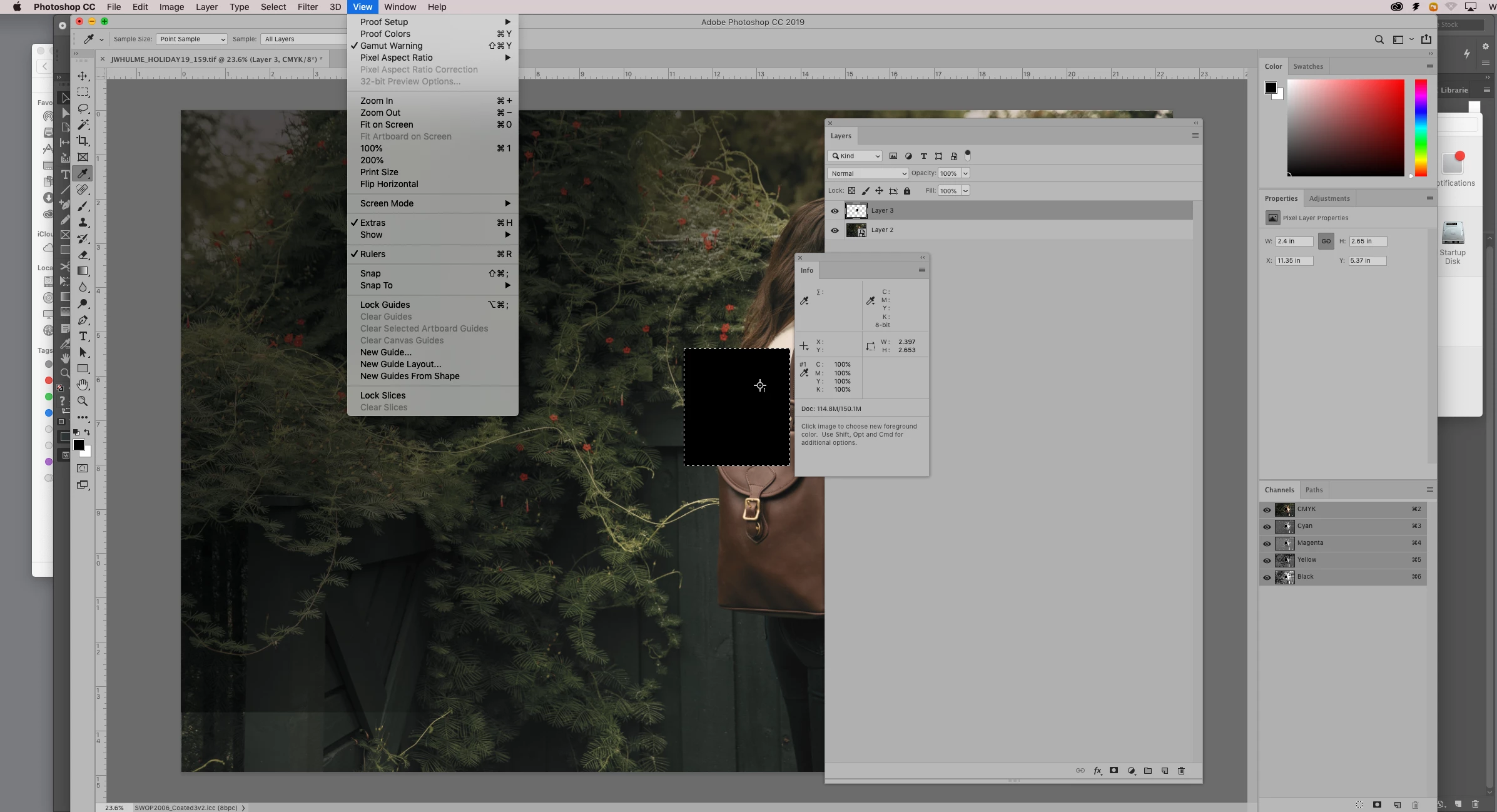
Throughout our shop we are currently having an issue where gamut warning is not working correctly. It is no longer displaying a colored warning even if the current color is Register Black (100c, 100m, 100y, 100k). 


The color profile used here is 300UCR prolfile. 
 

This topic has been closed for replies.

6 replies

D Fosse
Community Expert
Community Expert
October 9, 2019

The only way to check ink limit in Photoshop is with the Info panel, by hovering over "suspicious" areas and checking the readout.


But I agree, there should be a simpler and more convenient way, and I wouldn't be surprised if there is a plugin that will do it. If you find one, do come back and let us know.


All that said, TAC is built into CMYK profiles, so any profile conversion is safe. It's only when you edit in final destination CMYK that this becomes something to watch.

D Fosse
Community Expert
Community Expert
October 9, 2019

c.p. is entirely right. Gamut warning does not address TAC. It's not supposed to, that's not what it does. It has never worked that way.


TAC is an entirely different consideration. To check that, you use the Info panel in Photoshop, or Separations Preview in InDesign, or Output Preview in Acrobat.

Participant
October 9, 2019
Its so weird. I agree that c.p. is right... but, I really do remember using the gamut tool the way I describe, and several other folks here do too. We'd use it to check that any LA moves we did didn't move the color outside of the color profiles "ink limit". I'll have to do some deeper digging and figure out if its some plug in thats running or something else. Thanks again for your help.
c.pfaffenbichler
Community Expert
Community Expert
October 9, 2019

Indesign has an Ink Limit-option in the Separations Preview, but if you convert the images in Photoshop anyway that should not reveal any issues anyway … could you possibly have been employing some plugin ot script to reveal the TAC-exceeding areas in Photoshop? 

Do you usually use cutom presets in View > Proof Setup or »Working CMYK«? 


Sorry I haven’t been much help so far. 

c.pfaffenbichler
Community Expert
Community Expert
October 9, 2019

I might have been mistaken and overlooking the signfiance of the Rendering Intent, but I think the only Rendering Intent that would more or less incorporate what you seem to be looking for is »Absolute Colorimetric« and that seldom makes sense in actual conversions. 

Participant
October 9, 2019
I am using the current version, 20.0.6 release. I used the functionality less a month ago, to check the density of an image, and others in the shop have done the same. So there has been some change, but I just am unable to track it down. By color I am referring to the total Color density or TAC of the image. When said image that is being "Color managed" within Photoshop is placed in InDesign, it is above the ink density allowed for the color space. We used to be able to “see” those space in Photoshop using Gamut warning. Now we are not. Its very strange. We noted the change in Absolute Colormetric, but as you said, no one would use that for color conversion of images. We use Adobe / Perceptual for most conversions. Thanks you, by the way, for trying to help us figure it out. I appreciate it.
c.pfaffenbichler
Community Expert
Community Expert
October 9, 2019
Like I said I still have CS6 installed and the warning result appears equal to the one in CC 2019.
c.pfaffenbichler
Community Expert
Community Expert
October 9, 2019

The basis of the out-of-gamut-warning is the conversion of the one space to the other (in this case apparaently CMYK-to-CMYK), so TAC issues are automatically resolved and play no further role. (Edit: Correction, I had overlooked the Rendering Intent »Absolute Colorimetric«.) 

The 400% TAC area is just »deep black« and that is »possible« in any relevant CMYK space, even tough it may actually be somewhat lighter in the target space. 

The inage itself seems to feature few very saturated elements so it can likely be reproduced well in other, even somewhat smaller, CMYK spaces. 

Participant
October 9, 2019

Your reply does not address that there has been a change to the functionality of Gamut Warning within Photoshop. The way it used to work is that it would show a warning area in places where the color was above/beyond the current color space. Also, If you tried to print said image as it was without further color correction it would oversaturate the paper.

c.pfaffenbichler
Community Expert
Community Expert
October 9, 2019
There was apparently no change, at least since Photoshop CS6, so which version are you referring to?
c.pfaffenbichler
Community Expert
Community Expert
October 9, 2019

Sorry, I have to correct my post, I had missed that you had mentioned the target space being another CMYK space than the current one: 

You seem to confuse TAC-violation and Out-of-Gamut-warning. 


Participant
October 9, 2019
The way it used to work, is that if any of the image was out of Gamut (in this situation any part of the image that has over 300UCR) would show up as the designated color (usually a flat grey or green color). Tbiks works regardless of current color space. If you are in US Swop v2, ant part of the image that is over 300UCR would show up tagged.
c.pfaffenbichler
Community Expert
Community Expert
October 9, 2019

Basically Photoshop’s »out-of-gamut« only works on two axis’ of the Color Space (edit) except for the Rendering Intent »Absolute Colorimetric«.