
łukaszz35275447
Known Participant
January 30, 2017
Answered

Generate B&W assets in RGB

  • January 30, 2017
  • 3 replies
  • 2642 views

Hi. I'm trying to automate process of exporting assets for animation purposes. I'm using Generate Assets option with layer naming (45% name.png). Unfortunatelly after 2 days I noticed that B&W assets are too bright. Turned out Photoshop decided to export all the b&w assets in grayscale ruining their proper brightness. How do I avoid that? I want color to be proper, would be great to export them as RGB.
This topic has been closed for replies.
Correct answer nidtol

I have found the solution to this.

1. Install the Generator Config panel available for download here:

https://github.com/adobe-photoshop/generator-assets/wiki/Configuration-Options

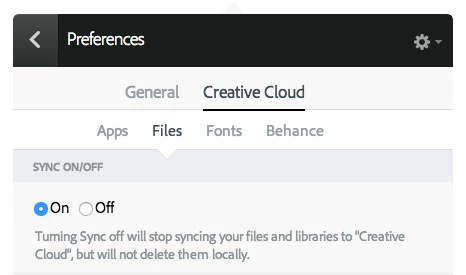
2. Make sure you have downloaded the Creative Cloud desktop app, and "File Sync" is switched ON

3. After installing the Config panel, open Photoshop and show the Generator config panel

4. Now, make sure to check ON "Color convert pixels" as well as "Use FLITE trascoder". Then, press "Save" in that same panel.

5. Save your psd file and this will generate the gray RGB pngs in actual RGB mode and not transform them into grayscale!

6. Enjoy your happiness!

3 replies

D Fosse
Community Expert
Community Expert
March 2, 2017

Interesting and useful. Thanks for posting.

nidtolCorrect answer
Participant
March 2, 2017

I have found the solution to this.

1. Install the Generator Config panel available for download here:

https://github.com/adobe-photoshop/generator-assets/wiki/Configuration-Options

2. Make sure you have downloaded the Creative Cloud desktop app, and "File Sync" is switched ON

3. After installing the Config panel, open Photoshop and show the Generator config panel

4. Now, make sure to check ON "Color convert pixels" as well as "Use FLITE trascoder". Then, press "Save" in that same panel.

5. Save your psd file and this will generate the gray RGB pngs in actual RGB mode and not transform them into grayscale!

6. Enjoy your happiness!

Inspiring
June 15, 2017

Thank you so much for this! It was driving me crazy on how to change my default settings. I hate that it takes a gray image and converts it to grayscale, so weird. I did get it to work by naming my layer .png32 but I think that's dumb too. Default is supposed to be 32bit. Well anyways thank you so much for sharing this!

D Fosse
Community Expert
Community Expert
January 30, 2017

If the originals are grayscale, just check "convert to sRGB" in the Export dialog.

Check "embed profile" as well if the rest of your process is color managed.

Generally, grayscale support is very poor outside Photoshop, even in supposedly color managed applications, and you never know if they will be properly handled. The safest bet is to convert to gray gamma 2.2, or sGray (which uses the same tone response curve as sRGB).

łukaszz35275447
Known Participant
January 30, 2017

What export dialog do you mean? I'm using the "Generate Assets" option added in CC, that exports assets based on alyers/group names every time I save the document. In "Export Preferences" "Convert to sRGB" is checked, but it looks like it doesn't apply to generated assets.

D Fosse
Community Expert
Community Expert
January 30, 2017

Ah, OK, I'm not too familiar with that feature.

If nothing else works you may need to batch convert to sRGB first (which is very straightforward) - perhaps as copies to a separate folder so as to not overwrite your originals.

Are your originals grayscale? If they are intended for screen the only sensible grayscale profile to use is gray gamma 2.2. The Photoshop default for working gray, dot gain 20%, is intended for offset presses and not suitable here.

But as I said, grayscale support is very iffy everywhere except Photoshop. Use at your own risk. Gray gamma 2.2 should display correctly even without color management, but no guarantees.