Exit
  • Global community
    • Language:
      • Deutsch
      • English
      • Español
      • Français
      • Português
  • 日本語コミュニティ
  • 한국 커뮤니티
0

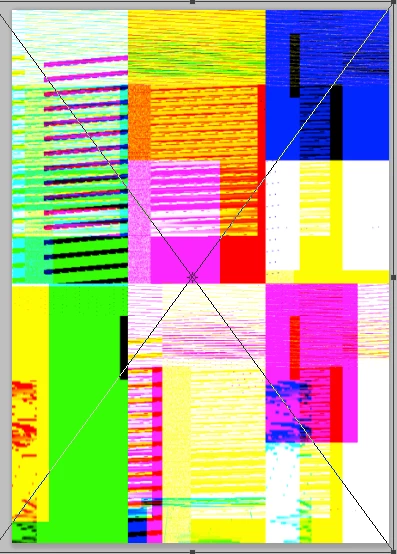
Generating random color effects like this one

New Here ,
Dec 16, 2016 Dec 16, 2016

Hey Guys,

so I placed an image into a Photoshop Doc earlier and due to some graphics card glitch, the image became messed up. But the thing is, I really like what's happening with the glitch, and want to figure out a way to deliberately create this effect. It reminds me of certain CMYK print effects I've seen around. Any ideas?
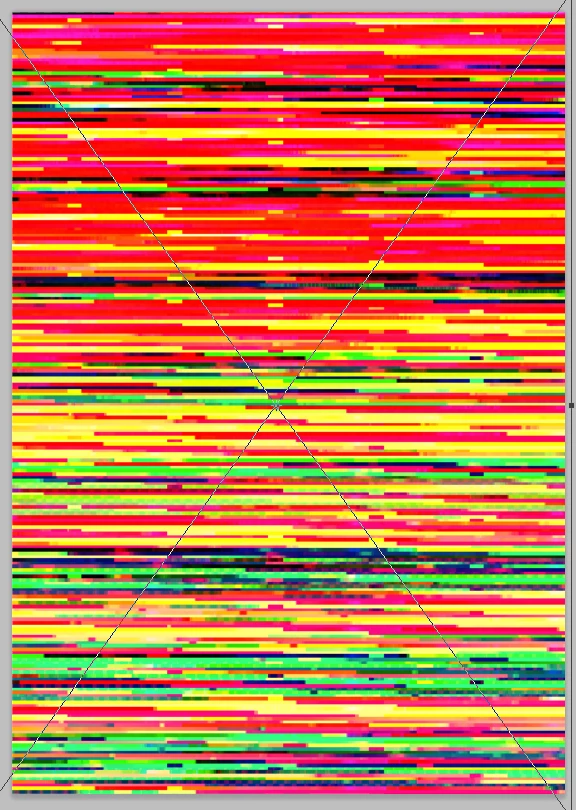
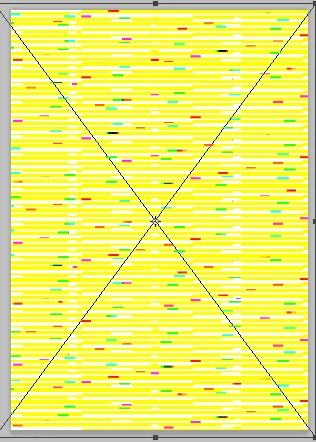
Screen Shot 2016-12-16 at 12.25.09.pngScreen Shot 2016-12-16 at 12.26.00.pngScreen Shot 2016-12-16 at 12.26.33.png

Incidentally the effect happens when transforming the image, changing with each slight movement, but once you commit the transformation it changes again, and the final result is less pleasing, hence why I'm looking for a way of achieving this kind of effect with some control over it.

Thanks!

294
Translate
Report
Community guidelines
Be kind and respectful, give credit to the original source of content, and search for duplicates before posting. Learn more
community guidelines
Adobe
Community Expert ,
Dec 16, 2016 Dec 16, 2016

The Filter Displace with different settings/Displacement Maps applied to each Channel, patterns and Adjustment Layers might provide some options.

simulateGPUDriverProblemsScr.jpg

Translate
Report
Community guidelines
Be kind and respectful, give credit to the original source of content, and search for duplicates before posting. Learn more
community guidelines
New Here ,
Dec 19, 2016 Dec 19, 2016

Great, thanks! I'll have a play with that

Translate
Report
Community guidelines
Be kind and respectful, give credit to the original source of content, and search for duplicates before posting. Learn more
community guidelines
Community Expert ,
Dec 19, 2016 Dec 19, 2016

I omitted to mention that on the example the Groups were limited to affect one Channel each.

layerStyleChannels.jpg

Translate
Report
Community guidelines
Be kind and respectful, give credit to the original source of content, and search for duplicates before posting. Learn more
community guidelines
Community Expert ,
Dec 20, 2016 Dec 20, 2016
LATEST

Absolutely noting like your example, but still a lot of fun.  Pick a nice abstract brush, and go crazy with the settings.  Size, angle, and scatter all  pushed to max.  Foreground/background and Hue jitter also maxed out.  Dual brush, and Count pushed up a bit to quicken the process, and it's Jackson Pollark eat your heart out. 

The first example shows a lot of the black background layer.

Or after another ten seconds of laying down

And then go crazy with filters.  Stylize > Extrude > Pyramids is good value.

Hmmm...  I'm feeling a bit queasy all of a sudden. 😞

Translate
Report
Community guidelines
Be kind and respectful, give credit to the original source of content, and search for duplicates before posting. Learn more
community guidelines