
Participant
October 14, 2023
Question

Generative AI content credentials prevent exported jpgs from displaying thumbnail in Win 11 Explorer

  • October 14, 2023
  • 2 replies
  • 402 views

How to recreate this problem in Photoshop 25.0.0 on Windows 11 Home Version 22H2 with Windows Feature Experience Pack 1000.22674.1000.0:
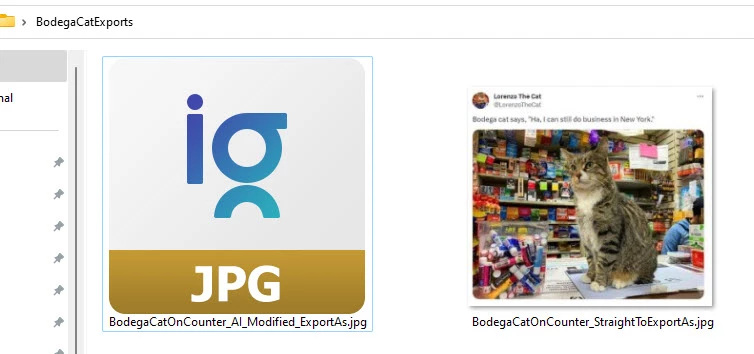

1. Edit any image using generative AI. For example, select an area and click "Generative Fill" without instruction to simulate content aware fill.

2. Flatten image

3. [File] [Export] [Export As...]

How to recreate this problem in Photoshop 25.0.0 on Windows 11 Home Version 22H2 with Windows Feature Experience Pack 1000.22674.1000.0:

1. Edit any image using generative AI. For example select an area and click "Generative Fill" without instruction to simulate content aware fill.

2. Flatten image

3. [File] [Export] [Export As...]

4. Format JPG (Note: the problem does NOT occur with PNG or GIF formats)
5. Other export options do not matter. You can leave them alone or change them.

6. Click [Export] and save image to Windows 11 desktop or a folder.

7. Try to view as icons (any size). Thumbnail image will not display.

8. Repeat the above starting with #4 but select PNG or GIF. Thumbnails will display.
9. Repeat from the beginning but do not use generative AI on the image. Thumbnails will display.

4. Format JPG (Note: the problem does NOT occur with PNG or GIF formats)
5. Other export options do not matter. You can leave them alone or change them.

6. Click [Export] and save image to Windows 11 desktop or a folder.

7. Try to view as icons (any size). Thumbnail image will not display.

8. Repeat the above starting with #4 but select PNG or GIF. Thumbnails will display.
9. Repeat the above starting with #3 but with Save for Web (Legacy)... save as JPG. Thumbnails will display.
10. Repeat from the beginning but do not use generative AI on the image. Thumbnails will display.


This topic has been closed for replies.

2 replies

Participant
October 14, 2023

OK... it was my fault... (Not enough coffee I suppose). Here are the ten steps:
===
1. Edit any image using generative AI. For example select an area and click "Generative Fill" without instruction to simulate content aware fill.
2. Flatten image
3. [File] [Export] [Export As...]
4. Format JPG (Note: the problem does NOT occur with PNG or GIF formats)
5. Other export options do not matter. You can leave them alone or change them.
6. Click [Export] and save image to Windows 11 desktop or a folder.
7. Try to view as icons (any size). Thumbnail image will not display.
8. Repeat the above starting with #4 but select PNG or GIF. Thumbnails will display.
9. Repeat the above starting with #3 but with Save for Web (Legacy)... save as JPG. Thumbnails will display.
10. Repeat from the beginning but do not use generative AI on the image. Thumbnails will display.

Participant
October 14, 2023

GAH. My post got all messed up and I couldn't edit it after posting! Here are the steps in proper order:
====

How to recreate this problem in Photoshop 25.0.0 on Windows 11 Home Version 22H2 with Windows Feature Experience Pack 1000.22674.1000.0:

1. Edit any image using generative AI. For example, select an area and click "Generative Fill" without instruction to simulate content aware fill.

2. Flatten image

3. [File] [Export] [Export As...]

How to recreate this problem in Photoshop 25.0.0 on Windows 11 Home Version 22H2 with Windows Feature Experience Pack 1000.22674.1000.0:

1. Edit any image using generative AI. For example select an area and click "Generative Fill" without instruction to simulate content aware fill.

2. Flatten image

3. [File] [Export] [Export As...]

4. Format JPG (Note: the problem does NOT occur with PNG or GIF formats)
5. Other export options do not matter. You can leave them alone or change them.

6. Click [Export] and save image to Windows 11 desktop or a folder.

7. Try to view as icons (any size). Thumbnail image will not display.

8. Repeat the above starting with #4 but select PNG or GIF. Thumbnails will display.
9. Repeat from the beginning but do not use generative AI on the image. Thumbnails will display.

4. Format JPG (Note: the problem does NOT occur with PNG or GIF formats)
5. Other export options do not matter. You can leave them alone or change them.

6. Click [Export] and save image to Windows 11 desktop or a folder.

7. Try to view as icons (any size). Thumbnail image will not display.

8. Repeat the above starting with #4 but select PNG or GIF. Thumbnails will display.
9. Repeat the above starting with #3 but with Save for Web (Legacy)... save as JPG. Thumbnails will display.
10. Repeat from the beginning but do not use generative AI on the image. Thumbnails will display.