
Participant
February 23, 2015
Answered

Getting error 150:30 opening Photoshop cs4 on Macbook Pro

  • February 23, 2015
  • 21 replies
  • 77077 views

I've bought a new Macbook Pro with Yosemite 10.10.2. Installed old favorite programs from my old compute with time capsule. Sadly though I can´t start Indesign and photoshop, both bought in the CS4 versions. Bridge works though.

When Indesign or Photoshop starts, I get a note saying: The licenses for the product doesn't works, try to restart your computer. If the message appear again, contact Adobes technical support and quote the error code 150:30.

Ive tried to delete the FlexNet Publisher according to information given on the adobe site  [hard drive]/Library/Application Support/FlexNet Publisher/

But  the problem is I don't have a folder named FlexNet Publisher.

Help please?
This topic has been closed for replies.
Correct answer gener7

Update: I'm glad this procedure has helped many Mac owners of CS4 over the years.

Apple has announced that Mojave (10.14) will be the last MacOS to support 32 bit apps such as Photoshop CS4.

Do not upgrade to 10.15 if you intend to stay with CS4.

Now on to the License Repair procedure:

This can be avoided with the Terminal python script fix that will eliminate the 150:30 error, fix your install with out harming anything.

I can step you through with screenshots if you want to try it.

You account must allow you to administer your computer so your password will work and the Terminal prompt must have the $ sign.

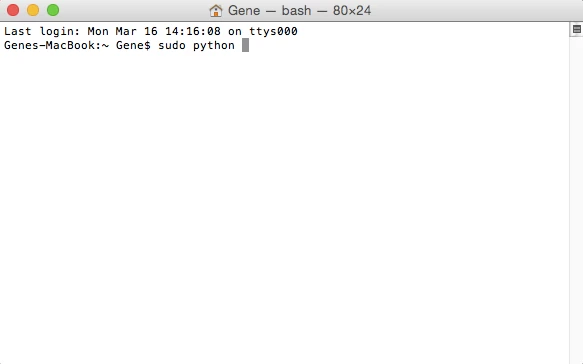
So go into Spotlight, type in Terminal and click to bring it up.  Type in sudo python and leave a space:

Get back to me when you have the below results.

21 replies

Benjamin Root
Legend
February 23, 2015

The 150:30 error is a common problem which usually happens after restoring from a backup. The simplest way to clear it up is to re-install CS4. Here is a link to the installers: https://helpx.adobe.com/creative-suite/kb/cs4-product-downloads.html

You can use your discs or the downloads from the provided link. Either way, have your serial number ready...

Benjamin

brettb3633690
Participant
January 10, 2018

Just want to add my experience here in hopes that it helps someone else out... ReInstall worked for me! Did not delete or uninstall program. Just loaded CD, clicked on the CS file - for me it was InDesign, and then Set up. Reinstall started and... Bingo! Works!!!

Background: Upgraded to High Sierra, ID CS4 a no-go. Restored hard drive from time machine, with El Capitan backup. ID would not launch, error 150:30. Reinstalled with success!

OSX El Capitan 10.11.6

MBPro mid 2012

InDesign CS4

Participant
October 7, 2018

Yes, reinstall is the other way, but remember you are left with a base install where you must install the latest updates.

You get the 150:30 error when you recover from backup. It breaks the license, and the Terminal fix repairs the license without you having to reinstall and run updates. If the Terminal fix does not work or is not something you want to do, then reinstall is simpler.

Gene


Hello

I read the first page and the last page about this problem. (Did not have the patience for all of them, and thought I might just get confused, anyway.)

I bought CS4 in 2009. My 2009 iMac died recently and i had all my data transferred from a Time Capsule to a refurbished 2011 iMac that's running High Sierra 10.13.6.

I got the same error message everyone else did. I did download the Licensing Repair Tool for Mac.

but the instructions seemed...sparse. When i double clicked where i was supposed to, nothing happened.

Frankly, I am reluctant to use Terminal, especially if it involves not seeing what I'm typing when entering my password. IF i can find my discs, can I still reload the Photoshop when running High Sierra 10.13.6? I hope so!

The iMac is damn heavy and awkward, but maybe the other alternative would be to take it back to the shop that transferred my data and sold me my new (used) machine?

Thank you for YOUR help. It is annoying that Adobe SEEMS to offer help on its pages, but then, after several steps, just directs us to "the community."