Participant
March 14, 2015
Answered

Gif becomes grainy/pixelated in 'Save For Web'

  • March 14, 2015
  • 8 replies
  • 177263 views

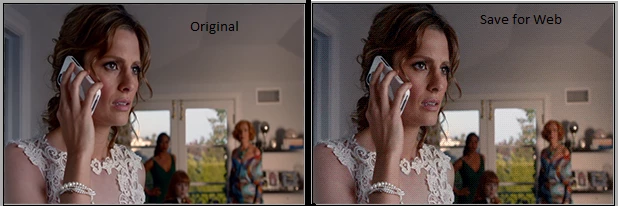
Hello! I recently switched laptops and I have been having major issues trying to regain the quality gifs I used to make. After I have my gif set to go, I go to save it in 'Save For Web'. This is where all of my problems start. My gif no longer looks smooth, but the entire thing has a grainy or pixelated look -- and it doesn't change no matter how I fiddle with my settings. When switching from the 'original' to the 'optimized' tab in the save for web page, you can obviously see a loss of quality. It may be slight, but it makes a huge difference to me.

Here's a side by side reference:

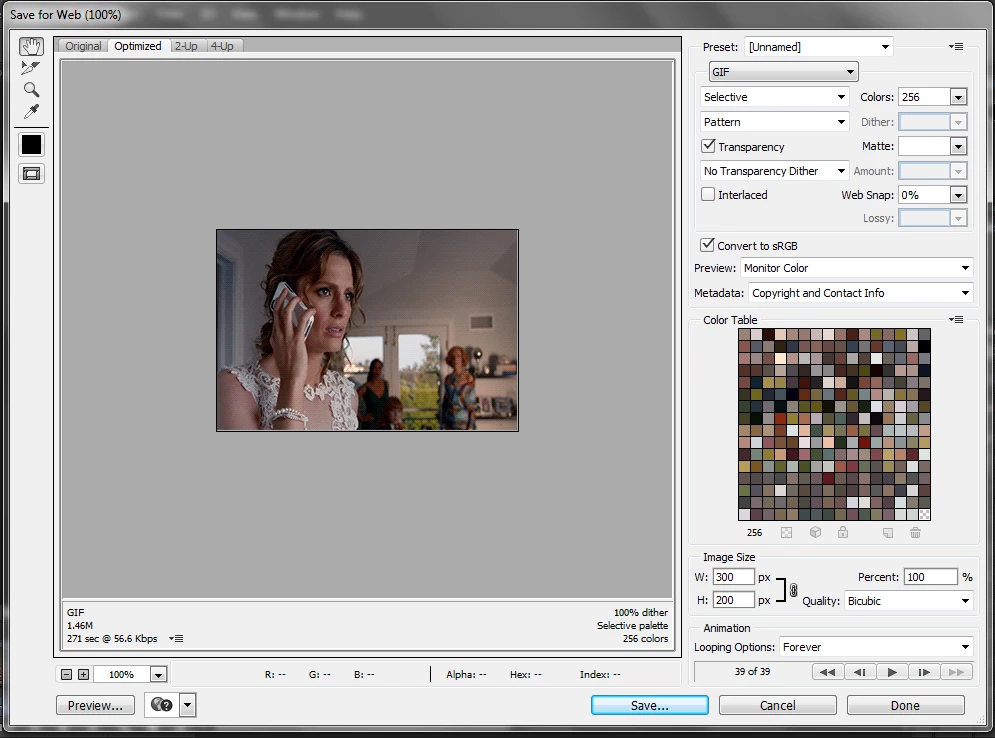
Not sure if it will help, but here are my settings when saving (I have changed from 'pattern' to 'diffusion' and nothing changes):

Thank you for any help you can provide!

Correct answer Herbert2001

First, JJMack is correct: lots of colours (around 32100) in this example do make it harder to convert without grain.

Second, the quality of the GIFs you produced in Save for Web (SfW) prior to the purchase of the new laptop were never any "better" - it merely means that the previous screen was unable to display the results at a decent enough quality to actually discern the differences between the original and the GIF version with reduced colours. Screen quality does matter.

Second, Photoshop's Save for Web colour reduction algorithms are quite old-fashioned, and (far) better methods are available. Not in Photoshop, however. For a good conversion you will have to look elsewhere.

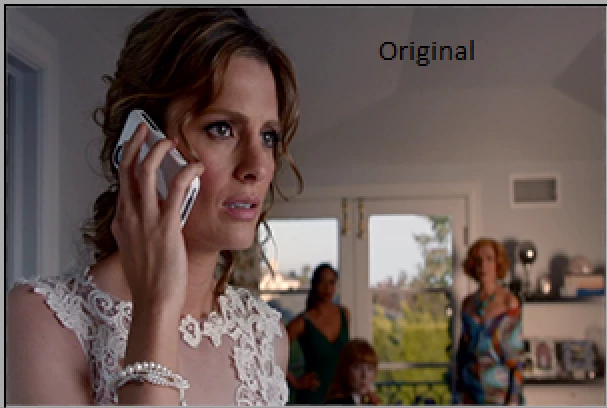
Here is the original version @2x zoom (32101 colours):
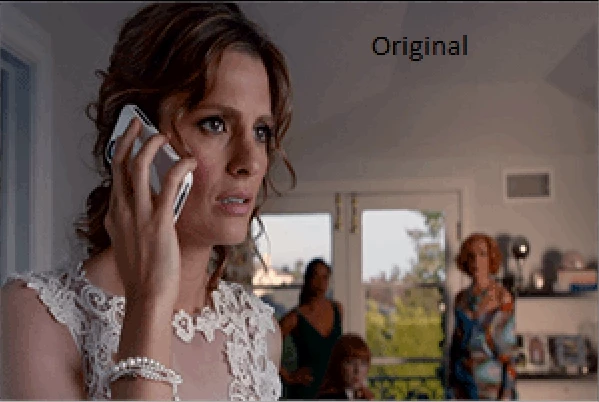
Photoshop's version. The best visual quality I could achieve in SfW (diffusion dither at 81%, perceptual). Obvious banding issues, and a very grainy result.
Next up: RIOT (Radical Image Optimization Tool). RIOT features a newer "NeuQuant neural-net" colour quantization algorithm. Notice how the gradients are quite nicely retained, although here and there some issues pop up (lips/makeup, building, arm highlight, and greenery are missing colour). Overall, though, the final result is much less grainy looking than Photoshop's effort. At the expense of smaller areas with unique colours.
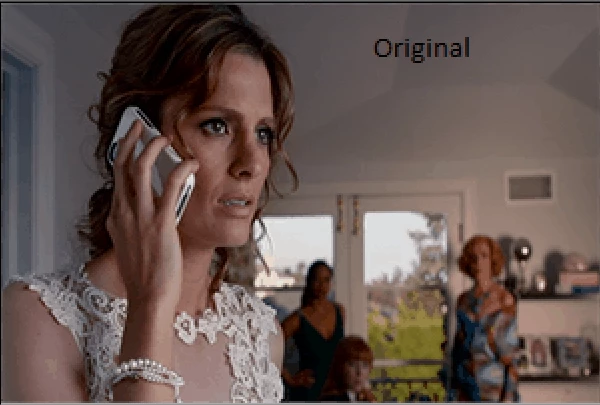
Next, let's try Color Quantizer with standard settings,  a two factor gradient priority, and 256 colours. Dithering was set to Shiau-Fan @75%. Slight banding in the lighter areas of the background, and the building and lips are again missing colours from the original. Much less grainy than Photoshop's version.
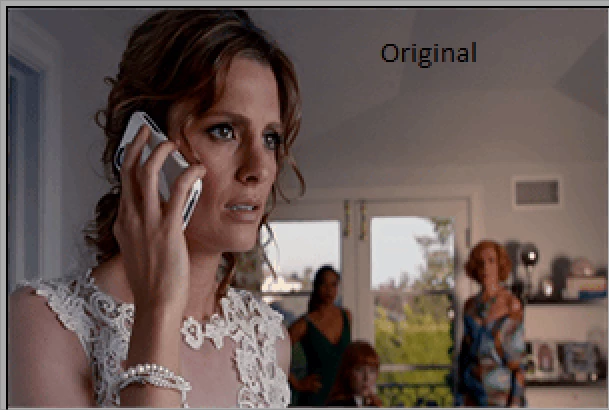
Colour Quantizer features a quality mask brush, which allows us to safeguard smaller areas with unique colours from colour degradation. I painted a mask for the lips, the building and greenery in the background, the skin of the woman on the right in the background, the lighter area around the vent, and the forehead to preserve those areas' quality as much as possible.

I feel this result speaks for itself. There is slight banding visible in the lighter area of the wall on the right, but still much less pronounced compared to SfW's version. The colours are all there, especially the important ones for the makeup and the smooth facial tones of Kate. The shoulder's highlight is also preserved nicely. Even the woman on the right in the background looks spot on (which was yet another sore point in SfW's version).
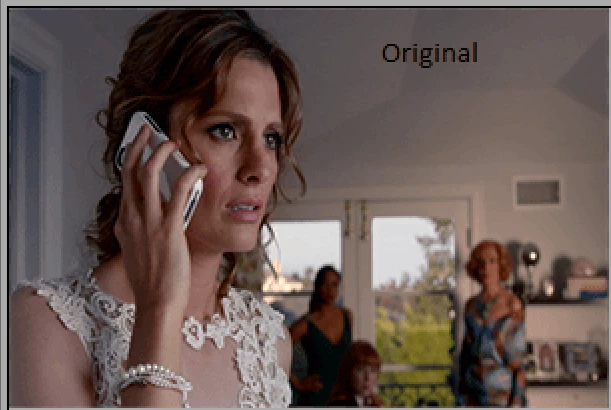
Arguably the best version. Far superior to Photoshop's failed effort.

Fourth, if you are still using GIF to optimize still images: STOP NOW. GIF is terrible in comparison to properly optimized and compressed PNG files. Only use GIF when small animated movies are your goal.

Here is a 512 colour version produced in Color Quantizer (Photoshop's SfW function lets us down once more, unfortunately: there is no option to reduce an image to 512 colours for PNG):
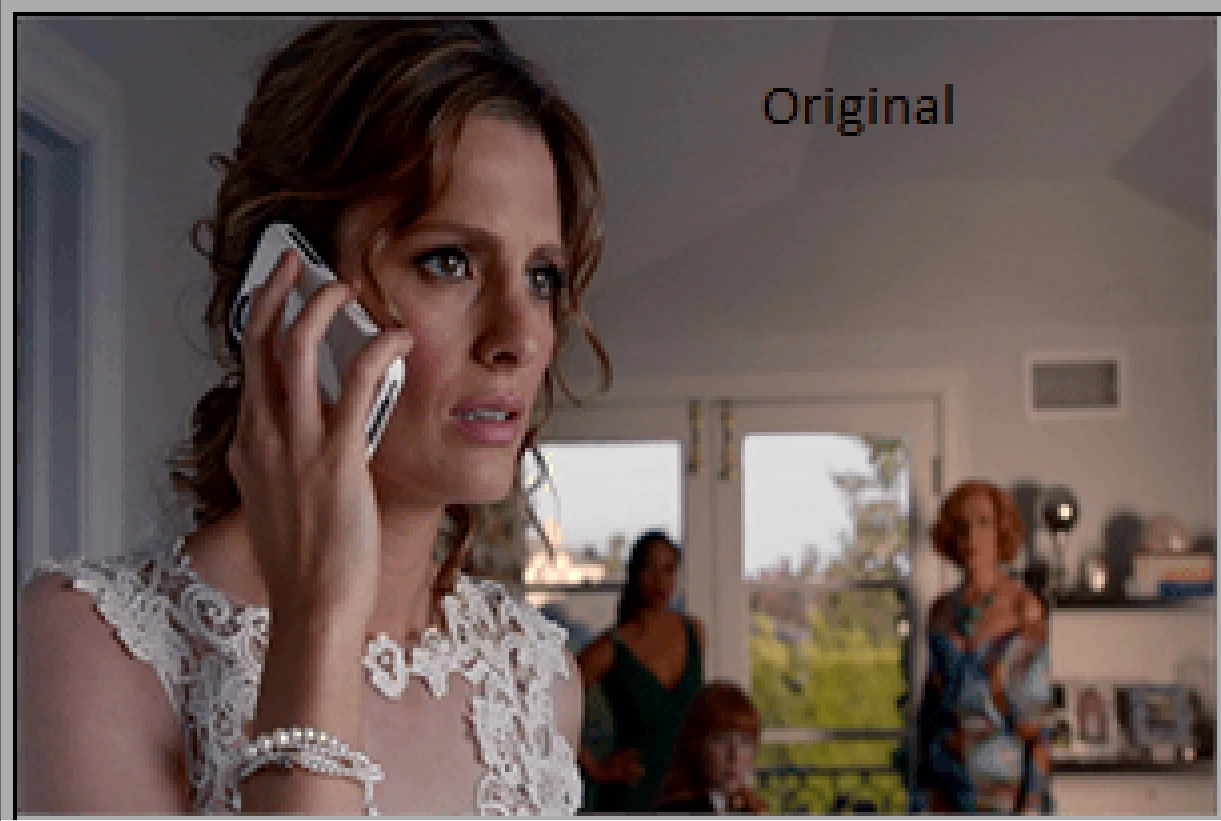
This last version is visually (mostly) indistinguishable from the original, and clocks in at only 52kb.

Of course, if you are saving this as a still image, jpg should have been your choice in the first place, since it is a photo.

Conclusions:

- avoid Photoshop's "Save for Web" function if your intention is a quality colour reduction;

- avoid GIF for still images. Either use PNG or JPG. JPG works best for photos;

- avoid Photoshop and SfW if your intention is to optimize PNGs well. Sfw cannot save PNG files with reduced colours beyond 256 colours;

- fall back to external and/or online utilities to optimize PNG and GIF files. Color Quantizer and RIOT deliver better results than SfW. Or use online optimization tools to optimize animated GIFs (Optimize animated GIF). You can also optimize each frame in a tool such as CQ, and then import the individual frames into a animated GIF utility. Remember, each frame can save its own custom 256 colour palette;

- for optimum quality a quality mask tool, such as the one in CQ, is a very effective and efficient method to guarantee the best possible conversion;

- file sizes of png files created in external utilities almost always beat the ones generated in Photoshop and SfW;

- a better choice to export PNG files is Photoshop CC Generator. At least that one allows for 8bit PNG files with full transparency (another missing essential feature that SfW fails to provide).

Other resources (these refer to png, but are also effective for GIF optimization in Photoshop):

http://www.smashingmagazine.com/2009/07/15/clever-png-optimization-techniques/

PNG Optimization Guide: More Clever Techniques - Smashing Magazine

Color Quantizer: Color quantizer

RIOT standalone version (no installation required): http://download.criosweb.ro/download.php?sid=R


8 replies

Participant
March 6, 2023

Suuuper late to the party, but this is how I kept the original quality..


Best thing to do when it comes to photos in GIFs is to first export it as a video first

(File > Export > Render video)

Then take the video into PremierPro, export as a Animated GIF

(File > Export > Media.. then Format > Animated GIF)

If you don't have PremierPro you can also use sites such as ezgif and cloudconvert


This will keep the photo quality, it's a bit of a faff but better than messing around with the exports!

Community Expert
March 6, 2023

All of it reminds me of why I always hated trying to make gifs

Participant
February 11, 2022

I found the solution, and it's sooo simple! When you are in the "Safe for Web" window, choose the "Original" tab on the top instead of the "Optimized" that is suggested by default. The original quality is so much better, although the file size is also bigger, of course.

Participant
April 4, 2022

This did'nt work for me. When putting it in to my website it still was as grainy as Optimized....

Conrad_C
Community Expert
Community Expert
April 4, 2022

This was already discussed earlier in the thread, in the responses from 5 years go (2017):


“Original” is NOT an export option. Original is just a convenience view of the original appearance, so you can compare it to the current Save for Web settings. What will always export are the current settings, not Original.


“Grainy” GIFs are usually a consequence of the 1990s-era limit of only 256 colors in a GIF, and the “grain” usually comes from having to dither the few available colors to simulate more colors.


To fix the “grain,” try changing the Dither method or percentage, try applying a different Color Reduction Algorithm (e.g. Perceptual, Selective, Adaptive…) in case it results in less dithering, or start over with an original with fewer colors. Or, use another format such as PNG that is not so restricted in its color palette.

Participant
November 20, 2021

Reduce Lossy worked for me.

Participant
July 10, 2021

Actually, it's not only me, but it's most people that send gifs to me and all of the gifs that I send to others.

Participant
August 12, 2017

The answer you are looking for (2 years late) you have the gif set to "optimized" (in the upper left corner). Set it to "original" and you'll be all set!

rayek.elfin
Legend
August 12, 2017

klonkster  wrote

The answer you are looking for (2 years late) you have the gif set to "optimized" (in the upper left corner). Set it to "original" and you'll be all set!

No. That is incorrect. Your answer has nothing to do with the original question: "Original" will merely display the original (unoptimized) version.

Participant
August 21, 2020

it worked for me

Participant
August 12, 2017

The answer you are looking for (2 years late) you have the gif set to "optimized" (in the upper left corner). Set it to "original" and you'll be all set!

Participant
December 1, 2021

Crazy how simply correct this is lol


Herbert2001
Herbert2001Correct answer
Inspiring
March 15, 2015

First, JJMack is correct: lots of colours (around 32100) in this example do make it harder to convert without grain.

Second, the quality of the GIFs you produced in Save for Web (SfW) prior to the purchase of the new laptop were never any "better" - it merely means that the previous screen was unable to display the results at a decent enough quality to actually discern the differences between the original and the GIF version with reduced colours. Screen quality does matter.

Second, Photoshop's Save for Web colour reduction algorithms are quite old-fashioned, and (far) better methods are available. Not in Photoshop, however. For a good conversion you will have to look elsewhere.

Here is the original version @2x zoom (32101 colours):

Photoshop's version. The best visual quality I could achieve in SfW (diffusion dither at 81%, perceptual). Obvious banding issues, and a very grainy result.

Next up: RIOT (Radical Image Optimization Tool). RIOT features a newer "NeuQuant neural-net" colour quantization algorithm. Notice how the gradients are quite nicely retained, although here and there some issues pop up (lips/makeup, building, arm highlight, and greenery are missing colour). Overall, though, the final result is much less grainy looking than Photoshop's effort. At the expense of smaller areas with unique colours.

Next, let's try Color Quantizer with standard settings,  a two factor gradient priority, and 256 colours. Dithering was set to Shiau-Fan @75%. Slight banding in the lighter areas of the background, and the building and lips are again missing colours from the original. Much less grainy than Photoshop's version.

Colour Quantizer features a quality mask brush, which allows us to safeguard smaller areas with unique colours from colour degradation. I painted a mask for the lips, the building and greenery in the background, the skin of the woman on the right in the background, the lighter area around the vent, and the forehead to preserve those areas' quality as much as possible.

I feel this result speaks for itself. There is slight banding visible in the lighter area of the wall on the right, but still much less pronounced compared to SfW's version. The colours are all there, especially the important ones for the makeup and the smooth facial tones of Kate. The shoulder's highlight is also preserved nicely. Even the woman on the right in the background looks spot on (which was yet another sore point in SfW's version).

Arguably the best version. Far superior to Photoshop's failed effort.

Fourth, if you are still using GIF to optimize still images: STOP NOW. GIF is terrible in comparison to properly optimized and compressed PNG files. Only use GIF when small animated movies are your goal.

Here is a 512 colour version produced in Color Quantizer (Photoshop's SfW function lets us down once more, unfortunately: there is no option to reduce an image to 512 colours for PNG):

This last version is visually (mostly) indistinguishable from the original, and clocks in at only 52kb.

Of course, if you are saving this as a still image, jpg should have been your choice in the first place, since it is a photo.

Conclusions:

- avoid Photoshop's "Save for Web" function if your intention is a quality colour reduction;

- avoid GIF for still images. Either use PNG or JPG. JPG works best for photos;

- avoid Photoshop and SfW if your intention is to optimize PNGs well. Sfw cannot save PNG files with reduced colours beyond 256 colours;

- fall back to external and/or online utilities to optimize PNG and GIF files. Color Quantizer and RIOT deliver better results than SfW. Or use online optimization tools to optimize animated GIFs (Optimize animated GIF). You can also optimize each frame in a tool such as CQ, and then import the individual frames into a animated GIF utility. Remember, each frame can save its own custom 256 colour palette;

- for optimum quality a quality mask tool, such as the one in CQ, is a very effective and efficient method to guarantee the best possible conversion;

- file sizes of png files created in external utilities almost always beat the ones generated in Photoshop and SfW;

- a better choice to export PNG files is Photoshop CC Generator. At least that one allows for 8bit PNG files with full transparency (another missing essential feature that SfW fails to provide).

Other resources (these refer to png, but are also effective for GIF optimization in Photoshop):

http://www.smashingmagazine.com/2009/07/15/clever-png-optimization-techniques/

PNG Optimization Guide: More Clever Techniques - Smashing Magazine

Color Quantizer: Color quantizer

RIOT standalone version (no installation required): http://download.criosweb.ro/download.php?sid=R

KatieKRLAuthor
Participant
March 15, 2015

Thank you for your detailed help and explanations! I do realize the difference between PNG, JPEG, and GIF as I work with both animated giffing from videos and photography. However, my issue is that I was having no problems whatsoever with quality reduction on my old laptop via photoshop and making animated gifs. Actually, my animated gifs looked quite smooth and sharp while making them through photoshop. As soon as I switched to my new computer and bought photoshop, the quality reduction started happening on the new device. Perhaps it's something with my computer itself rather than photoshop.

JJMack
Community Expert
Community Expert
March 15, 2015

Most likely the quality of the LCD display.  LCD vary in resolution and technology image quality in a file is not different from machine to machine however the image rendered on a machine  display will vary between machine displays.   Vary in size, resolution sharpness and color.

JJMack
JJMack
Community Expert
Community Expert
March 15, 2015

Could it be that your original image has  millions of colors and that your GIF image has only 255 colors.  If you uncheck transparency your Gif could have 256 colors.

JJMack