Participant
July 6, 2025
Answered

Gradient Tool going to bottom

  • July 6, 2025
  • 2 replies
  • 201 views

Whenever I try to use the gradient tool in the middle of my creation, it always snaps to the bottom. I added a video of it doing it. Is there a setting to turn this off, or am I using the tool wrong? I added this is a discussion because I'm not sure if I'm doing it wrong or if it's a bug. Gradient tool is my enemy lol. 


Thanks.

Correct answer Trevor.Dennis

I would say that the new gradient tool is not intuitive to learn, and I am sure it has caused a lot of frustration to a lot of people.  What you are seeing is what you would expect — that's the way it works.  Starting the gradient part way into an image will cause everything behind that start point to be a solid colour.


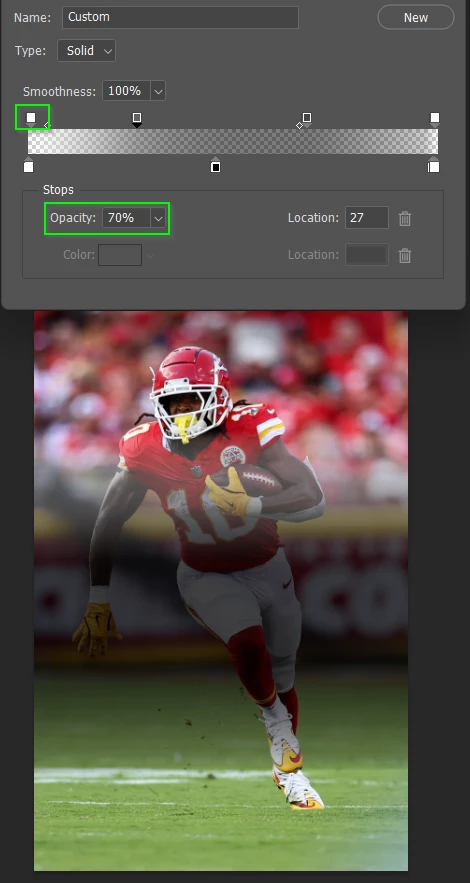
You need to make the end points transparent.

Double click the gradient to open the editor.  You will probably have to double click the editor again to open the 'real' editor.  Yes I know.  It's annoying.


You need to see a panel that has swatches above the gradient like this.

If you click on any of those above the gradient swatches you will see an option to adjust its opacity.
 

When you get something that works for you, think about saving it.

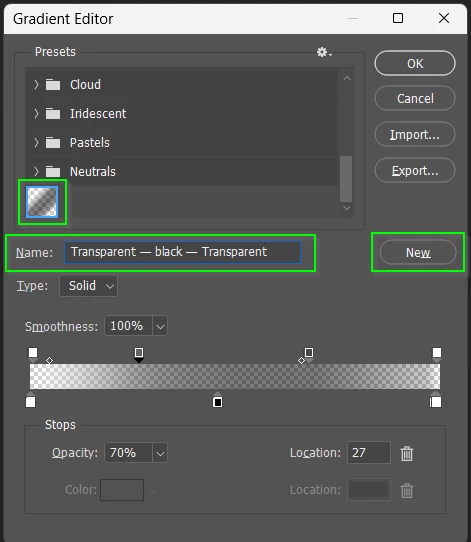
Click on New give it a name. Job done
 

Be aware that you r new gradient(s) live in a Photoshop Settings file, and will be gone after a major update.

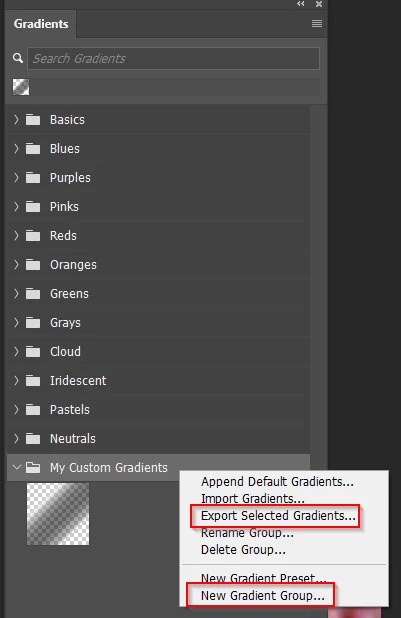
To avoid that right click inside the Gradients panel, create a new group, and drag your custom gradients into it.

Then select the group, right click again and Export the group.
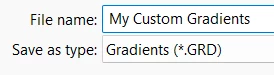
Make a note, or decide on a save location.

This will create a .grd file that will live on your system forever, but it will not appear in Photoshop after the next major update, andless you import it..
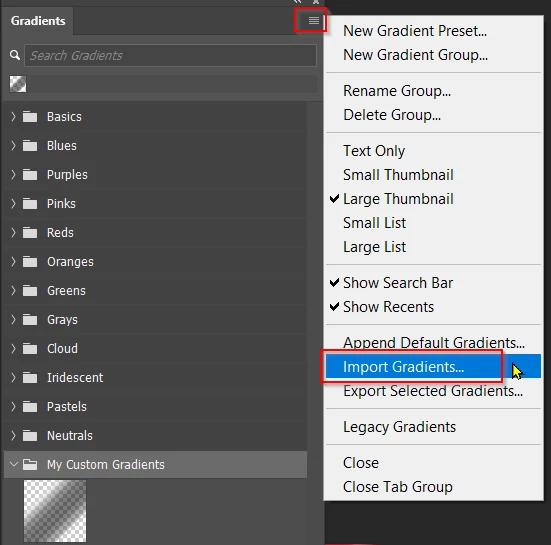
 

I like to keep all presets in My Documents folders, and place shortcuts to those folders in the relevant Photoshop folder.


For Windows that's

C:\Users\[Your User Name]\AppData\Roaming\Adobe\Adobe Photoshop 2025\Presets\Gradients


Good luck.

 

2 replies

Trevor.Dennis
Community Expert
Trevor.DennisCommunity ExpertCorrect answer
Community Expert
July 7, 2025

I would say that the new gradient tool is not intuitive to learn, and I am sure it has caused a lot of frustration to a lot of people.  What you are seeing is what you would expect — that's the way it works.  Starting the gradient part way into an image will cause everything behind that start point to be a solid colour.


You need to make the end points transparent.

Double click the gradient to open the editor.  You will probably have to double click the editor again to open the 'real' editor.  Yes I know.  It's annoying.


You need to see a panel that has swatches above the gradient like this.

If you click on any of those above the gradient swatches you will see an option to adjust its opacity.


When you get something that works for you, think about saving it.

Click on New give it a name. Job done


Be aware that you r new gradient(s) live in a Photoshop Settings file, and will be gone after a major update.

To avoid that right click inside the Gradients panel, create a new group, and drag your custom gradients into it.

Then select the group, right click again and Export the group.

Make a note, or decide on a save location.

This will create a .grd file that will live on your system forever, but it will not appear in Photoshop after the next major update, andless you import it..


I like to keep all presets in My Documents folders, and place shortcuts to those folders in the relevant Photoshop folder.


For Windows that's

C:\Users\[Your User Name]\AppData\Roaming\Adobe\Adobe Photoshop 2025\Presets\Gradients


Good luck.


pixxxelschubser
Community Expert
Community Expert
July 6, 2025

Double-click your gradient. Because in my opinion you are using a black 100% opacity to black 0% opacity gradient. That gives exactly this result.