
Inspiring
January 13, 2022
Answered

Grayscale PNG larger file size than RGB

  • January 13, 2022
  • 3 replies
  • 6388 views

I'm running some tests in Photoshop to see how we can get the smallest file size for a grayscale PNG, but I noticed the performance is highly unusual with the latest version of Photoshop. Here are the file sizes using various export options for a standard 4096x4096 clouds filter:


RGB Save As Slowest - 3.86 MB

Grayscale Save As Slowest - 4.39 MB

RGB Save For Web - 6.87 MB

Grayscale Export As (no transparency) - 7.42 MB

RGB Export As (8-bit) - 7.51 MB

Grayscale Export As (8-bit) - 7.72 MB

Grayscale Save for Web - 7.75 MB

RGB  Export As (no transparency) - 8.16 MB

Grayscale Save for Web (8-bit) - 9.09 MB


Some takeaways:

  • The grayscale format does NOT improve file saves unilaterally. The fastest method is actually an RGB format.
  • Export As is actually the least efficient saving method, with Save As Slowest being the most efficient.
  • 8-bit increases file sizes using Save for Web, which is unexpected.


This behavior is not consistent with past releases of Photoshop. I'm very confused why the file export standards and efficiencies are changing. Export As seems to have gotten significantly worse, and I can no longer recommend it in our production. The file size is practically double the Save As RGB option. Windows, I imagine this unusual behavior would be the same on macOS as well.
This topic has been closed for replies.
Correct answer Michael22641303ojdu

I'm still not seeing what you're apparently seeing.


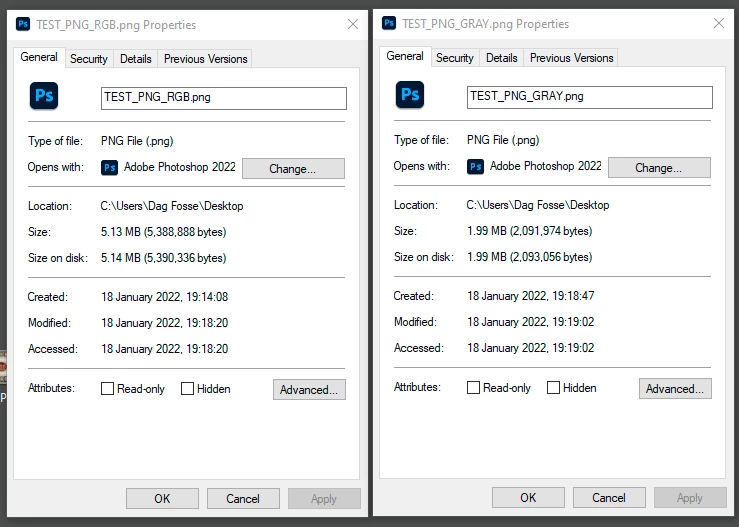
Here's two compressed PNGs; an RGB at 5.14 MB, and a grayscale at 1.99 MB. I used Save A Copy here.


(Indexed color is sort of moot here. It will still cover all 256 values of a single gray channel, so no saving there. The saving in going to Indexed will only apply to RGB.)


The images that I compressed using Save As Slowest yeilded all the results in my original post. The RGB 8-bit saved at a smaller file size.


Everyone claiming user error here is not helping. All of my results are posted, as well as the entire procedure, which can be replicated by anyone to the same exact results. All we care about it what's most efficient. A compressed RGB works better than Grayscale. When I received the actual files from the contractor, I tried compressing those and this was consistently the case. So it's not just this particular image. Grayscale PNGs are not as well optimized as their RGB counterparts. So until 8-bit indexing or grayscale yeilds better results, the spec will be written for RGB.

3 replies

Earth Oliver
Legend
January 18, 2022

>Export As seems to have gotten significantly worse, and I can no longer recommend it in our production.


Yes, that's correct. Six years after its introduction, Export As is still essentially a beta and i would never recommend its use.

Inspiring
January 18, 2022

Export As 8-Bit indexed is actually our recommended workflow for colored overlays based on previous testing years ago. But Save As has overtaken it for sure. I think the brute force check of filters has to do with this. The bit depth and color format aren't the only things controlling file sizes, here. Save As RGB is much better fit for production.


I wish I could get that same efficiency using 8-bit color, but this is remarkable.

Brad @ Roaring Mouse
Community Expert
Community Expert
January 14, 2022

Part of your issue is your content. Your generated cloud formation is so random that there are very few opportunties for the zlib compression to reduce the size.

I tried a similarly sized real world photo (Color, Monochrome RGB, Greyscale) and the results were as expected. The Color was almost double the size of the Monochrome RGB, with Greyscale less than half that again.  (Mac v23)

e.g. Instead of a cloud, create two Greyscale files with a simple Black->White gradation from top to bottom. In one, check the dither box, in the other don't check the dither box. Save each of these and althought they look pretty much the same on screen (except for slight banding on the non-dithered one), the file sizes will be dramatically different; More opportunity for zlib compression in the non-dithered one.

Inspiring
January 14, 2022

Regardless of content, it doesn't make sense why 24-bit total RGB saves better than 8-bit Grayscale, even when using Save As to guarantee the correct output. The final use case of this is closer to the grayscale clouds than an actual colored photo. The image needs to be uncompressed, and we want the lowest file size possible. We won't have to worry about dithering because the source will always be Grayscale. If this type of file saves better as RGB, then that will need to be compatible.

Inspiring
January 18, 2022

Forget Export or Save For Web. We already established that they don't support grayscale.


If you want a single channel file, as PNG, "Save As" (or "Save A Copy") is your only option.


And given that, I can't understand your results and I have no idea how you get them. A grayscale PNG is significantly smaller than an RGB PNG.


What am I missing here?


What you're missing is I'm not getting the same results. Try compressing the image I posted, using Save As. It compresses better as an RGB Save As 24-bit format than a single-channel Grayscale 8-bit format. RGB saves over 50KB vs the grayscale format. Which makes no sense.


I'm really tired of repeating myself... The answer to this question is the Grayscale format simply doesn't compress as well as RGB, even when we ignore the 256-color indexed options and go straight to a lossless 24-bit image. For whatever reason, that seems to compress a lot better in Photoshop than anything else. Likely the encoding filters for saving as Grayscale aren't as advanced.

D Fosse
Community Expert
Community Expert
January 14, 2022

The first thing to note here is that Export and Save For Web do not support grayscale. It will always output to three channels even if the original is single channel. So if you want true grayscale, Save is your only option.


Other than that I haven't had time to check actual numbers.


(just for the record, "8 bit" in Export / SFW is 8 bits total, not 8 bits per channel - IOW indexed color at max 256 values).

Stephen Marsh
Community Expert
Community Expert
January 14, 2022

Agreed, you beat me to the post while I was knocking up the following image:


I didn't try to match the settings between sfw vs. export, the test wasn't about their size/settings, it was about single vs. 3 channels.