
Participating Frequently
March 10, 2020
Answered

half pixel problem

  • March 10, 2020
  • 7 replies
  • 6792 views

I have a challenge where Photoshop creates half pixels / wrong pixels when i place vector graphics created in Illustrator.

I want the graphics placed in Photoshop to be pixels perfect, as it is in Illustrator.


I created this simple element in Illustrator , snaping to pixel grid:
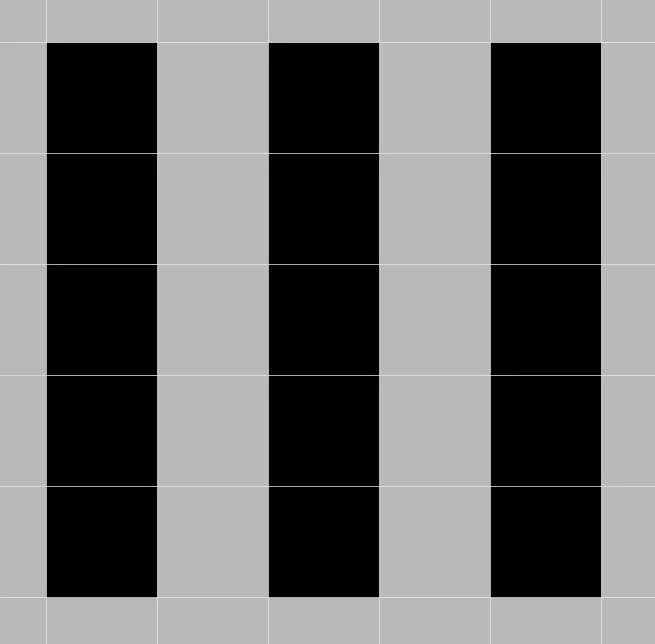
 

I added it to my CC library and placed it in a Photoshop document (same colour space and resolution):
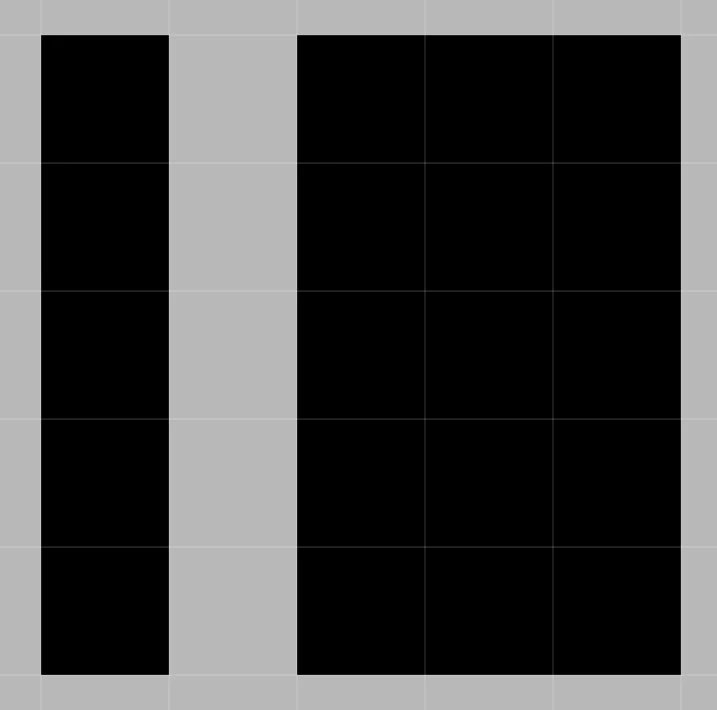


Same thing happens when I just copy-paste. 

Why does Photoshop not place the pixels like they were created in Illustrator?


My plan was to create a library of icons made in illustrator, but if they can not be placed/used in Photoshop as pixel-perfect, then I have a problem.

    This topic has been closed for replies.
    Correct answer Kenneth Kawamoto

    I can reproduce the issue Allan - Photoshop indeed adds unnecessary subpixel antialiases to straight whole pixel vector lines in some cases.


    But there's no need to rasterise your 32 x 32 px vector icons in the first place. SVG was created for this purpose - display vector as vector in devices. If you rasterise your icons they will look awful - badly pixelated in retina displays.


    Ultimately Phostoshop is not a right tool for UI design. Use dedicated tools such as https://www.adobe.com/uk/products/xd.html which handles vector natively 😄

    7 replies

    Jeff Arola
    Community Expert
    Community Expert
    September 25, 2020
    Kenneth KawamotoCommunity ExpertCorrect answer
    Community Expert
    March 12, 2020

    I can reproduce the issue Allan - Photoshop indeed adds unnecessary subpixel antialiases to straight whole pixel vector lines in some cases.


    But there's no need to rasterise your 32 x 32 px vector icons in the first place. SVG was created for this purpose - display vector as vector in devices. If you rasterise your icons they will look awful - badly pixelated in retina displays.


    Ultimately Phostoshop is not a right tool for UI design. Use dedicated tools such as https://www.adobe.com/uk/products/xd.html which handles vector natively 😄

    JJMack
    Community Expert
    Community Expert
    March 12, 2020

    The problem is Photoshop does not have support for vector file formats like SVG they are not a supported file type.   Photoshop rasterizes svg files into a single pixel raster layer, and if you use places to get them into your document Adobe will created "Vector Smart Object"  Smart object layer which will include an Anti-aliasing process as part of the rasterization process. To get then into Photoshop you with out the anti-aliased pixels you must open then in photoshop and uncheck Ant-aliased in the rasterazation dialog. You can then copy and paste the layer to other Photoshop documents or duplicate the layer into the other documents.

    JJMack
    PECourtejoie
    Community Expert
    Community Expert
    March 12, 2020

    Hi, in preferences, do you have snap vector tools and transforms to pixel grid?


    Another thought, could you use a levels adjustment layer to "eat" the off-white edges?

    Legend
    March 11, 2020
    Half a pixel cannot be displayed in Photoshop.
    With your own hands, draw a similar shape in the Photoshop with the pen tool and see how Photoshop fills it.
     
    Participating Frequently
    March 12, 2020

    I have over 400 icons made in Illustrator. The icons was made in a 32 x 32 pixel grid, and all horizontal and vertical lines align perfectly with the pixel grid. The intent was to add all icons to a library so they can be used across Adobe apps and shared.

    What still puzzels me is, if the vector points is placed perfectly in the pixel grid in Illustrator, why does Photoshop create these stray pixels (transparent pixels)?


    JJMack
    Community Expert
    Community Expert
    March 12, 2020

    Photoshop does not support AI vector format anf cans not open and process AI vector files.  However is cab Import ther lied EPS files as a Raster layer.  When you Rasterize and AI file into Photoshop foe you set in a Highe resolition like 300 or 400ppi abd turn odd Photoshop Anti-aliased ny unchecking the check Box

    It makes a world of difference

    JJMack
    Community Expert
    March 10, 2020

    If I create a 5 x 5 (px) AI file with the artwork just like yours and open it in Photoshop, it opens exactly as is. The same for Place Embedded... and copy & paste.

    Participating Frequently
    March 10, 2020

    Started from skratch - New document, new graphics - Same problem.


    Illustrator:


    Photoshop:

    This is driving me crazy. All vector points are placed exactly on the pixel grid.

    Participating Frequently
    March 11, 2020

    You can't have anti-aliasing both on and off. Photoshop is working correctly. If you want exact pixels, turn it off.


    The intention was not to have it both on and off. I want the half pixels, but I don't want Photoshop to create them where they shouldn't be. Like the example above - Illustrator shows a perfect pixel preview (this is how it should look), but Photoshop creates half pixels where non should be.

    Stephen Marsh
    Community Expert
    Community Expert
    March 10, 2020

    Export as raster out of Illustrator, what is the result?

    Community Expert
    March 10, 2020

    Is the icon placed at a whole pixel location in Photoshop?

    Participating Frequently
    March 10, 2020

    The graphics has the dimentions 5 x 5 pixels. The top left reference point is placed at a whole pixel (center on a half).


    I just made a new graphic where all reference points are at a whole pixel. When placed in Photoshop the result is just as incorrect - It creates wrong pixels. The result is the same no matter if I go through a library or if I copy-paste.