Participant
June 19, 2024
Question

Halftone effect in Photosop

  • June 19, 2024
  • 5 replies
  • 863 views

Hello everyone,

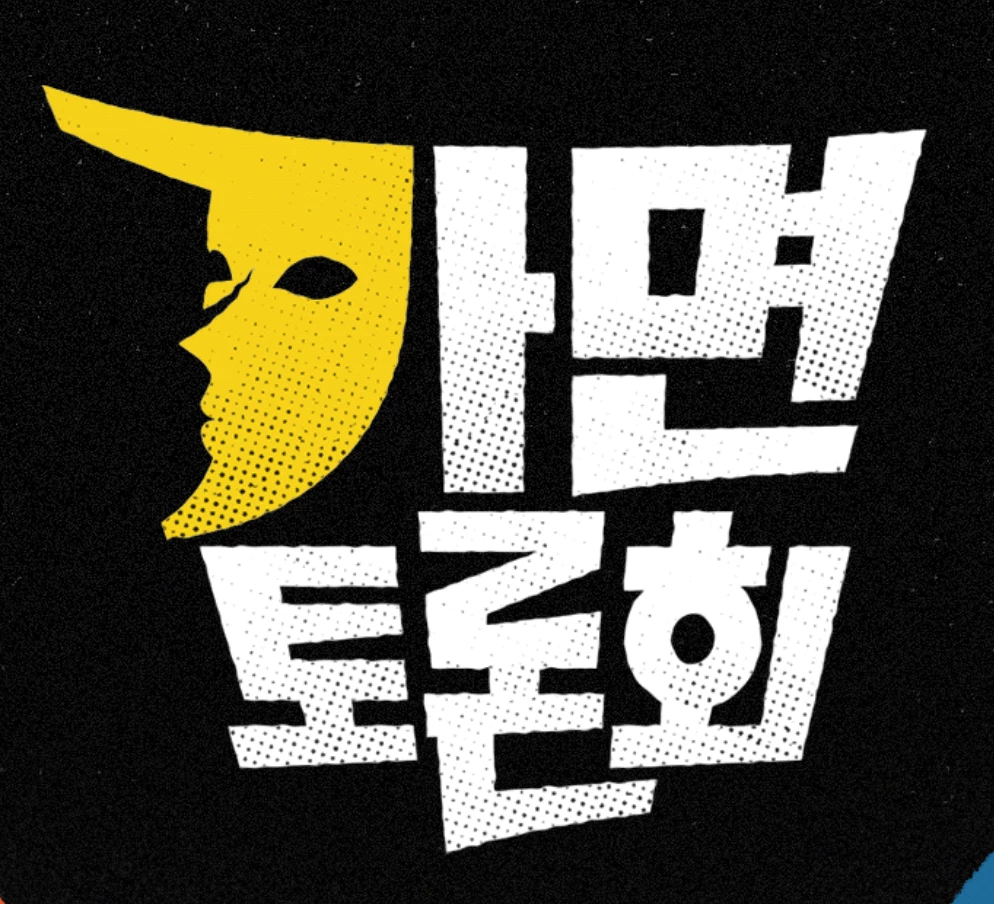
I want to know how to create a halftone effect like the one in the image.

I tried the halftone in the Filter Gallery, but it doesn’t look quite the same. The halftone effect in this picture looks more natural and textured.

Is there another method to this?

Thanks.
This topic has been closed for replies.

5 replies

Semaphoric
Community Expert
Community Expert
June 20, 2024

One thing you might want to consider is the Adobe Comic Kit. Also, I think one of the  Kyles's brushes is halftone dots. I could never get that to work for me, though.

Nancy OShea
Community Expert
Community Expert
June 20, 2024

Most likely this was done with custom pattern overlays and masks rather than filters.

https://www.adobe.com/products/photoshop/patterns.html


Nancy O'Shea— Product User & Community Expert
Trevor.Dennis
Community Expert
Community Expert
June 20, 2024

Try running a white to black gradient down the layer before using Halftone.

I made the layer a Smart Object before applying the filter so I could mask half of the effect to show you before and after.


Using a Smart Object means you can edit the layer to fine tune the Halftone effect

Conrad_C
Community Expert
Community Expert
June 19, 2024

I agree with Bojan. There are various ways you can combine effects, masks, and blending modes to get what you want. In the example below the bottom image is the final, and I used:

  • As a starting point, a random clouds layer generated with Filter > Render > Clouds.
  • Applied Filter > Pixelate > Color Halftone to that, setting all angles to the same value (because it’s one color). I liked the results better than with the Halftone Pattern in Filter Gallery.
  • Applied Filter > Pixelate > Pointillize to roughen up the dots.
  • Added another clouds layer (Clouds Modifier) to use through the Pin Light blending mode to experiment with randomizing the halftone screen intensity more. On that layer I painted black and white to manually control which areas showed more and fewer dots. This is shown at the top so you can see the effect it had on the final image at the bottom. You could do this more simply as a mask.
  • Added a Curves layer to blow out the light dots more.


That is not necessarily the best way. There are many other ways to get to a similar look. The key is to learn what features might roughen up the texture and intensity of the halftone screen in different areas.


Participant
June 20, 2024

Thank you very much! This is very helpful for me.

Bojan Živković11378569
Community Expert
Community Expert
June 19, 2024

I believe there are multiple effects at play here. In fact, there may be mask applied to alter the effects.