PixelDreamer
Inspiring
February 21, 2021
Answered

Hand Tool / Fit The Canvas Size - Strange Lines Around The Document

  • February 21, 2021
  • 2 replies
  • 677 views

Hello,

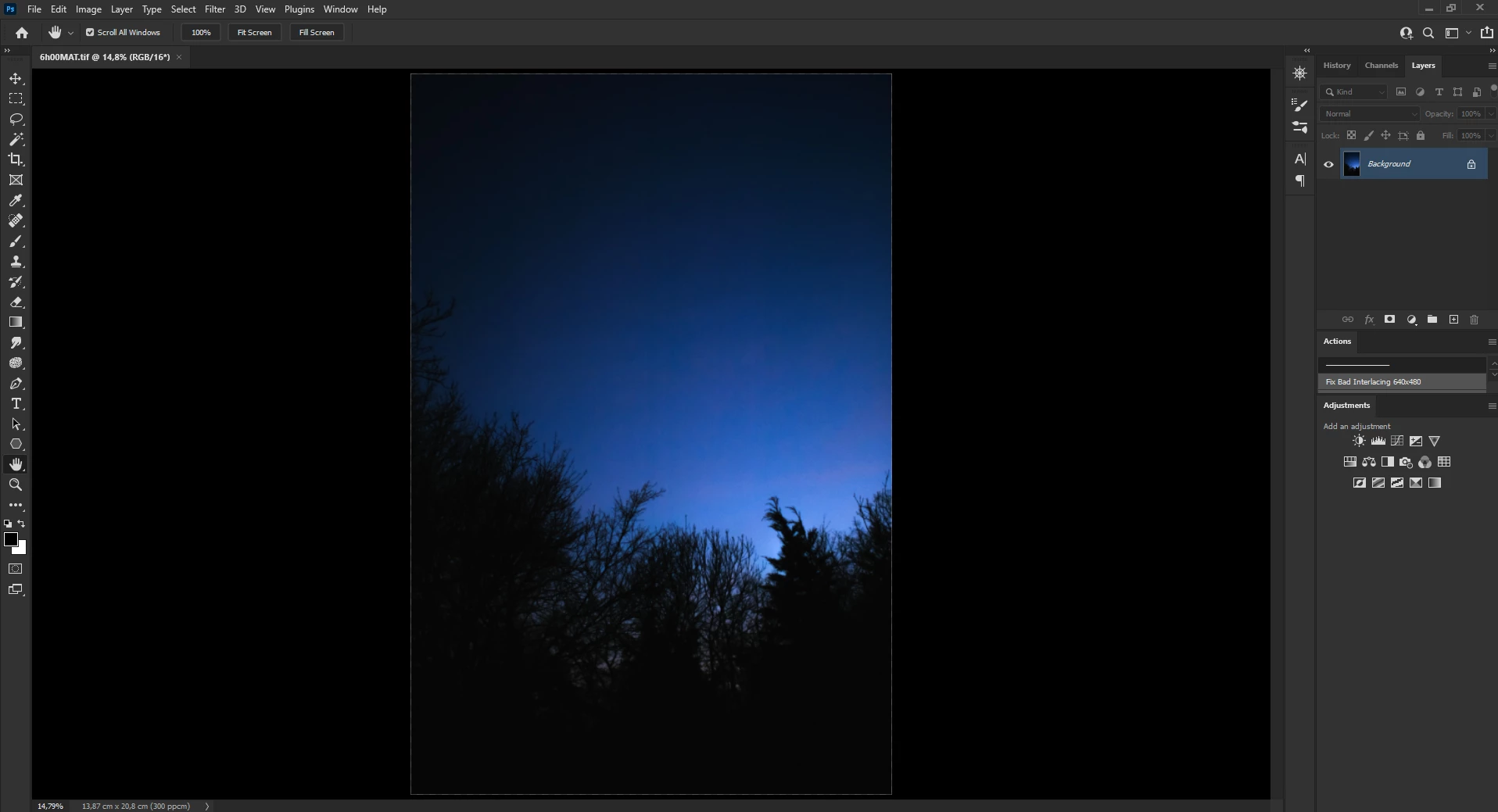
For years now, I have the exact same problem/bug. Every time I double-click on the Hand Tool in order to fit my canvas size on the screen, I always have these really strange lines around my document. To me, it's the grid with the gamut warning. I find this extremely annoying and it drives me nuts!

Can you help me to fix this issue, please? Or I need to wait that Adobe fixes that?


Have a beautiful day,

Olivier


Graphic card: NVIDIA GeForce RTX 2080 Ti - Drivers version: 461.40
Monitor: BenQ ZOWIE XL2740
Windows 10 Pro x64 version: 20H2

This topic has been closed for replies.
Correct answer PixelDreamer

I don’t use dark color themes because I don’t work for film/video but I just tested with a dark background and I can reproduce the issue with »un-round« magnifications (edit: with GPU-usage enabled). 

So after hitting cmd-+ or cmd-- the effect disappears. 


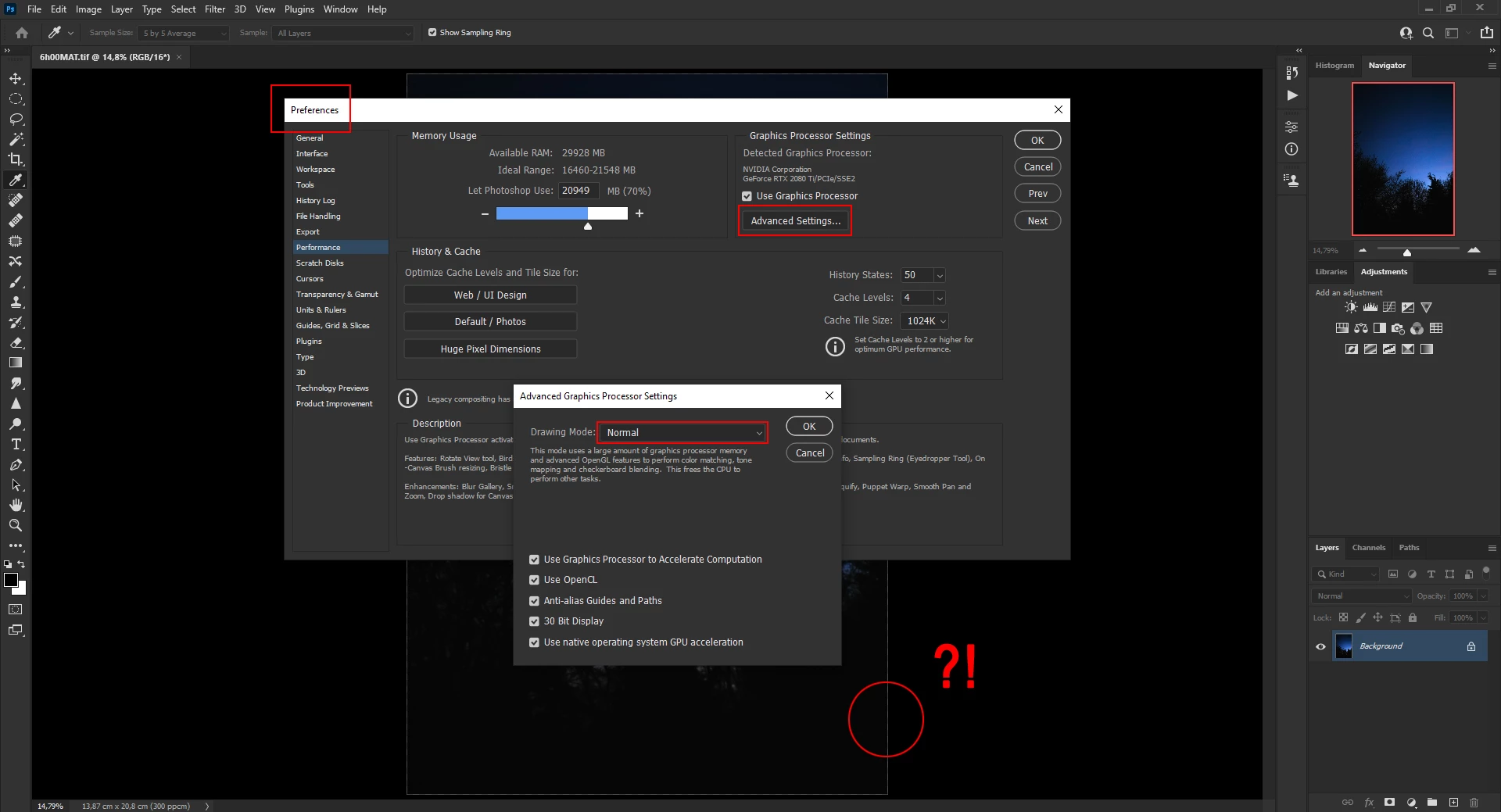
That was the Advanced Graphic Processor Settings Drawing Mode settings!

Not only that, I tried different modes to fix this problem because I don't want to disable the GPU completely. If I set the Advanced Graphic Processor Settings Drawing Mode to Normal or Advanced, these lines appear; but if I set the Drawing Mode to Basic; these strange, ugly, and extremely annoying lines... are gone!

Thank you very much for your help and your support, C.Paffenbichler, and Davescm, I really appreciate it!
That being said, this bug needs to be fixed by Adobe with Nvidia... or Nvidia with Adobe anyway because this annoyance exists for years already, I guaranty you, and this is definitely not normal at all if you ask me.
Again, thank you very much, for your help to resolve temporarily this annoyance!

Have a beautiful weekend,

Olivier


Take a look at these screenshots:

2 replies

davescm
Community Expert
Community Expert
February 21, 2021

What are your settings in Preferences >Interface>Appearance >Border ?


Dave

PixelDreamer
Inspiring
February 21, 2021

Hello Davescm,


All my border options are set to: None.

c.pfaffenbichler
Community Expert
Community Expert
February 21, 2021

Could you please post screenshots with the pertinent Panels (Toolbar, Layers, Options Bar, …) visible? 

PixelDreamer
Inspiring
February 21, 2021

Hello, C.Paffenbichler.


There are no layers. All I did was: open Photoshop, open a photo, and double-click on the Hand Tool to fit the document on the screen, that's it. About the "pertinent panels"(?) all the options in my Photoshop are by default, except inches to centimeters, and the colors for the interface appearance which is black. Other than that, nothing was changed.

Here is a screenshot, with the Photography workspace:

c.pfaffenbichler
Community Expert
Community Expert
February 21, 2021

Does turning off »Use Graphics Processor« in the Performance Preferences (Photoshop > Preferences > Performance > Graphic Processor Settings) and restarting Photoshop have any bearing on the issue?