Known Participant
April 17, 2018
Beantwortet

Having a hard time editing shapes on a vector mask...

  • April 17, 2018
  • 2 Antworten
  • 827 Ansichten

Hi all.

I've encountered a hassle trying to perform routine operations on paths on a vector mask.

I have an image of a car part that I'm cleaning up with a vector mask.  I've encountered two major problems:

1. If I use a shape tool (like the Ellipse tool, to draw a perfect circle), the shape isn't added to the mask; it goes on its own layer and I can find no way to change this behavior.  How do you draw particular shapes on a vector mask?

2. If I draw two paths and want to combine them to create a larger area, I can't find any way to do it. I found the "Combine Shapes" operation under a toolbar button, but if I select both paths and select this option, I still can't break the shapes open and join them at any particular nodes.  How do I join the shapes to create one filled (masked) area?  In the example below, I want to join the two irregular shapes so I can fill in the area between them.
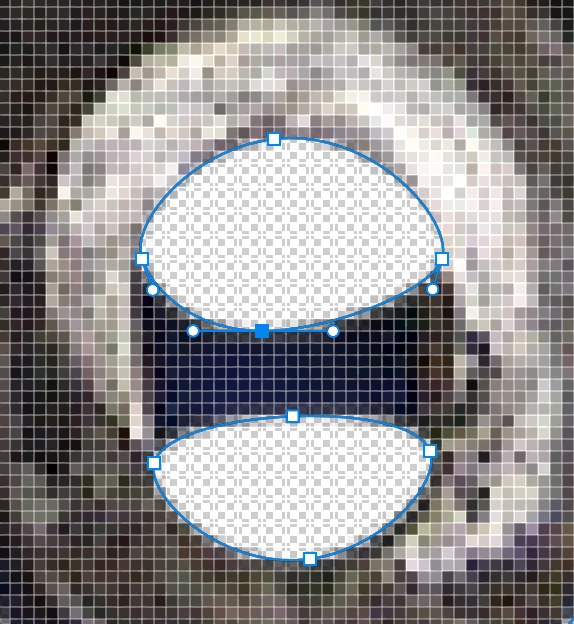
Thanks for any insight.
Dieses Thema wurde für Antworten geschlossen.
Beste Antwort von davescm

Thanks for taking the time to create that answer!

Unfortunately, that doesn't work either. The result is that, despite "combine shapes" being on, the new shape is subtracted from the mask; so the result looks like this:

Also, this still doesn't address the problem of not being able to combine shapes by breaking apart nodes and joining them.


https://forums.adobe.com/people/Mobius+Strip  wrote

Thanks for taking the time to create that answer!

Unfortunately, that doesn't work either. The result is that, despite "combine shapes" being on, the new shape is subtracted from the mask; so the result looks like this:

Also, this still doesn't address the problem of not being able to combine shapes by breaking apart nodes and joining them.

I've just realised you are creating a hole in the mask not a mask in that shape.

In that case set the path operation to subtract front shape.

So starting with this:

.... add the extra element with path operations set to subtract front path

Dave

2 Antworten

c.pfaffenbichler
Community Expert
Community Expert
April 17, 2018

Known Participant
April 17, 2018

Switching the ellipse-tool mode to "path" did indeed make it work as expected on the mask layer.  Thanks!

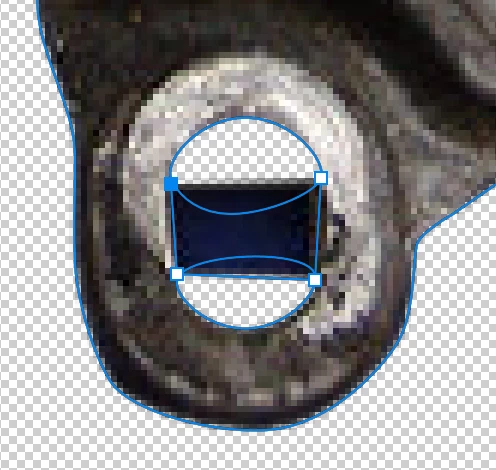
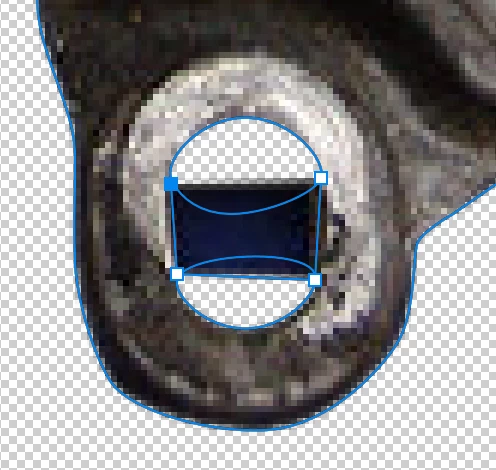
But... Merge Shape Components doesn't work.  In fact, both shapes simply disappear if I use it after "Combine Shapes" (as depicted below).  If I use it without doing "Combine Shapes," it has no discernible effect at all.

Making them overlap didn't help either.

davescm
Community Expert
Community Expert
April 17, 2018

Hi

Starting from this:

Use the pen tool and make sure options bar is set to path and combine shapes

Either deselect the anchor points before drawing or hover over an anchor point you want to join and hold down the shift key so that the pen creates a new path rather than deleting the old point.

The draw a path to the other shape and back again

The vector mask will be in the outline but the sub-shapes remain individually editable

Dave

c.pfaffenbichler
Community Expert
Community Expert
April 17, 2018

1) What are the Ellipse Tool’s complete settings in the Options Bar? Is it set to »Path« or »Shape«?

2) Not completely sure what you mean but have you tried »Merge Shape Components«?